KO
|
EN
gitlite — search
Search
#python
#java
#python3
#arduino
#golang
#machine-learning
#rust
#html
#flask
#javascript
#seismology
#nodejs
alfred-notion-search
★ 10
Open GitHub ↗
Search Notion pages with Alfred
Download README (.md)
Explore Similar Repositories
iceberg-rest-catalog
:
No description available.
anonfiles-url-shorten
:
Turn Anonfiles into a URL shortener!
PLATEAU-generator-for-spatialid
:
PLATEAUのための空間ID生成ツール
AwesomeBooks
:
This code creates a web application that allows the user to add and remove books from a list, with the list being stored in local storage.
python-click-tutorial
:
No description available.
// repository documentation
Was this content helpful?
★ 0
(0 ratings)
Select Rating:
★
★
★
★
★
Submit Feedback
Recent Feedback
×
Download README
Do you want to download the
README.md
file for
alfred-notion-search
?
Download (.md)
# <img src="images/notionxalfred.png" width="64"> Notion Search Workflow for Alfred ## 🤔 Introduction - This [Alfred](https://www.alfredapp.com/) workflow enables you to perform online and offline searches of your Notion pages. - It requires a Notion integration (API key). ## 🌟 Features - **Online Search**: Search your Notion pages online for the most up-to-date information. - **Offline Search**: Search through a locally stored copy of your pages for quick access. Breadcrumbs are shown to provide better context and page hierarchy. - **Data Update**: Update your local data at your convenience to ensure accurate offline searches of your pages. - **Opening Page in a New Tab**: Open the selected page in a new tab in the Notion app. ## 🚀 Installation 1. Install [⤓ Notion Search Workflow](https://github.com/svenko99/alfred-notion/releases/latest/download/Notion.search.alfredworkflow) in the repo. Double click on it and Alfred app should open with installation of the workflow. You will be prompted to put `Notion API key (of the integration)`. Follow steps in `2.` to get the API key. 2. Follow this [instructions](https://www.notion.so/help/create-integrations-with-the-notion-api#create-an-internal-integration) to create an internal integration and put the `Internal Integration Token` into the `Notion API key (of the integration)`. 3. Follow this [instructions](https://developers.notion.com/docs/create-a-notion-integration#give-your-integration-page-permissions) to give your integration premission to search for pages. You only need to give premission to the main pages on the left side of Notion, as subpages inherit the premission. 4. Now the setup is complete and the workflow should work. I recommend running the data update `nupdate` first to ensure offline search functionality. ## 🔧 Workflow variables |Variable |Type |Description | |---|---|---| |Notion API key (of the integration)|Text Field |This is a text field where you input the API key required for the integration with Notion. (e.g. `secret_WmzOfHiLeipQKPiRd5GsdVlwXXcgP3I44GdoreruIV`) | |Use desktop client|Checkbox |A checkbox indicating whether to open links in the desktop client or in the browser. | |Enable custom images | Checkbox |A checkbox to enable or disable the downloading of custom Notion page icon images.| ## 🔄 Usage - **Online Search**: Type `n` followed by your search query to search your Notion pages online (If you press ⇧ + ⏎ it will open the page in a new tab in the Notion app). - **Offline Search**: Type `ns` followed by your search query to search your Notion pages offline (If you press ⇧ + ⏎ it will open the page in a new tab in the Notion app). - **Data Update**: Type `nupdate` and enter to update your local data for offline searches. I suggest to do that firstly when you download the workflow. - ⚠️ **Note**: Running `nupdate` for the first time, especially with the option `Enable custom images` checked, may take some time, particularly if you have a large number of custom images. - ⚠️ **Note**: To make sure opening a page in a new tab works, you must toggle off the setting `New Tab Search` located in `Settings → Preferences` under `Desktop app` section in Notion app. 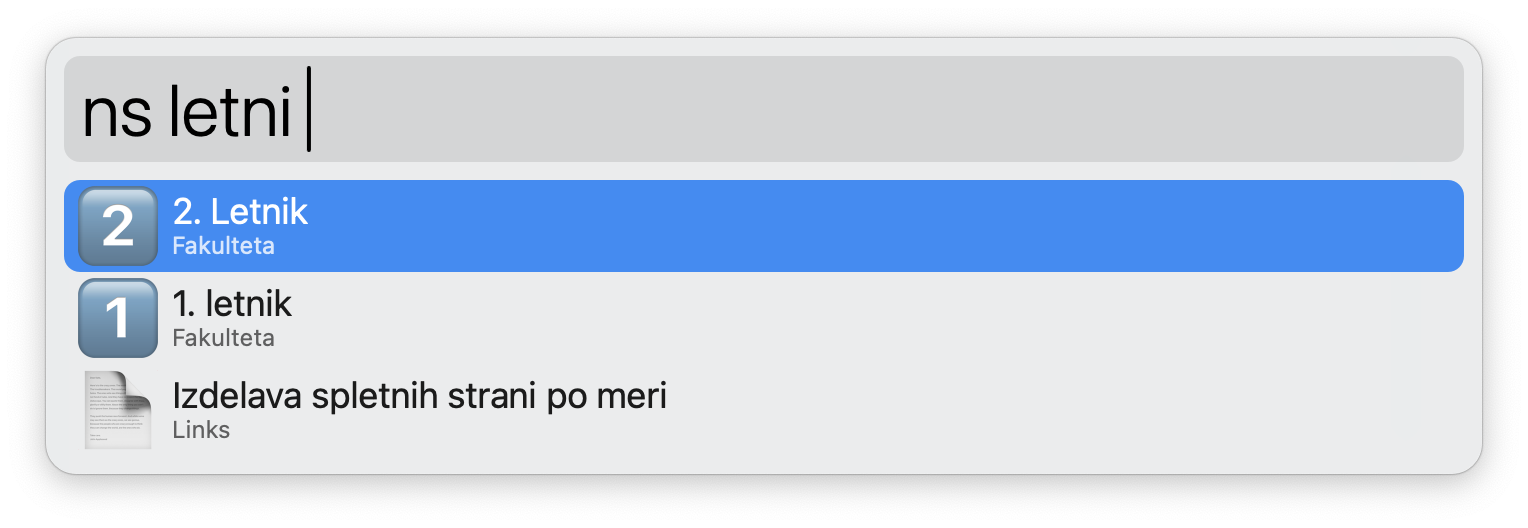 ## ✔️ To-do - [ ] Add auto-refresh to the offline mode via Alfred 5.5 `loosereload` caching. Currently offline data only refreshes on manual `nupdate`. With `"cache": {"seconds": N, "loosereload": true}` in the JSON output, Alfred serves the cached list instantly and re-runs the script in the background on expiry to refresh it automatically. Requires enabling "Alfred filters results" and returning the full page list per run regardless of query (the `match` field is already populated). - [ ] Because Alfred filters Script Filter results, the item that reminds the user of old data is not in a deterministic place. It needs to be.
