KO
|
EN
gitlite — search
Search
#python
#java
#python3
#arduino
#golang
#machine-learning
#rust
#html
#flask
#javascript
#seismology
#nodejs
moonwm
★ 31
Open GitHub ↗
My own outstandingly named Window Manager
Download README (.md)
Explore Similar Repositories
mjolnir.tiling
:
Add tiling window management powers to your mjolnir
hwatu
:
Fast, interruptible verification browser for AI coding agents: 35 ms checks, pixel diffs, live human hand-off
pgwm
:
A minimal tiling x11 window manager
macos-dotfiles
:
Dotfiles of my macOS window tiling manager setup
tmax
:
Cross-platform multi-terminal app with tiling layouts, floating panels, and a keyboard-driven workflow
// repository documentation
Was this content helpful?
★ 0
(0 ratings)
Select Rating:
★
★
★
★
★
Submit Feedback
Recent Feedback
×
Download README
Do you want to download the
README.md
file for
moonwm
?
Download (.md)
 # MoonWM <!-- START doctoc.sh generated TOC please keep comment here to allow auto update --> <!-- DO NOT EDIT THIS SECTION, INSTEAD RE-RUN doctoc.sh TO UPDATE --> **Table of Contents** - [Usage](#usage) - [Most important shortcuts](#most-important-shortcuts) - [Quick help](#quick-help) - [Setting up multiple monitors](#setting-up-multiple-monitors) - [Drun (MOD+d) features](#drun-modd-features) - [Customizing](#customizing) - [Default Applications](#default-applications) - [Other Environment Variables](#other-environment-variables) - [Configuration File (X Resources)](#configuration-file-x-resources) - [Window Manager Settings](#window-manager-settings) - [Colors](#colors) - [Creating your own status script](#creating-your-own-status-script) - [Add favorites menu](#add-favorites-menu) - [Details](#details) - [Available layouts](#available-layouts) - [Dependencies](#dependencies) - [Patches implemented](#patches-implemented) - [Credits](#credits) <!-- END doctoc.sh generated TOC please keep comment here to allow auto update --> **Screenshot:** 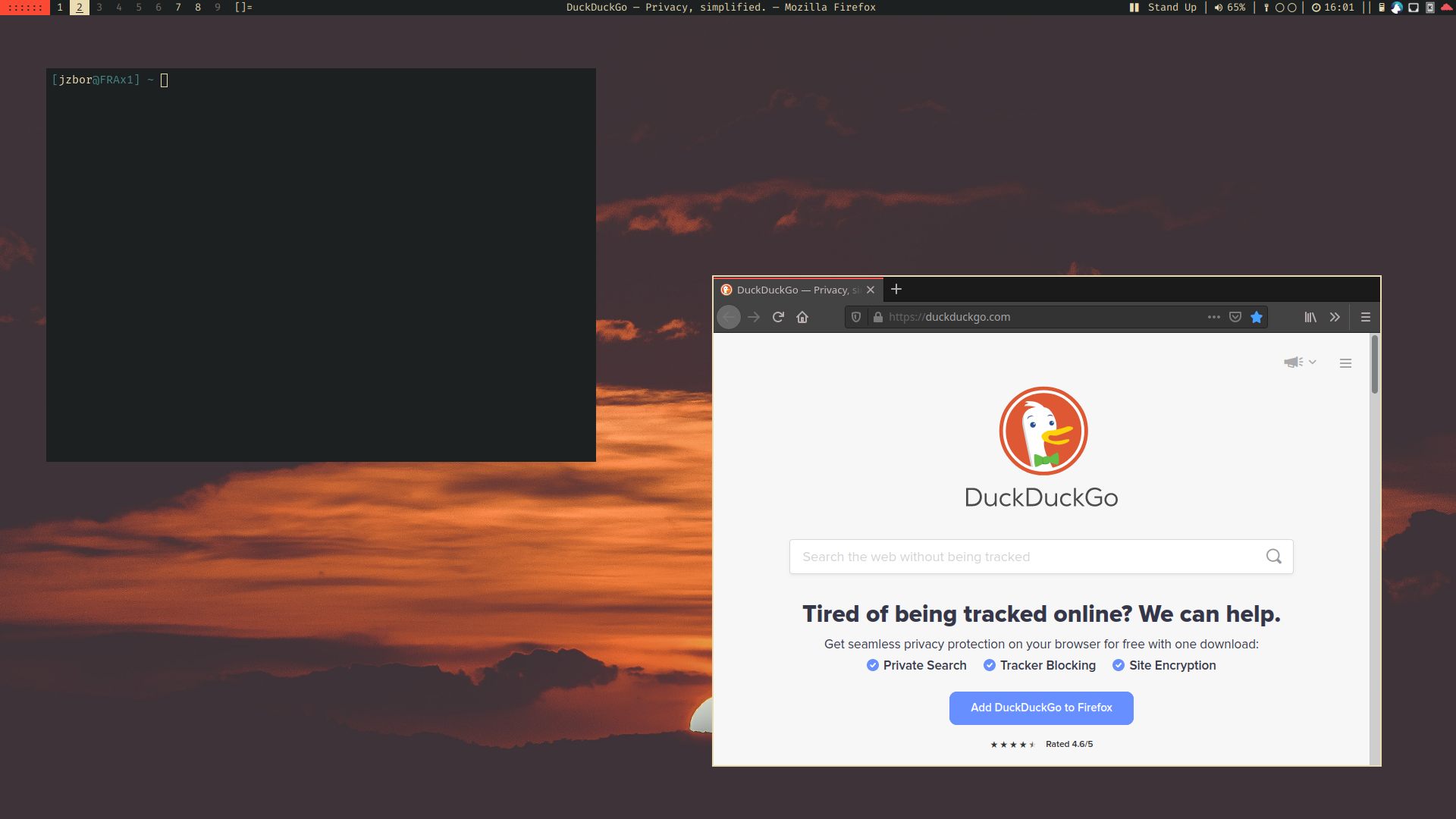 **Packages:** `aur/moonwm`, `aur/moonwm-git` **Installation from source:** ```sh sudo make install-all clean ``` ## Usage ### Most important shortcuts * `MOD + d` **Open Application** * `MOD + 1-9` **Switch Tag** * `MOD + Shift + q` **Close Application** * `MOD + F11` **Help Menu (see below)** Use **hjkl** or **arrow keys** for `<direction>`: * `MOD + <direction>` **Focus Client** * `MOD + Shift + <direction>` **Move Client** * `MOD + Control + <direction>` **Resize Client** ### Quick help **For a quick interactive help page press MOD(Win)+F11. You will get an interactive list with shortcuts and their corresponding actions. You can also directly select most of the entries to execute their action.** ### Setting up multiple monitors The easiest way to setup multiple monitors is through `arandr`. It also supports saving configurations for later use. If you use pademelon `pademelon-daemon` automatically saves your most recent layout and restores it on restart. ### Drun (MOD+d) features You can prepend your query with an `!` to execute the following input directly or with a `?` to pass it on to your default browser. To execute a command in a new terminal window try to prepend a `:`. If no desktop file according to your input is found and you hit enter the input will be executed in a shell. ## Customizing MoonWM brings defaults for everything. It automatically searches for stuff like the default browser or terminal. Please let me know if your favorite browser or terminal does not get recognised yet. Of course if you dislike the defaults you can always adjust the looks and the behavior as well as default applications. While styling and window manager settings are managed via the config file some things like default applications have to be set via environment variables. ### Default Applications If you are using pademelon you can customize the default apps with the `pademelon-settings` GUI tool. Alternatively you can set them up directly as environmental variables. For example by adding this to your `~/.profile`: ```sh # default applications export BROWSER="firefox" export FILEMANAGER="pcmanfm" export TERMINAL="alacritty" export DMENUCMD="rofi -show drun" export STATUSCMD="/path/to/my/statuscmd" ``` ### Other Environment Variables The values below are not necessarily the defaults but rather examples. If you wonder where they go take a look at `~/.profile`. ```sh MOONWM_THEMEDDMENU=1 # automatic dmenu theming MOONWM_THEMEDXMENU=1 # automatic xmenu theming MOONWM_NERDFONT=1 # enables/disables NerdFont icons in status and menus ``` ### Configuration File (X Resources) The following options should be set in the config file in `~/.config/moonwm/config.xres`. Their format is the same as the one used by the `.Xresources` file. #### Window Manager Settings For your modkey you can choose between the Alt and the Super key with Alt being the default: ```yaml moonwm.modkey: Super # Alt is the default ``` With these settings you can turn features on or off (listed with their default values): ```yaml moonwm.keys: 1 # enable/disable internal moonwm key handling moonwm.workspaces: 0 # use workspaces like i3 instead of tags (experimental) moonwm.swallow: 1 # enable/disable swallowing moonwm.swallowfloating: 1 # enable/disable swallowing for floating windows moonwm.closeswallowed: 1 # close terminal windows instead of restoring them later # rules (take a look at src/rules.h) moonwm.rules: 1 # load rules to configure windows (eg. center dialogs) moonwm.tagrules: 0 # load tagrules to configure window tags (eg. Spotify on tag 8) # bar moonwm.showbar: 1 # show a bar moonwm.systray: 1 # show system tray icons moonwm.topbar: 1 # place bar at the top or bottom # clients moonwm.smartgaps: 1 # disable gaps when only one client is visible moonwm.resizehints: 0 # let clients choose their size when tiled moonwm.centeronrh: 0 # if resizehints applies, center the window moonwm.decorhints: 1 # decoration hints (MOTIF) # navigating and organizing moonwm.focusdir: 1 # switch focus based direction instead of stack structure moonwm.movedir: 1 # move windows based direction instead of stack structure moonwm.wraparound: 0 # wrap around the screen edges when using focusdir or movedir moonwm.centerfloat: 0 # initially center floating windows ``` You can also customize these settings (also listed with their defaults), which all take unsigned integer arguments: ```yaml moonwm.layout: 0 # initial default layout moonwm.borderwidth: 5 # width of the window borders moonwm.framerate: 60 # frame rate when dragging windows; should be >= monitor refresh rate moonwm.gaps: 5 # gaps; 0 to disable gaps moonwm.mfact: 55 # master size ratio; must be between 5 and 95 moonwm.inset-top: 0 # inset at the top of the screen (for external bars) moonwm.inset-bottom: 0 # inset at the bottom of the screen (for external bars) moonwm.inset-left: 0 # inset at the left of the screen (for external bars) moonwm.inset-right: 0 # inset at the right of the screen (for external bars) ``` #### Colors These are the color values you can customize (either in `~/.Xresources` or `~/.config/moonwm/config.xres`): ```yaml moonwm.focusedBorder: #ebdbb2 moonwm.focusedTitleBg: #1d2021 moonwm.focusedTitleFg: #ebdbb2 moonwm.menuBg: #fb4934 moonwm.menuFg: #1d2021 moonwm.occupiedTagBg: #1d2021 moonwm.occupiedTagFg: #ebdbb2 moonwm.statusBg: #1d2021 moonwm.statusFg: #ebdbb2 moonwm.trayBg: #1d2021 moonwm.unfocusedBorder: #1d2021 moonwm.unfocusedTitleBg: #1d2021 moonwm.unfocusedTitleFg: #7c6f64 moonwm.vacantTagBg: #1d2021 moonwm.vacantTagFg: #7c6f64 moonwm.areaSelection: #ebdbb2 ``` To make everything, especially the menu fit together you also need to customize it's coloring. You can do that **only in `~/.Xresources`**. ```yaml *background: #1d2021 *foreground: #ebdbb2 xmenu.background: #1d2021 xmenu.foreground: #ebdbb2 xmenu.border: #1d2021 xmenu.selbackground: #ebdbb2 xmenu.selforeground: #1d2021 ``` *Note that configuration via the `.Xresources` file or similar is also possible, although the config file mentioned above is preffered. To enable styling of other applications `~/.Xresources` is loaded on startup.* ### Creating your own status script The built-in `moonwm-status` script should be a good foundation for making your own statuscmd. It is easily extensible and you can simply add blocks with `add_block` in the `get_status` function. Make sure to escape '%' though, as it is interpreted by printf as escape sequence. Take a look at the ["Default Applications"](#default-applications) section for information on how to set it up. If you do *not* use `pademelon` you might also have to set it up to start automatically. This command gets asynchronously on MoonWMs startup with either `loop` as the first parameter or no parameters at all. For now it's best if your script can handle both scenarios. It should then repeatedly set the status to the WM_NAME (for example with `moonctl status`). Make sure to add in a `sleep` so it doesn't unnecessarily waste resources. You can also define clickable blocks actions delimited by ascii chars that are smaller than space. For example: ``` date: 11:05 |\x01 volume: 55% |\x02 cpu-usage: 21% || ``` Once you press one of the blocks the statuscmd script will be called with `action` as its first parameter. The according mouse button will be set as `$BUTTON` and the block number as `$STATUSCMDN`. The standard MoonWM status interface also includes the `update` parameter, which tells the bar to immediately refresh. `status` as first parameter prints out the current statusline to stdout. ### Add favorites menu You can put a file in the `xmenu(1)` format in `~/.config/moonwm/favorites`. To open this menu middle click the menu button on the bar. Example: ``` # vim: set noet: Terminal $TERMINAL Web $BROWSER Media mpv Files $FILEMANAGER ﭮ Discord discord Spotify spotify Mail thunderbird ``` ## Details ### Available layouts * tile (default) * deck * monocle * floating * tileleft * bstack * grid * horizgrid (disabled) * spiral (disabled) * dwindle (disabled) * centeredmaster (disabled) * centeredfloatingmaster (disabled) ### Dependencies All packages are listed with their names in the Arch or Arch User Repositories. The default configuration of MoonWM heavily relies on [Pademelon](https://github.com/jzbor/pademelon), so you will probably want to install it (`pademelon`). **These are the ones required by the MoonWM build itself:** ``` go-md2man libx11 libxcb libxinerama pkgconf slop xmenu ``` *Note: `pkgconf` and `go-md2man` are required only at compile time. The others are also runtime requirements.* **These are the external programs the `moonwm-util` and `moonwm-status` scripts use.** ``` arandr # multihead configuration dmenu # (application) menu libnotify # desktop notifications libpulse # observing volume status otf-nerd-fonts-fira-code # default font pavucontrol # audio configuration sound-theme-freedesktop # sounds xorg-xrandr # multihead support xorg-xrdb # interaction with xres database ``` You may want to use `rofi-dmenu` as a provider for `dmenu` if you use rofi. The `Fira Code Nerd Font` is available [here](https://github.com/ryanoasis/nerd-fonts/blob/v2.1.0/patched-fonts/FiraCode/Regular/complete/Fira%20Code%20Regular%20Nerd%20Font%20Complete.ttf) ### Patches implemented * actualfullscreen * alpha (fixborders) * attachaside * autostart * centeredwindowname * cyclelayouts * deck * deck-tilegap * decorhints * dwmc * ewmhtags * fixborders * focusdir * focusonnetactive * layoutmenu * pertag * placemouse * riodraw * restart * savefloats * shiftview/shiftviewclients * stacker * statusallmons * statuscmd * swallow * systray * vanitygaps * warp * xrdb ## Credits * to **Guzman Barquin** for the moon in the title image
