KO
|
EN
gitlite — search
Search
#typescript
#ai-agents
#ai
#dsh-plugin
#deepseek-harness
#open-source
#claude-code
#codex
#cli
#developer-tools
#react
#windows
azure-rbac-controller
★ 66
Open GitHub ↗
No description available.
Download README (.md)
Explore Similar Repositories
openclawenterprise
:
OpenClaw Enterprise — zero-trust AI agent platform with IAM/RBAC, audit logging, Vault/AWS/GCP/Azure secrets, Kubernetes Helm chart, and viral install scripts. MIT licensed.
aks-rbac-azure-ad
:
Secure an Azure Kubernetes Service cluster with Azure Active Directory
// repository documentation
Was this content helpful?
★ 0
(0 ratings)
Select Rating:
★
★
★
★
★
Submit Feedback
Recent Feedback
×
Download README
Do you want to download the
README.md
file for
azure-rbac-controller
?
Download (.md)
# Azure RBAC Controller Manage Azure RBAC role assignments as code using Terraform, with automated drift detection via GitHub Actions. ## Overview This solution helps you: - **Export existing RBAC role assignments** from Azure subscriptions into Terraform configuration - **Manage role assignments with Infrastructure as Code** with version control and pull request reviews - **Support for ABAC conditions** - role assignments with conditions are fully supported - **Exclude time-based (PIM) assignments** - JIT access assignments are automatically excluded - **Detect configuration drift** automatically via scheduled GitHub Actions workflows - **Apply changes safely** with plan-on-PR and apply-on-merge workflows ## How It Works 1. Run the provided `map.ps1` PowerShell script to scan specified Azure subscriptions. The script maps out all of the existing role assignments in the subscription (at all scopes) and generates Terraform configuration and variables files. 2. Terraform import blocks are generated to import existing role assignments into Terraform state. 3. Corresponding variables files are created to define the desired state of role assignments. These files can be used later to add, remove, or modify role assignments. 4. After the files are generated by the script, commit and push the generated files to a new branch in your GitHub repository and create a pull request. 5. GitHub Actions workflows are set up to: - `terraform plan` is triggered on pull requests to show proposed changes. - `terraform apply` is triggered on merges to the main branch to enforce changes (for approved and completed PRs). - `detect-rbac-drift` runs on a schedule to check for any drift between the actual state in Azure and the desired state defined in Terraform. If any drift is detected, an issue is created in the repository for review. 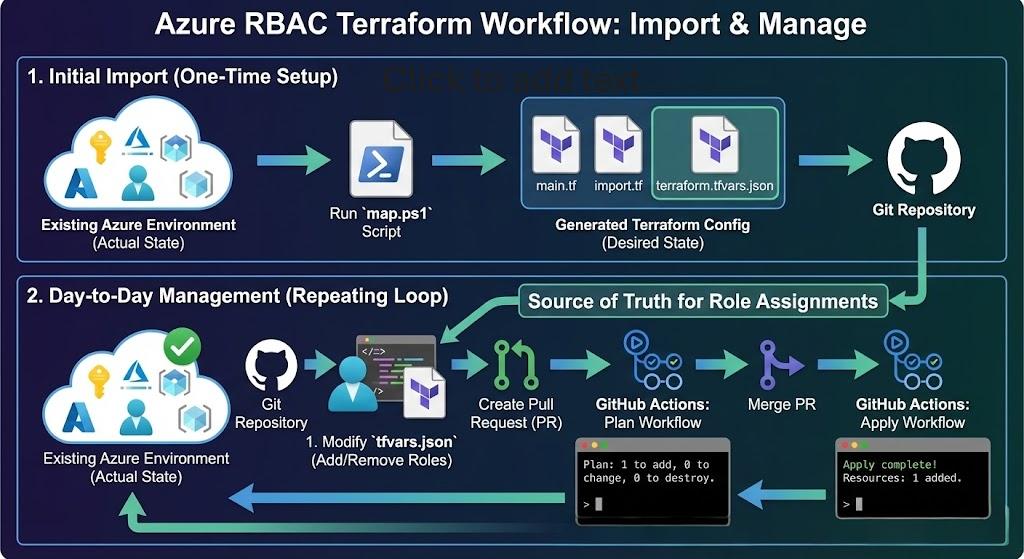 ## Prerequisites - **Azure PowerShell module** linked [here](https://learn.microsoft.com/en-us/powershell/azure/install-az-ps) - **Terraform** >= 1.6 - **GitHub Runners** with PowerShell and Terraform installed (PowerShell is pre-configured on GitHub-hosted managed runners) - **GitHub organization** to host the repository - **GitHub repository** for storing the configuration - **Azure Storage Account** for Terraform state backend --- ## Setup Guide ### Step 0: Fork this Repository (Or download as ZIP) **Option A: Fork (Recommended)** 1. Go to this repository on GitHub. 2. Click the "Fork" button in the top-right corner to create a copy in your own GitHub account. 3. Clone your forked repository locally: `git clone https://github.com/<your-org>/<your-repo>.git` **Option B: Download as ZIP** 1. Click the green "Code" button and select "Download ZIP". 2. Extract the ZIP file to your local machine. 3. Create a new repository in your GitHub organization. 4. Initialize and push the code to your new repository: ```pwsh cd <extracted-folder> git init git add . git commit -m "Initial commit" git remote add origin https://github.com/<your-org>/<your-repo>.git git branch -M main git push -u origin main ``` ### Step 1: Create Azure Storage Account for Terraform State Create a storage account to store Terraform state files: ```pwsh # Login to Azure Connect-AzAccount # Create resource group New-AzResourceGroup -Name "rg-terraform-state" -Location "eastus" # Create storage account (name must be globally unique) $storageAccount = New-AzStorageAccount ` -ResourceGroupName "rg-terraform-state" ` -Name "tfstate<unique-suffix>" ` -Location "eastus" ` -SkuName "Standard_LRS" ` -AllowBlobPublicAccess $false ` -MinimumTlsVersion "TLS1_2" # Create container for state files New-AzStorageContainer -Name "tfstate" -Context $storageAccount.Context ``` ### Step 2: Create Service Principal with OIDC for GitHub Actions GitHub Actions will authenticate to Azure using OIDC (OpenID Connect) - no secrets to rotate! #### 2.1 Create App Registration ```pwsh # Create the app registration $app = New-AzADApplication -DisplayName "sp-terraform-rbac-manager" # Note the AppId (Client ID) $app.AppId ``` #### 2.2 Create Service Principal ```pwsh # Create service principal (using the $app variable from previous step) $sp = New-AzADServicePrincipal -ApplicationId $app.AppId ``` #### 2.3 Configure Federated Credentials for GitHub OIDC Replace `<your-org>` and `<your-repo>` with your GitHub repository details: ```pwsh # Credential for pull requests (terraform plan) $prCredential = @{ Name = "github-pr" Issuer = "https://token.actions.githubusercontent.com" Subject = "repo:<your-org>/<your-repo>:pull_request" Audience = @("api://AzureADTokenExchange") } New-AzADAppFederatedCredential -ApplicationObjectId $app.Id @prCredential # Credential for main branch (terraform apply) $mainCredential = @{ Name = "github-main" Issuer = "https://token.actions.githubusercontent.com" Subject = "repo:<your-org>/<your-repo>:ref:refs/heads/main" Audience = @("api://AzureADTokenExchange") } New-AzADAppFederatedCredential -ApplicationObjectId $app.Id @mainCredential ``` if you have configured the SP correctly, you should see the federated credentials listed: 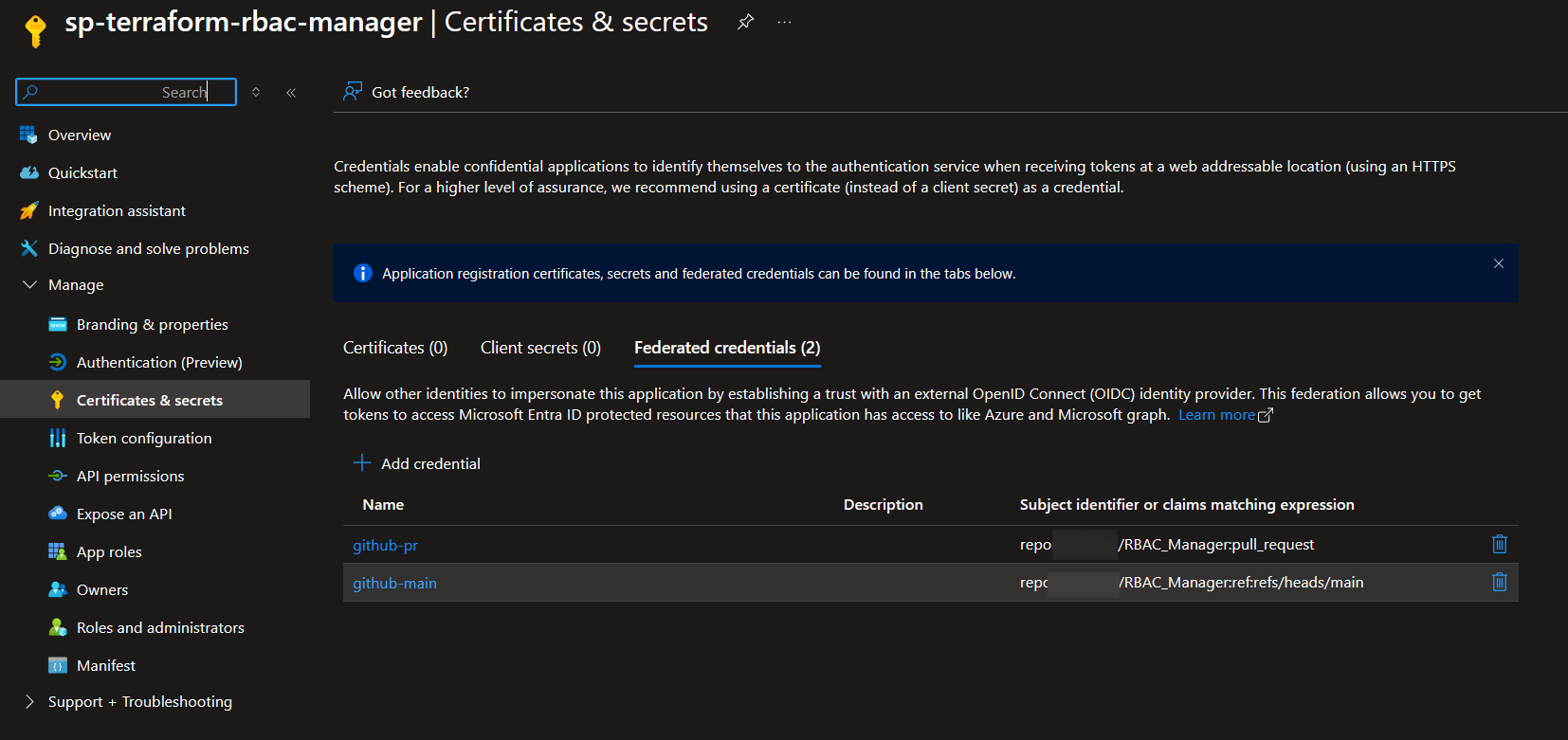 #### 2.4 Assign Required RBAC Permissions The service principal needs permissions to: 1. **Manage role assignments** on target subscriptions 2. **Read/write Terraform state** in the storage account ```pwsh # User Access Administrator on each subscription (to manage role assignments) New-AzRoleAssignment ` -ObjectId $sp.Id ` -RoleDefinitionName "User Access Administrator" ` -Scope "/subscriptions/<subscription-id>" # Reader on each subscription (to read resources) New-AzRoleAssignment ` -ObjectId $sp.Id ` -RoleDefinitionName "Reader" ` -Scope "/subscriptions/<subscription-id>" # Storage Blob Data Contributor on state storage account New-AzRoleAssignment ` -ObjectId $sp.Id ` -RoleDefinitionName "Storage Blob Data Contributor" ` -Scope "/subscriptions/<subscription-id>/resourceGroups/rg-terraform-state/providers/Microsoft.Storage/storageAccounts/tfstate<unique-suffix>" ``` ### Step 3: Configure GitHub Secrets Add the following secrets to your GitHub repository: | Secret Name | Value | |-------------|-------| | `AZURE_CLIENT_ID` | The App Registration Client ID (App ID) | | `AZURE_TENANT_ID` | Your Azure AD Tenant ID | | `AZURE_SUBSCRIPTION_ID` | Subscription ID where the Terraform state storage account resides (not the subscriptions being managed) | To retrieve these values: ```pwsh # Client ID (from the app registration created in Step 2) $app.AppId # Tenant ID (Get-AzContext).Tenant.Id # Subscription ID (where the storage account resides) (Get-AzContext).Subscription.Id ``` Go to your GitHub repository → **Settings** → **Secrets and variables** → **Actions** → **New repository secret** 3 times to add the above secrets. --- ### Step 4: Running the Mapper Script Ensure you are logged into Azure with an account that has read access to the subscriptions you want to scan: ```pwsh Connect-AzAccount ``` The `map.ps1` script scans Azure subscriptions and generates Terraform configuration: ```powershell ./map.ps1 -SubscriptionIds @("<subscription-id-1>", "<subscription-id-2>") ` -StorageAccountName "tfstate<unique-suffix>" ` -StorageAccountResourceGroup "rg-terraform-state" ``` #### Parameters | Parameter | Required | Description | |-----------|----------|-------------| | `-SubscriptionIds` | Yes | One or more Azure subscription IDs to scan | | `-StorageAccountName` | Yes | Storage account name for Terraform state | | `-StorageAccountResourceGroup` | Yes | Resource group containing the storage account | | `-StorageAccountContainer` | No | Container name (default: `tfstate`) | #### Examples **Single subscription:** ```powershell ./map.ps1 -SubscriptionIds "12345678-1234-1234-1234-123456789012" ` -StorageAccountName "tfstatemycompany" ` -StorageAccountResourceGroup "rg-terraform-state" ``` **Multiple subscriptions:** ```powershell ./map.ps1 -SubscriptionIds "sub-id-1", "sub-id-2", "sub-id-3" ` -StorageAccountName "tfstatemycompany" ` -StorageAccountResourceGroup "rg-terraform-state" ``` ### Generated Files The script creates the following structure: ``` subscriptions/ ├── <subscription-name>/ │ ├── main.tf # Terraform configuration with RBAC module │ ├── backend.tf # Azure backend configuration │ ├── import.tf # Import blocks for existing role assignments │ └── terraform.tfvars.json # Role assignment data (including conditions if present) ``` > **Note:** The mapper script automatically excludes time-based (PIM/JIT) role assignments that have an expiration date. Only permanent role assignments are imported into Terraform. Now everything is ready to run plan and apply to import and manage role assignments (steps continued in the next section). --- ### Step 5: GitHub Actions Workflows and Pull Requests #### Branch, commit and push the generated files 1. Create a new branch in your GitHub repository using ```git checkout -b rbac-mapping``` 2. Add the generated files to git: `git add .` 3. Commit the changes: `git commit -m "Import Azure RBAC role assignments"` 4. Push the branch: `git push origin rbac-mapping` #### Terraform Plan on Pull Requests 1. Open a pull request against the `main` branch 2. The GitHub Actions workflow `terraform-plan.yml` triggers automatically 3. Review the Terraform plan output in the PR checks 4. You should only see `resources to import` and 0 for create, destroy, or change > **Recommendation:** Configure [branch rulesets](https://docs.github.com/en/repositories/configuring-branches-and-merges-in-your-repository/managing-rulesets/about-rulesets) to protect the `main` branch. This ensures that all changes go through pull requests with proper review and that the Terraform plan workflow runs before merging. #### Terraform Apply on Merge 1. If you are satisfied with the plan, merge the PR into `main` 2. The GitHub Actions workflow `terraform-apply.yml` triggers automatically 3. **The role assignments are now managed by Terraform!** ## Managing Role Assignments Now that the role assignments are imported into Terraform, you can manage them via code. To do so: 1. Open the relevant directory under `subscriptions/<subscription-name>/` 2. edit the `terraform.tfvars.json` file to add, remove, or modify role assignments (note that each record in the json file has a numeric key, Keys are meaningless, they should just be unique within the file) 3. You can add roles, modify roles or remove roles by editing the json file: ```json { "permissions": { "0": { ... }, "1": { "roleDefinitionName": "Reader", "scope": "/subscriptions/<sub-id>/resourceGroups/<rg-name>", "principalId": "<user-or-group-object-id>" }, "2": { "roleDefinitionName": "Storage Blob Data Reader", "scope": "/subscriptions/<sub-id>", "principalId": "<user-or-group-object-id>", "condition": "@Resource[Microsoft.Storage/storageAccounts/blobServices/containers:name] StringEquals 'my-container'", "conditionVersion": "2.0" } } } ``` 4. add commit and push to a new branch 5. open a pull request against `main` 6. review the plan output in the PR checks 7. merge the PR to apply the changes ## Drift Detection A scheduled workflow runs daily to detect configuration drift. Configuration drift occurs when role assignments are changed outside of Terraform (e.g., manually in the Azure portal). To keep control over your role assignments, the drift detection workflow runs daily and creates an issue if any drift is detected. ### What is Detected The drift detection identifies two types of drift: | Drift Type | Description | |------------|-------------| | **Missing** | Role assignments that exist in Azure but are not managed by Terraform | | **ConditionMismatch** | Role assignments where the ABAC condition or condition version differs between Azure and Terraform | > **Note:** Time-based (PIM/JIT) role assignments with an expiration date are automatically excluded from drift detection. ### How It Works 1. Runs a PowerShell script that: - Scans the specified subscriptions for current role assignments (using Az PowerShell module) - Excludes time-based PIM assignments that have an expiration date - Compares the current state with the desired state defined in the Terraform configuration - Compares both role assignment existence AND ABAC conditions - If differences are found, generates a detailed report 2. Creates an issue if drift is detected with: - A summary table showing all drifted role assignments - Drift type (Missing or ConditionMismatch) - Condition details if applicable - **Remediation instructions** for missing role assignments including: - Ready-to-use import blocks for `import.tf` - JSON entries for `terraform.tfvars.json` - Git commit and PR instructions 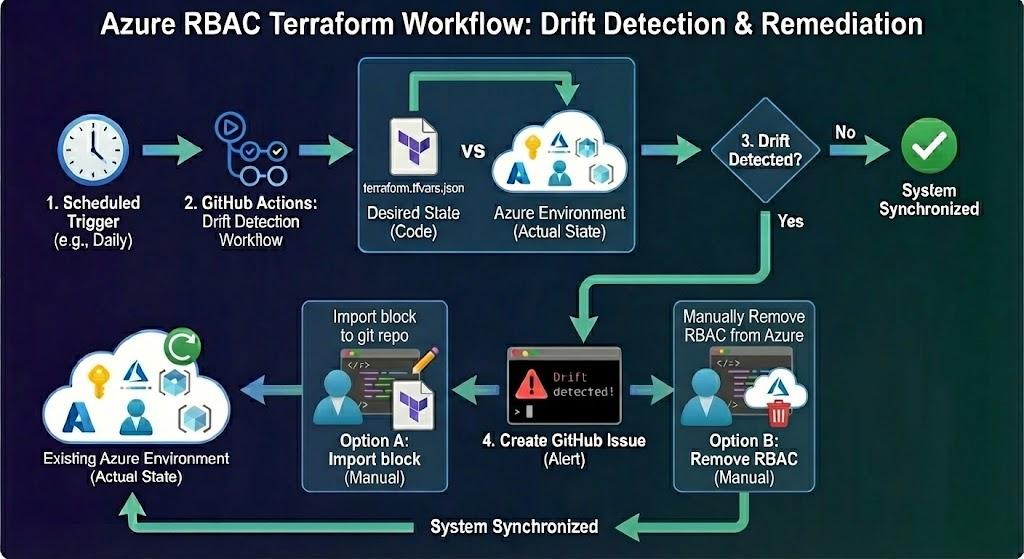 --- ## Troubleshooting ### Authentication Errors If GitHub Actions fails with authentication errors: - Verify the federated credentials are configured correctly - Check that the subject claim matches your repository and branch/PR - Ensure the secrets are set correctly in GitHub ### Permission Errors If you encounter permission errors: - Ensure the service principal has `User Access Administrator` role on the target subscriptions - Ensure the service principal has `Reader` role on the target subscriptions - Ensure the service principal has `Storage Blob Data Contributor` on the storage account - If running the mapper script locally, ensure your account has read access to the subscriptions ### Terraform State Errors If Terraform cannot access the state file: - Verify the storage account name and container name are correct - Ensure the service principal has `Storage Blob Data Contributor` role on the storage account - Check that the `AZURE_SUBSCRIPTION_ID` secret is set to the subscription containing the storage account --- ## Contributing This project welcomes contributions and suggestions! Please feel free to raise an issue or create a pull request. --- ## License MIT License - see [LICENSE](LICENSE) for details. --- ## Disclaimer This project is provided as a helpful starting point for managing Azure RBAC with Terraform. While we've done our best to make it reliable, please review the code and Terraform plans before applying changes and always test in a non-production environment first. This project is provided as-is and without any warranty.
