KO
|
EN
gitlite — search
Search
#typescript
#ai-agents
#ai
#dsh-plugin
#deepseek-harness
#open-source
#claude-code
#codex
#cli
#developer-tools
#react
#windows
godex
★ 47
Open GitHub ↗
AI coding agent with more freedom.
Download README (.md)
Explore Similar Repositories
surge-vless-bridge
:
Surge Mac VLESS support via sing-box — converts VLESS subscriptions (REALITY / XTLS Vision) into Surge external proxy entries and policy groups.
TalkWithMe
:
Configurable AI chat with TTS/STT
SpringBreak
:
AKA "WinterBreak3"
TraceParse
:
No description available.
r12-vincenthopf-my-claude-code-ecommerce
:
🛒 E-commerce & Retail skill suite derived from vincenthopf/My-Claude-Code.
// repository documentation
Was this content helpful?
★ 0
(0 ratings)
Select Rating:
★
★
★
★
★
Submit Feedback
Recent Feedback
×
Download README
Do you want to download the
README.md
file for
godex
?
Download (.md)
[](https://snapcraft.io/godex-ai-agent) [](https://snapcraft.io/godex-ai-agent) # GoDex - AI Agent GoDex is an AI coding agent that interfaces with Ollama, llama.cpp, Gemini, OpenRouter (and other LLM providers) through a TUI, with built-in MCP support. Orchestration and parallel tasks? open another terminal tab and start a new instance of `godex`. 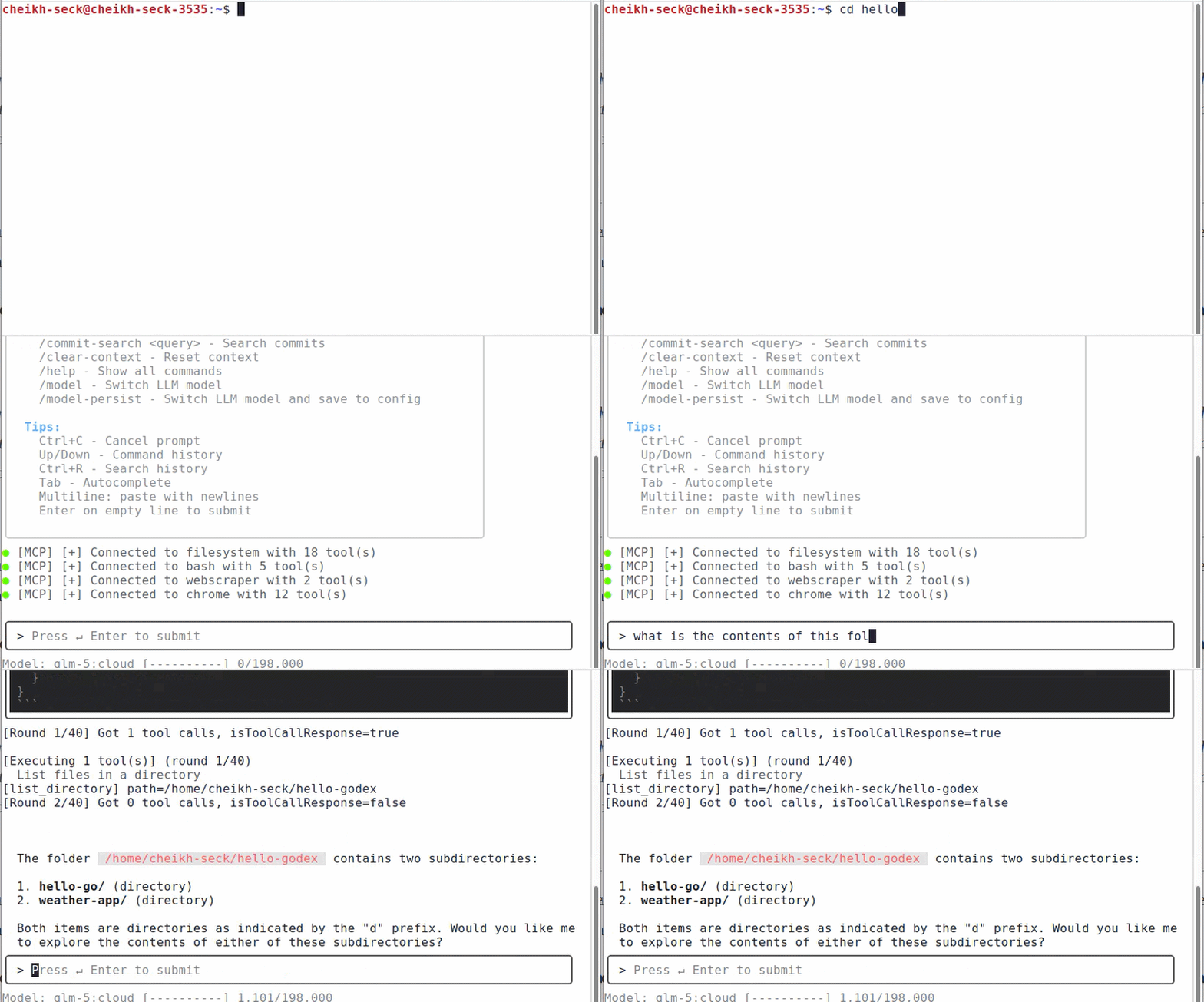 ## Table of Contents - [Requirements](#requirements) - [Installation](#installation) - [Quick Install (Linux/macOS)](#quick-install-linuxmacos) - [Quick Install (Windows)](#quick-install-windows) - [Quick Install (Docker)](#quick-install-docker) - [Build from Source](#build-from-source) - [Manual Download](#manual-download) - [Setting up providers](#setting-up-providers) - [Ollama Setup](#ollama-setup) - [OpenRouter Setup](#openrouter-setup) - [llama.cpp Setup](#llamacpp-setup) - [Configuration](#configuration) - [Quick Setup](#quick-setup) - [Manual Configuration](#manual-configuration) - [Configuration Options](#configuration-options) - [MCP Servers](#mcp-servers) - [Hive Network](#hive-network) - [Usage](#usage) - [Shell Completion](#shell-completion) - [Commands in TUI](#commands-in-tui) - [Building](#building) - [Running Securely with Docker](#running-securely-with-docker) - [Troubleshooting](#troubleshooting) ## Installation ### Quick Install (Linux/macOS) ```bash curl -sSL https://raw.githubusercontent.com/cheikh2shift/godex/main/install.sh | sh ``` ### Quick Install (Windows) Download the binary and place it in a directory on your `PATH` (e.g. `C:\Windows\System32` or `%LOCALAPPDATA%\Microsoft\WindowsApps`): ```powershell Invoke-WebRequest -Uri "https://github.com/cheikh2shift/godex/releases/download/v0.26.2/godex-windows-amd64.exe" -OutFile "$env:LOCALAPPDATA\Microsoft\WindowsApps\godex.exe" ``` ### Quick Install (Docker) ```bash curl -sSL https://raw.githubusercontent.com/cheikh2shift/godex/main/install-docker.sh | bash ``` ### Build from Source ```bash git clone https://github.com/cheikh2shift/godex.git cd godex go build -o godex ./cmd/godex sudo mv godex /usr/local/bin/ ``` ------------------------------------------------------------- ## Setting up providers ### Ollama Setup 1. **Install Ollama**: Follow instructions at https://github.com/ollama/ollama 2. **Start Ollama server**: ```bash ollama serve ``` 3. **Pull a model** (recommended: nemotron-3-super:cloud or minimax-m2.7:cloud): ```bash ollama pull nemotron-3-super:cloud # or ollama pull minimax-m2.7:cloud ``` 4. **Verify Ollama is running**: ```bash curl http://localhost:11434 ``` ### OpenRouter Setup Launch Godex and choose `oauth` as the form of authentication to automatically obtain an API key or: 1. **Get an API key**: Sign up at https://openrouter.ai/keys 2. **Set the environment variable**: ```bash export OPENROUTER_API_KEY=sk-or-v1-... ``` 3. **Run the wizard** to configure: ```bash godex --wizard ``` Select `openrouter` as the provider type and choose from 100+ available models. ### llama.cpp Setup 1. **Install llama.cpp**: Download from https://github.com/ggerganov/llama.cpp/releases or build from source 2. **Ensure llama-server is in your PATH**: The binary should be named `llama-server` and accessible from command line 3. **Run the wizard** to configure: ```bash godex --wizard ``` Select `llama.cpp` as the provider type. GoDex will automatically download models from Hugging Face or use local GGUF files. 4. **Using an external llama-server** (optional): ```bash # Start llama-server manually with jinja support for function calling llama-server -m models/your-model.gguf -fa -c 8192 --jinja # Connect godex to it godex --llama-server http://localhost:8080 ``` ## Configuration GoDex reads provider configuration from `~/.godex/providers.yaml`. ### Manual Download Download from [GitHub Releases](https://github.com/cheikh2shift/godex/releases): | OS | Architecture | File | |----|-------------|------| | Linux | AMD64 | `godex-linux-amd64` | | Linux | ARM64 | `godex-linux-arm64` | | macOS | AMD64 | `godex-darwin-amd64` | | macOS | ARM64 | `godex-darwin-arm64` | | Windows | AMD64 | `godex-windows-amd64.exe` | Example: **Linux (AMD64):** ```bash curl -L -o godex https://github.com/cheikh2shift/godex/releases/latest/download/godex-linux-amd64 chmod +x godex sudo mv godex /usr/local/bin/ ``` **macOS (Intel):** ```bash curl -L -o godex https://github.com/cheikh2shift/godex/releases/latest/download/godex-darwin-amd64 chmod +x godex sudo mv godex /usr/local/bin/ ``` **macOS (Apple Silicon):** ```bash curl -L -o godex https://github.com/cheikh2shift/godex/releases/latest/download/godex-darwin-arm64 chmod +x godex sudo mv godex /usr/local/bin/ ``` ### Quick Setup Run the wizard to generate the config: ```bash godex --wizard ``` ### Manual Configuration Create `~/.godex/providers.yaml`: ```yaml providers: - name: ollama type: ollama endpoint: http://localhost:11434 model: minimax-m2.5:cloud description: Ollama with codeqwen temperature: 0.2 mcp_servers: - name: filesystem # enable file exploring - name: bash # enable command execution default_provider: ollama ``` Docker note: from inside the GoDex container, use `http://ollama-proxy:11434` to reach the nginx proxy, or `http://host.docker.internal:11434` to reach a host Ollama instance. ### Configuration Options | Field | Description | |-------|-------------| | `name` | Provider identifier | | `type` | Provider type: `ollama`, `llama.cpp`, `gemini` or `openrouter` | | `endpoint` | Base URL for provider (Ollama: `http://localhost:11434`, llama.cpp: `http://localhost:8080`, OpenRouter: `https://openrouter.ai/api/v1`) | | `model` | Model name (e.g., `nemotron-3-super:cloud`, `codellama`, `minimax-m2.7:cloud` | | `description` | Human-readable description | | `temperature` | LLM temperature (0.0-1.0) | | `max_tool_rounds` | Max tool call rounds (default: 10) | | `tool_timeout` | Tool execution timeout in seconds (default: 180) | | `api_key_env` | Environment variable for API key (Gemini/OpenRouter) | | `api_key` | Direct API key (not recommended) | | `mcp_servers` | List of MCP servers to enable | | `context_limit` | Context window size in tokens (auto-detected for OpenRouter) | ### MCP Servers GoDex includes built-in MCP servers: | Server | Description | |--------|-------------| | `filesystem` | Read, write, list directories, create/delete files | | `bash` | Run shell commands, Python, Node.js | | `webscraper` | Fetch URLs with JavaScript rendering, search HTML, extract links | For detailed MCP configuration including external servers, see [MCP.md](MCP.md). To expose the built-in filesystem MCP server to other agents/clients over stdio, see [MCP_BUILTIN_FILESYSTEM_SERVER.md](MCP_BUILTIN_FILESYSTEM_SERVER.md). ### Hive Network GoDex supports a Hive network mode where multiple instances can delegate tasks to each other. See [HIVE.md](HIVE.md) for details. #### Adding Allowed Paths By default, MCP servers only allow access to the current working directory. Add more allowed paths: ```yaml mcp_servers: - name: filesystem allowed_paths: - /home/user/project1 - /home/user/project2 - name: bash allowed_paths: - /home/user/project1 - name: webscraper allowed_urls: - https://example.com - https://docs.example.com ``` ## Usage ### Quick Install ```bash # Build from source (recommended) go build -o godex ./cmd/godex sudo mv godex /usr/local/bin/ # Or use install script (requires release) curl -sSL https://raw.githubusercontent.com/cheikh2shift/godex/main/install.sh | sh ``` ### Run ```bash # Run the TUI (uses default provider from config) godex # Run with custom config file godex --config /path/to/providers.yaml # Run with specific provider (must exist in config) godex --provider ollama # Run with custom config and specific provider godex --config /path/to/providers.yaml --provider gemini # Run a single prompt (non-interactive) godex --prompt "list files in current directory" # Run wizard to create config godex --wizard # Manage MCP servers in config godex mcp add --provider ollama --name filesystem --allowed-path /home/user/project godex mcp add --provider ollama --name webscraper --allowed-url https://docs.example.com godex mcp add --provider ollama --name myserver --command /usr/local/bin/my-mcp --args --flag --allowed-path /tmp godex mcp remove --provider ollama --name myserver ``` ### Shell Completion Enable tab completion for `godex` commands and provider names: **Bash** (add to `~/.bashrc`): ```bash source <(godex --completion bash) ``` **Zsh** (add to `~/.zshrc`): ```bash source <(godex --completion zsh) ``` **Fish**: ```bash godex --completion fish | source ``` After sourcing, pressing Tab will show: - All available flags with descriptions - Provider names when using `--provider` - File paths when using `--config` - `mcp` subcommands and flags ### Commands in TUI - `/help` - Show help - `/paths` - Show allowed MCP paths - `/add-path <filesys|url> <path>` - Add allowed path - `/tools` - Show available MCP tools - `/commit <message>` - Save current chat history (CVC) - `/commit-search <query>` - Search commits (CVC) - `/commit-pull <ref>` - Restore a commit (CVC) - `/commit-merge <ref>` - Merge a commit into current state (CVC) - `/exit` or `/quit` - Exit - Up/Down arrows - Command history - Tab - Autocomplete `/` commands GoDex includes CVC (Chat Version Control) for saving and restoring conversation state. See [CVC.md](CVC.md). ### Example Session ``` $ godex GoDex - Connected to ollama (codeqwen) MCP Servers: 2 > list files in this directory [tool call: list_directory] ... ``` ## Building ```bash go build -o godex ./cmd/godex ./godex ``` ## Running Securely with Docker GoDex can be run in an isolated Docker container with a pre-configured sandbox environment containing common tools (Python, Node.js, Go, Rust, etc.). ### Quick Install ### Why Use Docker? Running GoDex in Docker provides: - **Isolation** - GoDex operates only within the mounted workspace directory - **No host pollution** - Tools and changes stay contained - **Consistent environment** - Same tools available regardless of host system - **Safety** - Test configurations without risking your host system ### Usage 1. **First run** - The container will launch the wizard to configure your provider: ```bash WORKSPACE_DIR="$PWD" docker compose -f $HOME/godex/docker-compose.yml up ``` Configure your Ollama/OpenRouter/etc. settings when prompted. If the screen looks empty after attaching, press Enter to trigger TUI redraw. If using Ollama on the host with the nginx proxy, make sure Ollama listens on `0.0.0.0:11434` (not just `127.0.0.1`), e.g. `OLLAMA_HOST=0.0.0.0:11434 ollama serve`. #### Ollama Host Firewall (Optional) If you want Ollama bound to `0.0.0.0` use: ```bash sudo mkdir -p /etc/systemd/system/ollama.service.d sudo tee /etc/systemd/system/ollama.service.d/override.conf >/dev/null <<'EOF' [Service] Environment="OLLAMA_HOST=0.0.0.0:11434" EOF sudo systemctl daemon-reload sudo systemctl restart ollama ``` 2. **Subsequent runs** - Your config is persisted in `$HOME/.godex`: ```bash WORKSPACE_DIR="$PWD" docker compose -f $HOME/godex/docker-compose.yml up -d && docket attach godex ``` **Note:** `WORKSPACE_DIR` controls which host directory is mounted at `/workspace` in the container. Set it to the directory you want GoDex to operate in (defaults to the compose file directory if unset). 3. **Edit provider config in `$HOME/.godex`**: ```bash nano $HOME/.godex/providers.yaml vi $HOME/.godex/providers.yaml vim $HOME/.godex/providers.yaml ``` ### Included Tools in Docker The sandbox includes: - Python 3, pip, pytest, black, flake8 - Node.js, npm - Go, Rust - Git, curl, wget - Build tools: make, cmake, gcc, g++ - Utilities: htop, tree, jq, ripgrep, fd, fzf, vim, nano ### Security Notes - GoDex can only access files within the `./workspace` directory (read-write) - Container runs as non-root user (set via `USER_ID`/`GROUP_ID`, defaults to `1000:1000`) - Most Linux capabilities dropped; only `NET_RAW` and `NET_BIND_SERVICE` allowed - No new privileges allowed - `/tmp` and `/run` use tmpfs (memory-only, non-persistent) - No explicit process/file limits (inherits host defaults) - Network isolated via nginx proxy (host port `11435` forwards to `ollama-proxy:11434`, which proxies to host `11434`) - Provider credentials are stored in `$HOME/.godex` - Use `docker compose -f $HOME/godex/docker-compose.yml down -v` to completely remove all data ## Troubleshooting ### Ollama Model Not Found If you get an error like `{"error":"model 'qwen3-coder-next:cloud' not found"}`, it means the model hasn't been pulled yet. Run: ```bash ollama pull <model-name> ``` Then test it works with: ```bash ollama run <model-name> ``` ### Ollama Not Running Make sure Ollama is running in the background. You can start it with: ```bash ollama serve ``` ### Connection Issues If GoDex can't connect to Ollama, check that the Ollama API is accessible at `http://localhost:11434`. --- For developers: [DEV.md](DEV.md) - Guide to adding new MCP servers and providers
