KO
|
EN
gitlite — search
Search
#javascript
#python
#hacktoberfest
#react
#ai
#typescript
#llm
#go
#golang
#android
#machine-learning
#rust
#deep-learning
#linux
jupyter
★ 13
Open GitHub ↗
official build specifications for jupyter
Download README (.md)
Explore Similar Repositories
WWDC2016_Videos_Subtitles
:
No description available.
web-push
:
Web Push library in Haskell.
picture-quote-generator
:
Random picture quotes using various APIs
zapi-cloud
:
No description available.
tplinksmartplug
:
A PHP library to connect and control a TPLink Smartplug
// repository documentation
Was this content helpful?
★ 0
(0 ratings)
Select Rating:
★
★
★
★
★
Submit Feedback
Recent Feedback
×
Download README
Do you want to download the
README.md
file for
jupyter
?
Download (.md)
# Jupyter This example will show how to run a jupyter notebook server with nginx, from a container (singularity container in this case). - perhaps you ran an analysis when you created the container, and want to serve the notebook as a result) or - perhaps you want this to be like a working container, to store a particular version of your software to use on local files If you are interested in more proper container orchestration with [singularity-compose](https://singularityhub.github.io/singularity-compose/), see the [singularity-compose jupyter example](https://github.com/singularityhub/singularity-compose-examples/tree/master/jupyter-simple) that can more easily handle adding other containers as services, volumes, etc. ## Branches - [Windows Filesystem Support](https://github.com/singularityhub/jupyter/tree/cifs) A basic example for Windows Filesystem Support is on this cifs branch. ## Getting Started If you haven't installed singularity, do that with [these instructions](http://singularity.lbl.gov/install-linux). Then download the repo if you haven't already: ```bash git clone https://www.github.com/singularityhub/jupyter cd jupyter ``` Let's now create a jupyter notebook! First, we will create the writable container image in a _writable_ *ext3* file system, instead of the *squashfs* which only allows _read-only_. [read more](http://singularity.lbl.gov/docs-build-container) ```bash $ sudo singularity build --sandbox jupyter-box Singularity ``` Then to run our container, since we need to write files to `/opt/notebooks` inside the container, we must use sudo and add the `--writable` command: ```bash $ sudo singularity run --writable jupyter-box ``` When we open the browser, we see our server! Cool! 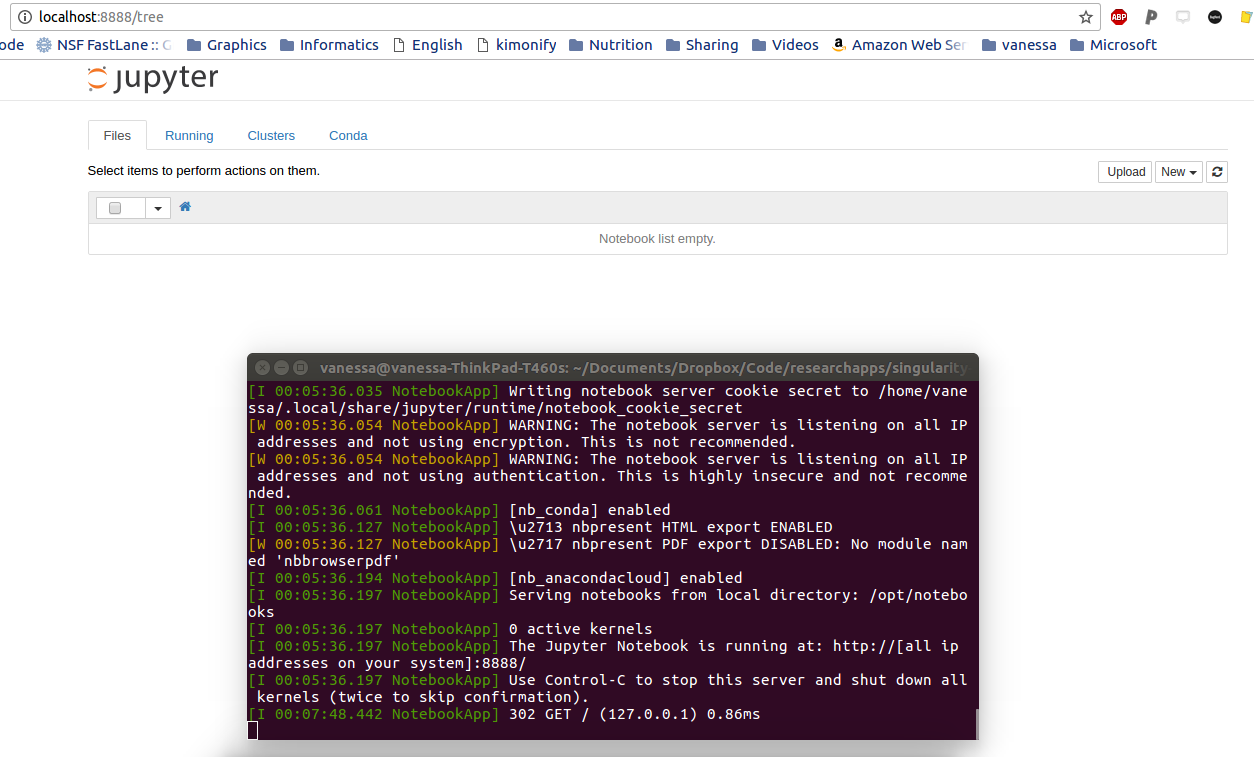 **Important** using this container requires the allow-root flag, which isn't great practice. If you really need to run a notebook in a container, you might be better off building one that installs the notebook with your user (e.g. see [this Docker example](https://github.com/hpsee/discourse-cluster/blob/master/Dockerfile) that could be translated to Singularity). You would want to change the user jovyan to your username. If you can, you can also just use Docker! EIther you can use the image linked there, or you can check out [repo2docker](https://github.com/jupyter/repo2docker) to build a custom container. Since the notebooks are being written to the image, this means that all of our work is preserved in it. I can finish working, close up shop, and hand my image to someone else, and it's preserved. Here, I'll show you. Let's shell into the container after we've shut down the server (note that I didn't need to use sudo for this). ```bash sudo singularity shell jupyter-box Singularity: Invoking an interactive shell within container... Singularity.jupyter.sif> ls /opt/notebooks Untitled.ipynb ``` There it is! I really should work on naming my files better :) That is so cool. You can also map to a folder on your local machine, if you don't want to save the notebooks inside: ```bash sudo singularity run -B $PWD:/opt/notebooks --writable jupyter-box ``` and here I am sitting in my local directory, but the entire software and depdencies are provided by my container. STILL really cool. 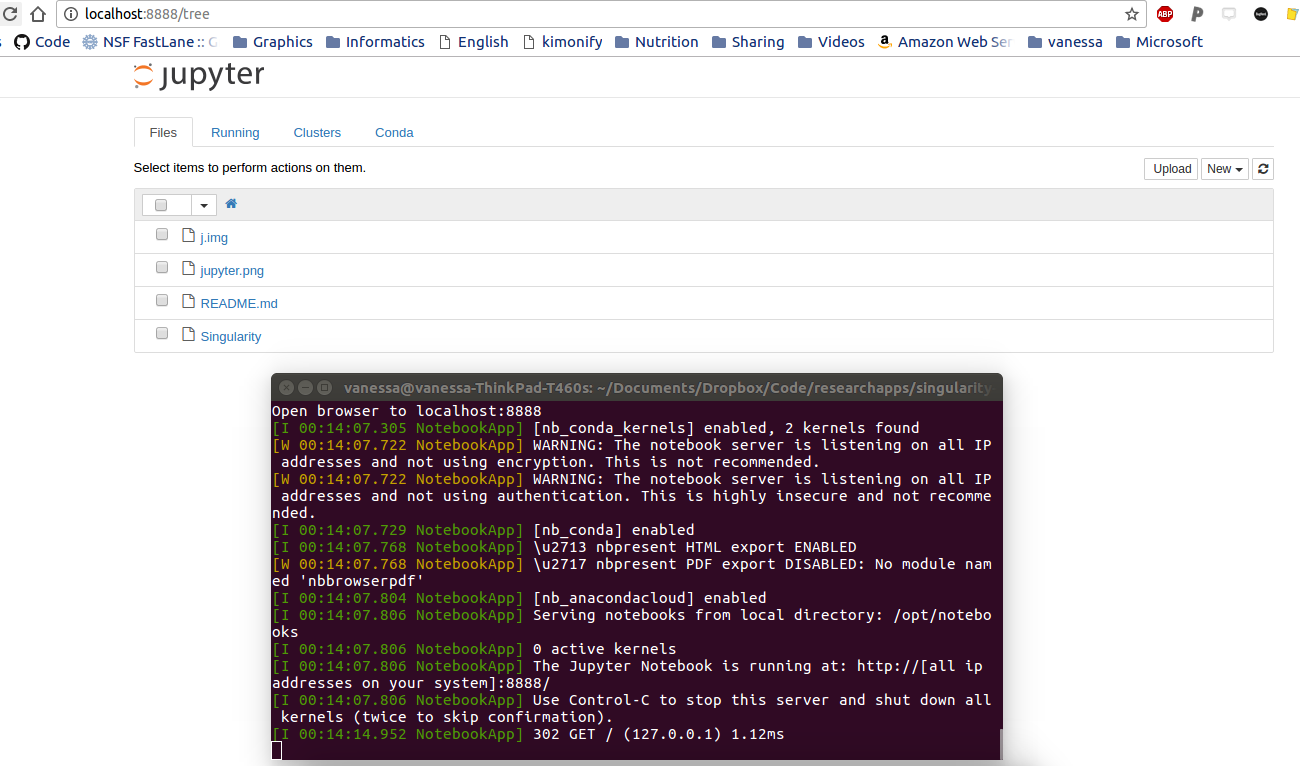 ## Note on port forwarding If you are running Singularity in Windows through vagrant, you will need to configure port forwarding in the Vagrantfile that you use to set up the Singularity container as well. As an example, you should add a line that might look like this. `config.vm.network "forwarded_port", guest: 8888, host: 8888, host_ip: "127.0.0.1"`
