KO
|
EN
gitlite — search
Search
#python
#react
#hacktoberfest
#javascript
#github
#json
#android
#java
#kubernetes
#python3
#nextjs
#readme
pojde
★ 66
Open GitHub ↗
Develop from any device with a browser.
Download README (.md)
Explore Similar Repositories
DarkV2ray-Manager-Bot
:
The world's first public V2ray manager Telegram bot
proxmox-backup-client
:
Rocky Linux 8 , Fedora 36, CentOS 8 or CentOS 7 Client for Proxmox Backup Server
machine_learning_book
:
Stanford's CS229 Machine Learning lecture notes compiled into a Tufte-style textbook
ctc_decoder
:
A ctc decoder for both online and offline asr model
compact_html
:
Embed image data directly to HTML files.
// repository documentation
Was this content helpful?
★ 0
(0 ratings)
Select Rating:
★
★
★
★
★
Submit Feedback
Recent Feedback
×
Download README
Do you want to download the
README.md
file for
pojde
?
Download (.md)
# pojde 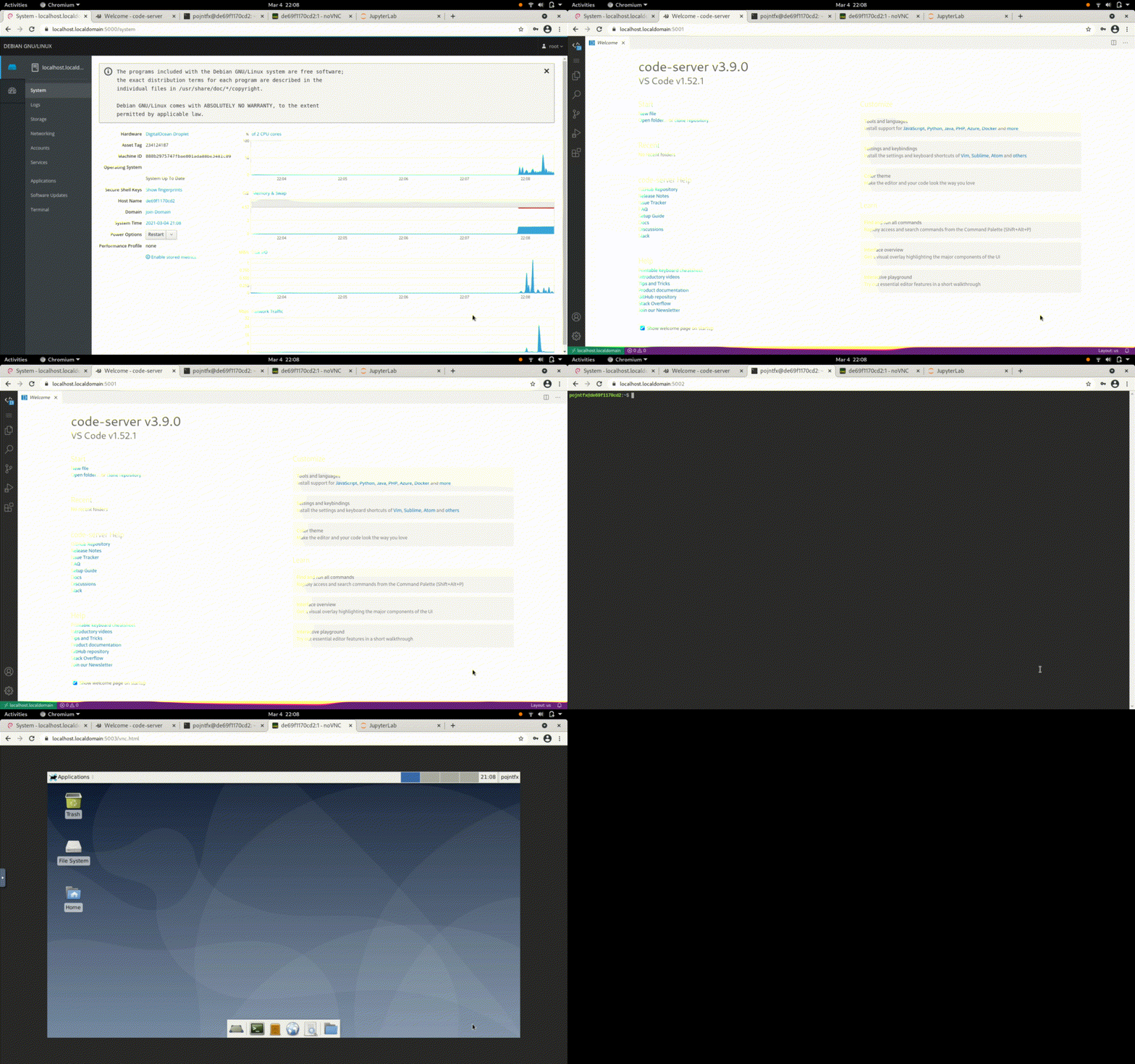 Develop from any device with a browser. [](https://github.com/pojntfx/pojde/actions/workflows/docker.yaml) [](https://matrix.to/#/#pojde:matrix.org?via=matrix.org) [](https://hub.docker.com/r/pojntfx/pojde)    ## Overview pojde is a distributed multi-tenant development environment with web access to all components. It strives to be ... - **Open**: Free/libre and open source software under the AGPL-3.0 license - **Versatile:** Supports multiple isolated instances on one host (for multi-user and/or multi-usecase support) - **Fast:** Minimal base image with optional modules for languages and tools - **Portable:** Runs on both Intel/AMD and ARM and requires Docker as the only dependency - **Lean**: Built on projects like [code-server](https://github.com/cdr/code-server) and [JupyterLab](http://jupyterlab.io/) With pojde, you can **develop from any device with a browser!** ## Installation To install `pojdectl`, the management tool for pojde, run the following: ```shell $ curl https://raw.githubusercontent.com/pojntfx/pojde/main/bin/pojdectl | bash -s -- upgrade-pojdectl ``` Works on Linux, macOS and Windows (WSL2). Now, continue to [Usage](#usage) to create your first instance. ## Usage I've created a brief YouTube video which guides you through the process: [<img src="https://img.youtube.com/vi/v2QB6Q1rCaQ/0.jpg" width="256" alt="Code from Anywhere with pojde YouTube video" title="Code from Anywhere with pojde">](https://www.youtube.com/watch?v=v2QB6Q1rCaQ) If you prefer the instructions in written form, continue reading. ### 1. Installing Docker or Podman pojde supports running many isolated instances on a host, where the host can be your local machine, a cloud server or even a Raspberry Pi. Before you continue to the next step, please install either [Docker](https://docs.docker.com/get-docker/) or [Podman](https://podman.io/getting-started/installation) on the host that you wish to run the instance on. Please note: - If you have CGroups V2 enabled on your system (i.e. if you're using Fedora), please check out the [Docker, Podman and CGroups V2 FAQ](#docker-podman-and-cgroups-v2) first. - Host systems using systemd have the best support, but on systems which don't support it (i.e. Docker on macOS or WSL), pojde falls back to using OpenRC instead. ### 2. Creating a first Instance To create your first instance, use `pojdectl apply`: ```shell $ pojdectl apply my-first-instance 5000 # Append `-n root@your-ip:ssh-port` to create the instance on a remote host instead ``` Now follow the instructions. `pojdectl apply` will ask you to download the CA certificate to your system, which you should do when creating the first instance; future instances will share this certificate. You can also get the certificate at any later point using `pojdectl get-ca-cert`. ### 3. Trusting the CA Certificate To trust the CA certificate, follow the videos we've created for you: - [Trusting self-signed CA certificates (system-wide on Fedora)](https://www.youtube.com/watch?v=qefr7MU-H-s) - [Trusting self-signed SSL certificates (Chrome on Linux)](https://www.youtube.com/watch?v=byFN8vH2SaM) - [Trusting self-signed SSL certificates (Chrome on macOS)](https://www.youtube.com/watch?v=_PJc7RcMnw8) - [Trusting self signed SSL certificates (Chrome on Windows)](https://www.youtube.com/watch?v=gyQ9IIxE3vc) Note that you'll have to **select the CA certificate you've downloaded in the step before**, not download the certificate as described in the videos. ### 4. Listing the Instances Once you've done so, confirm that everything went well by listing your instances with `pojdectl list`: ```shell $ pojdectl list # Append `-n root@your-ip:ssh-port` to list the instances on a remote host instead NAME STATUS PORTS my-first-instance running 5000-5005 ``` As you can see, our first instance (`my-first-instance`) is running and has exposed ports `5000` through `5005`. This port range has been selected when we ran `pojdectl apply` above. ### 5. Accessing the Services You can now access the services you've enabled (replace `localhost` with your remote host's IP or domain if you deployed to a remote host): | Icon | Service | Address | Description | | ------------------------------------------------------------------------------------------------------------------- | ------------------------------------------------- | ----------------------- | ----------------------------------- | | <img src="https://avatars.githubusercontent.com/u/5765104?s=200&v=4" width="25"> | [Cockpit](https://cockpit-project.org/) | https://localhost:5000/ | General management interface | | <img src="https://raw.githubusercontent.com/cdr/code-server/main/src/browser/media/pwa-icon.png" width="25"> | [code-server](https://github.com/cdr/code-server) | https://localhost:5001/ | VSCode in the browser | | <img src="https://raw.githubusercontent.com/tsl0922/ttyd/master/html/src/favicon.png" width="25"> | [ttyd](https://tsl0922.github.io/ttyd/) | https://localhost:5002/ | Shell access from the browser | | <img src="https://raw.githubusercontent.com/novnc/noVNC/master/app/images/icons/novnc-192x192.png" width="25"> | [noVNC](https://novnc.com/info.html) | https://localhost:5003/ | Graphical access from the browser | | <img src="https://raw.githubusercontent.com/devicons/devicon/master/icons/jupyter/jupyter-original.svg" width="25"> | [JupyterLab](http://jupyterlab.io/) | https://localhost:5004/ | Interactive development environment | If you can't access the services from outside `localhost`, make sure to open the ports on your firewall. Additionally, there is a SSH server running on port `5005` which you can use to forward ports from the instance with `pojdectl forward`: ```shell $ pojdectl forward local my-first-instance 127.0.0.1:4200:127.0.0.1:1234 127.0.0.1:4201:127.0.0.1:1235 # Append `-n root@your-ip:ssh-port` to also forward from the remote host to the local host ``` This, for example, forwards remote port `1234` in the instance to local port `4200` and remote port `1235` to local port `4201`. You can also forward ports to the instance: ```shell $ pojdectl forward remote my-first-instance 127.0.0.1:6969:127.0.0.1:6969 # Append `-n root@your-ip:ssh-port` to also forward from the local host to the remote host ``` **🚀 That's it!** We hope you enjoy using pojde. Please be sure to also check out the [Updates](#updates) and [FAQ](#faq) sections to keep your pojde setup up to date. ## Modules pojde is based on a minimal base image; additional functionality can be added by enabling any of the following modules when running `pojdectl apply`: ### Language Modules | Icon | Name | Description | | --------------------------------------------------------------------------------------------------------------------------------------------------------------------------------------------------------------------------------------------------- | -------------- | ------------------------------------------------------------------------------------- | | <img src="https://raw.githubusercontent.com/devicons/devicon/master/icons/c/c-original.svg" width="25"><img src="https://raw.githubusercontent.com/devicons/devicon/master/icons/cplusplus/cplusplus-original.svg" width="25"> | **C/C++** | GCC, GDB, CMake, the C/C++ VSCode extensions and C++ Jupyter kernel | | <img src="https://raw.githubusercontent.com/devicons/devicon/master/icons/go/go-original.svg" width="25"> | **Go** | Go, TinyGo, the Go/TinyGo VSCode extensions and Go Jupyter kernel | | <img src="https://raw.githubusercontent.com/devicons/devicon/master/icons/python/python-original.svg" width="25"> <img src="https://raw.githubusercontent.com/devicons/devicon/master/icons/jupyter/jupyter-original.svg" width="25"> | **Python** | Python, pip, the Python VSCode extensions and Python Jupyter kernel | | <img src="https://raw.githubusercontent.com/devicons/devicon/master/icons/rust/rust-plain.svg" width="25"> | **Rust** | Rust, Cargo, the Rust VSCode extensions and Rust Jupyter kernel | | <img src="https://raw.githubusercontent.com/devicons/devicon/master/icons/javascript/javascript-original.svg" width="25"> <img src="https://raw.githubusercontent.com/devicons/devicon/master/icons/typescript/typescript-original.svg" width="25"> | **JavaScript** | Node, the JavaScript/TypeScript VSCode extensions and JavaScript Jupyter kernel | | <img src="https://raw.githubusercontent.com/devicons/devicon/master/icons/ruby/ruby-original.svg" width="25"> | **Ruby** | Ruby, the Ruby VSCode extensions and Ruby Jupyter kernel | | <img src="https://raw.githubusercontent.com/devicons/devicon/master/icons/csharp/csharp-original.svg" width="25"> <img src="https://raw.githubusercontent.com/devicons/devicon/master/icons/dot-net/dot-net-original.svg" width="25"> | **C#** | Mono, .NET, PowerShell, the C# VSCode extensions and C#/F#/PowerShell Jupyter kernels | | <img src="https://raw.githubusercontent.com/devicons/devicon/master/icons/java/java-original.svg" width="25"> | **Java** | Java, Maven, Gradle, the Java VSCode extensions and Java Jupyter kernel | | <img src="https://github.com/JuliaLang/julia-logo-graphics/raw/master/images/julia-logo-color.png" width="25"> | **Julia** | Julia, the Julia VSCode extensions and Julia Jupyter kernel | | <img src="https://upload.wikimedia.org/wikipedia/commons/6/6a/Gnu-octave-logo.svg" width="25"> | **Octave** | Octave, the Octave VSCode extensions and Octave Jupyter kernel | | <img src="https://raw.githubusercontent.com/devicons/devicon/master/icons/r/r-original.svg" width="25"> | **R** | R, the R VSCode extensions and R Jupyter kernel | | <img src="https://raw.githubusercontent.com/devicons/devicon/master/icons/postgresql/postgresql-original.svg" width="25"> <img src="https://raw.githubusercontent.com/devicons/devicon/master/icons/mysql/mysql-original.svg" width="25"> | **SQL** | SQLite, MariaDB, PostgreSQL, the SQL VSCode extensions and SQL Jupyter kernel | | <img src="https://raw.githubusercontent.com/devicons/devicon/master/icons/bash/bash-original.svg" width="25"> | **Bash** | Bash, the Bash VSCode extensions and Bash Jupyter kernel | ### Tool Modules - **Vim**: Vim and the VSCodeVim extension - **QEMU, Docker and Kubernetes**: `kubectl`, `helm`, `k9s`, `skaffold`, `k3d` and more DevOps tools - **Technical Documentation**: `pandoc`, `plantuml`, `gnuplot`, media, Office, PDF and Markdown/LaTeX support for VSCode - **Full LaTeX Support**: Full TeX Live installation - **Web Development**: Protobuf, GraphQL, OpenAPI, browser debugging and more VSCode extensions - **Common VSCode Extensions**: Prettier, GitLens, Git Graph and test explorer VSCode extensions - **Common CLIs**: `tmux`, `jq`, `htop` etc. - **Networking**: Wireshark, `nmap`, `iperf3` etc. - **Browsers and Mail (TUI)**: `lynx`, `links`, `aerc` etc. - **Browsers and Mail (GUI)**: Chromium, Firefox, GNOME Web and Thunderbird - **Multimedia**: `ffmpeg`, Handbrake, `youtube-dl` etc. ## Reference ```shell $ pojdectl --help pojdectl is the management tool for pojde. Global Flags: [-n]ode <user@host:port> Remote host to execute on. If not specified, execute locally. Modification Commands: apply <name> <startPort> Create or upgrade an instance. [-f]orce Skip confirmation prompts. [-u]pgrade Pull latest image. [-r]ecreate Re-create the container. [-i]solate Block Docker daemon access. [-p]rivileged Run in privileged mode. remove [name...] Remove instances(s). [-f]orce Skip confirmation prompts. [-c]ustomization Remove customizations. [-p]references Remove preferences. [-s]ecurity Remove CA. [-u]ser data Remove user data. [-t]ransfer Remove transfer data. [-d]eb cache Remove .deb cache. [-a]ll Remove everything. list List all instances. Lifecycle Commands: start [name...] Start instance(s). stop [name...] Stop instance(s). restart [name...] Restart instance(s). Utility Commands: logs <name> Get the logs of an instance. enter <name> Get a shell in an instance. forward <name> <local|remote> [lhost:lport:rhost:rport...] Forward port(s) to or from an instance. Miscellaneous Commands: upgrade-pojdectl Upgrade this tool. get-ca-cert [-p]rint Get the CA cert. reset-ca [-f]orce Reset the CA. For more information, please visit https://github.com/pojntfx/pojde#Usage. ``` ## Contributing To contribute, please use the [GitHub flow](https://guides.github.com/introduction/flow/) and follow our [Code of Conduct](./CODE_OF_CONDUCT.md). To build and start a development version of pojde locally, run the following: ```shell $ git clone https://github.com/pojntfx/pojde.git $ cd pojde $ make build $ ./bin/pojdectl apply my-first-instance 5000 -f -r ``` You should now have the pojde services running on [http://localhost:5000/](http://localhost:5000/) through [http://localhost:5004/](http://localhost:5004/) (see [Accessing the Services](#5-accessing-the-services)). Whenever you change something in the source code, run `make build` and `./bin/pojdectl apply my-first-instance 5000 -f -r` again, which will recompile and restart the services. Have any questions or need help? Chat with us [on Matrix](https://matrix.to/#/#pojde:matrix.org?via=matrix.org)! ## FAQ ### Updates #### Updating `pojdectl` `pojdectl` includes a self-update tool, which you can invoke by running the following: ```shell $ pojdectl upgrade-pojdectl ``` #### Updating (or Reconfiguring) an Instance Updating an instance (to get the latest pojde version) and changing an instance's configuration are both done using the `pojdectl apply` command. To for example update the instance created in [Usage](#usage) or to change it's configuration, installed modules etc., run the following and follow the instructions: ```shell $ pojdectl apply my-first-instance 5000 -f -r -u # Append `-n root@your-ip:ssh-port` to upgrade the instance on a remote host instead ``` There are multiple update and configuration strategies available; see [Reference](#reference) for more options. ### Docker, Podman and CGroups V2 The following combinations are known to work: - Podman and CGroups V2 - Docker and CGroups V1 Using Docker and CGroups V2 together on a systemd-based host does not work, as running systemd inside the container is not yet supported properly using this configuration. If you are using CGroups V2, i.e. if you're on Fedora, please use Podman. Alternatively, you can also switch to CGroups V1 and use Docker: ```shell $ sudo grubby --update-kernel=ALL --args="systemd.unified_cgroup_hierarchy=0" $ sudo reboot ``` ### Mounting Docker Volumes from an Instance Thanks to the `pojde-docker-env` script, mounting Docker volumes from within an instance is supported: ```bash pojntfx@5d084b2bf2ca:~$ pojde-docker-env # Run this in the instance, using i.e. `ttyd` or code-server's terminal pojntfx@5d084b2bf2ca:/var/lib/docker/volumes/pojde-my-first-instance-home-user/_data/pojntfx$ # You can now use i.e. `docker run -v` in this shell! ``` You can also block Docker daemon access completely by specifiying the `-i` flag; see [Reference](#reference) for more information. ### Transfering Files in and out of an Instance There are many options available to transfer files; you can for example use `scp`, another "traditional" option or use one of the following inbuilt ones. #### Transfer Folder A transfer folder is automatically created for even easier exchange of data between the host system and the instance; this folder is mounted into `~/Documents` in the instance and available at `~/Documents/pojde/your-instance-name` on the host system. #### WebWormhole [WebWormhole](https://webwormhole.io/) (available as `ww`) is pre-installed in every instance; it allows you to exchange files globally by using WebRTC. Find out more over at the [WebWormhole GitHub repo](https://github.com/saljam/webwormhole). ## Further Resources - [Enabling IPv6 on Docker](https://gist.github.com/pojntfx/2f6a7b7db484ef5f3ac143edb5fd4618) - [Adding own root CA certificates on iOS](<https://support.apple.com/en-us/HT204477#:~:text=If%20you%20want%20to%20turn,Mobile%20Device%20Management%20(MDM).>) ## License pojde (c) 2021 Felicitas Pojtinger and contributors SPDX-License-Identifier: AGPL-3.0
