KO
|
EN
gitlite — search
Search
#javascript
#python
#hacktoberfest
#react
#ai
#typescript
#llm
#go
#golang
#android
#machine-learning
#rust
#deep-learning
#linux
mondo
★ 9
Open GitHub ↗
Personal CRM as Obsidian Plugin
Download README (.md)
Explore Similar Repositories
AutoDeploy
:
Auto-Generated Secure CI/CD Pipelines with AI + MCP
Bilibili-api
:
哔哩哔哩 app端 v8.62.0 逆向实现两个播放量相关接口的游客访问
Agent_Memory_Papers
:
Out of personal interest and learning needs, this repository is used to collect work related to memory in LLM agents, and it is also hoped to be helpful to everyone in the community.
livox_gazebo_ros2_gpu_simulation
:
A ROS2 package to simulate Livox lidars. Using GPU to accelerate.
dev-daxlib-svg
:
Development repository for the DaxLib.SVG library published on DaxLib.org.
// repository documentation
Was this content helpful?
★ 0
(0 ratings)
Select Rating:
★
★
★
★
★
Submit Feedback
Recent Feedback
×
Download README
Do you want to download the
README.md
file for
mondo
?
Download (.md)
# Mondo _Mondo_ is a general purpose plugin that adds plentiful of utilities to a standard [Obsidian](https://obsidian.md/) vault: - [**🏚️ Dashboard:** vault overview and quick activities](#🏚️-dashboard) - [**🎤 Dictation:** talk to your note to write its content](#🎤-dictation) - [**📝 Transcription:** generate a transcription file out of any Obsidian recording](#📝-transcription) - [**🔈 Voiceover:** transform your note into an audio file](#🔈-voiceover) - [**🕰️ Timestamps:** quickly add timestamps into your notes](#🕰️-timestamps) - [**🧘 Focus Mode:** hide most of the UI and focus on your writing](#🧘-focus-mode) - [**🤖 Open in ChatGPT:** use your notes as templates for ChatGPT prompts](#🤖-open-in-chatgpt) - [**🌆 Image Editor:** resize and crop images in your vault](#🌆-image-editor) - [**📋 Paste Images:** paste images from clipboard directly into property fields](#📋-paste-images-into-properties) - [**👫 Mondo IMS:** typed entities with strong relations](#👫-mondo-ims) - [**📈 Habits Tracker:** embed a streak tracking app in any note](#📈-habits-tracker) - [**⏱️ Training Timers:** embed a training trimer app in any note](#⏱️-training-timers) - [**📆 Daily Notes:** quick and timestamped annotations](#📆-daily-notes) - [**🖌️ Journaling:** distraction-free journaling experience](#🖌️-journaling) > I'm developing this plugin to facilitate my life 🤘 🔥 Mondo's AI-related features (Dictation, Voiceover, LLM) support both OpenAI and Gemini. Just paste your API Key and the plugin will auto-detect the correct provider. 🔥 # How to Install & Update ObsidianMondo is under active development so you would install it as a _Beta Tester_ at your own risk. But it's fine, I use it for myself first and it works, even if it needs a lot of love still! 1. First, install the [BRAT](https://obsidian.md/plugins?id=obsidian42-brat) that lets you install orther plugins directly from GitHub. 2. Open the _BRAT_ plugin preferences and click on "Add beta plugin" 3. Paste the following url: ```bash https://github.com/marcopeg/mondo ``` > I suggest you keep it updated to the latest version, but at this point feel free to install whatever available release. # Features ## 🏚️ Dashboard Run the command `Open Mondo Dashboard` to open your vault's control center: - **Quick Tasks** let you create new task-notes on the fly by typing or dictating your thoughs. - **Relevant Notes** let you find your notes by frequency of utilization or history. And you can filter by _Entity Type (see the IMS feature)_- - **IMS Entities Wall** wall let you jump to the various entities lists. Think \_"Obsidian bases on steroid". - **Stats** show some numbers about your valut and offer some file based views of your stuff. Not only notes, but also images, audio and generic attachments across the whole vault. ## 🎤 Dictation > This feature requires an [OpenAI API Key](https://help.openai.com/en/articles/4936850-where-do-i-find-my-openai-api-key) Dictation lets you write your note's content with your voice, by sending a recording to OpenAI Whisper for transcription. Use the command `Start dictation`, or press the microphone button to initiate a dictation session. The resulting transcription is inserted at your cursor's position. ## 📝 Transcription > This feature requires an [OpenAI API Key](https://help.openai.com/en/articles/4936850-where-do-i-find-my-openai-api-key) Use the command `Start transcription` when over an _audio note_ to start the transcription process. Once done, a new note with the full transcription and a reference to the original audio will be created and opened for you. ## 🔈 Voiceover > This feature requires an [OpenAI API Key](https://help.openai.com/en/articles/4936850-where-do-i-find-my-openai-api-key) Use the command `Start voiceover` on a text note to produce the relative audio file and reproduce it. The file will be automatically referenced into the note's _frontmatter_. > You can use the _Voiceover_ also on a text-selection! ## 🕰️ Timestamps Run the command `Insert timestamp` to inject a pre-configured date-time text in your note, where your cursor is. You can configure the template in the Mondo's settings. Here is an example of a Heading level 2 timestamp template: ```Markdown ## YY/MM/DD hh:mm ``` ## 🧘 Focus Mode Sometimes, you just want to get lost in your writing. Run the command `Start Focus Mode` to hide away most of the Obsidian UI and focus entirely on your writing activity. 👉 Mondo will activate this mode any time you step into your Journal to give you maximum focus on introspection and self-awarness. ## 🤖 Open in ChatGPT Take any note or text selection and use the command `Send to ChatGPT` to open the famous AI tool with a pre-compiled prompt. ## 🌆 Image Editor Open an image and run the command `Edit Image` to open the image editor. There you can **resize** and **crop** an image to improve your vault without leaving it. > 📲 works on mobile as well! 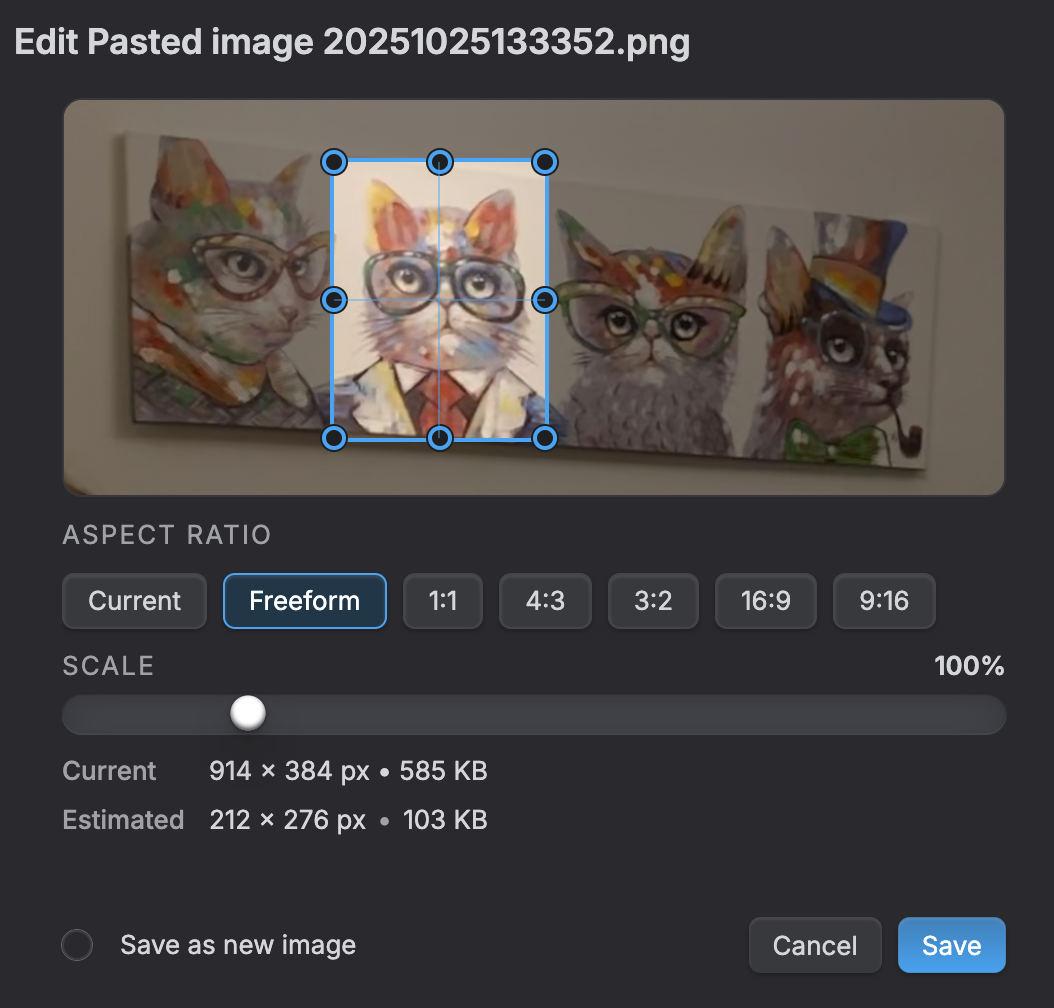 ## 📋 Paste Images into Properties Quickly add images to your notes by pasting them directly into **any property field**! Take a screenshot (⌘⇧4 on Mac), copy it, and paste it into any property field. Mondo will: - ✅ Automatically save the image to your vault - ✅ Generate a descriptive filename - ✅ Link it properly in the frontmatter Works with **all properties** - including `cover`, `thumbnail`, `avatar`, `image`, `banner`, `icon`, or any custom property you define. 👉 [Learn more about pasting images](./howto/PASTE_IMAGES.md) ## 👫 Mondo IMS Mondo ships a powerful _Information Management System_ in which you can define your own entities and their relations to bring to life your tailored ERP/CRM/CMS of sort. 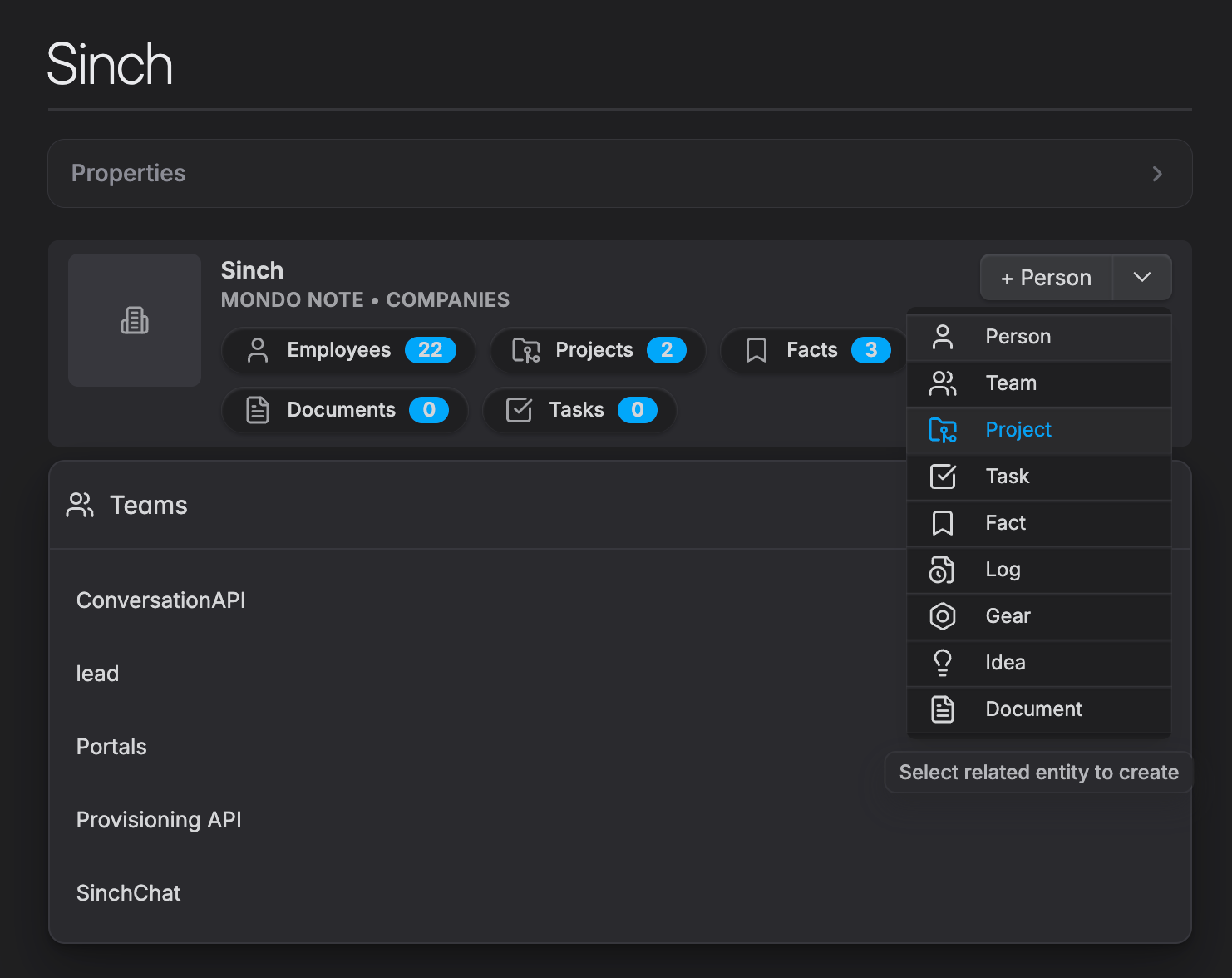 👉 Use the **IMS Presets** to experiment with common and community-curated systems! ## 📈 Habits Tracker Tracking my daily habits is an important part of my self development plan, and i wantet it to be fully included into my Obsidian workflow. I heep a "Habits.md" note where I put all my tracking blocks. The default visualization is the **last 21-days streak**: 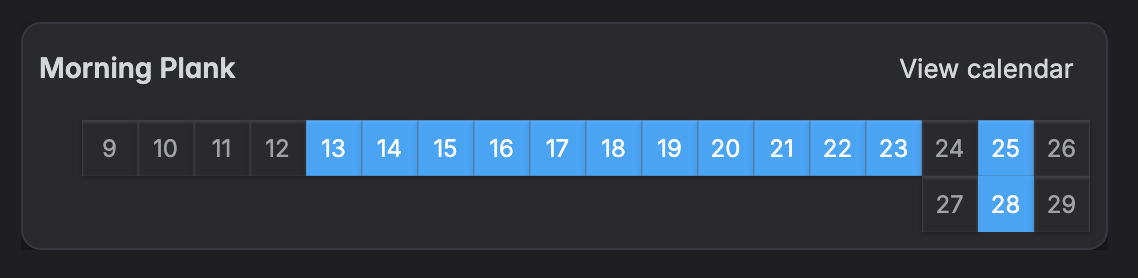 but you can switch to the **calendar view** to have a bird-eye view of your entire calendar year: 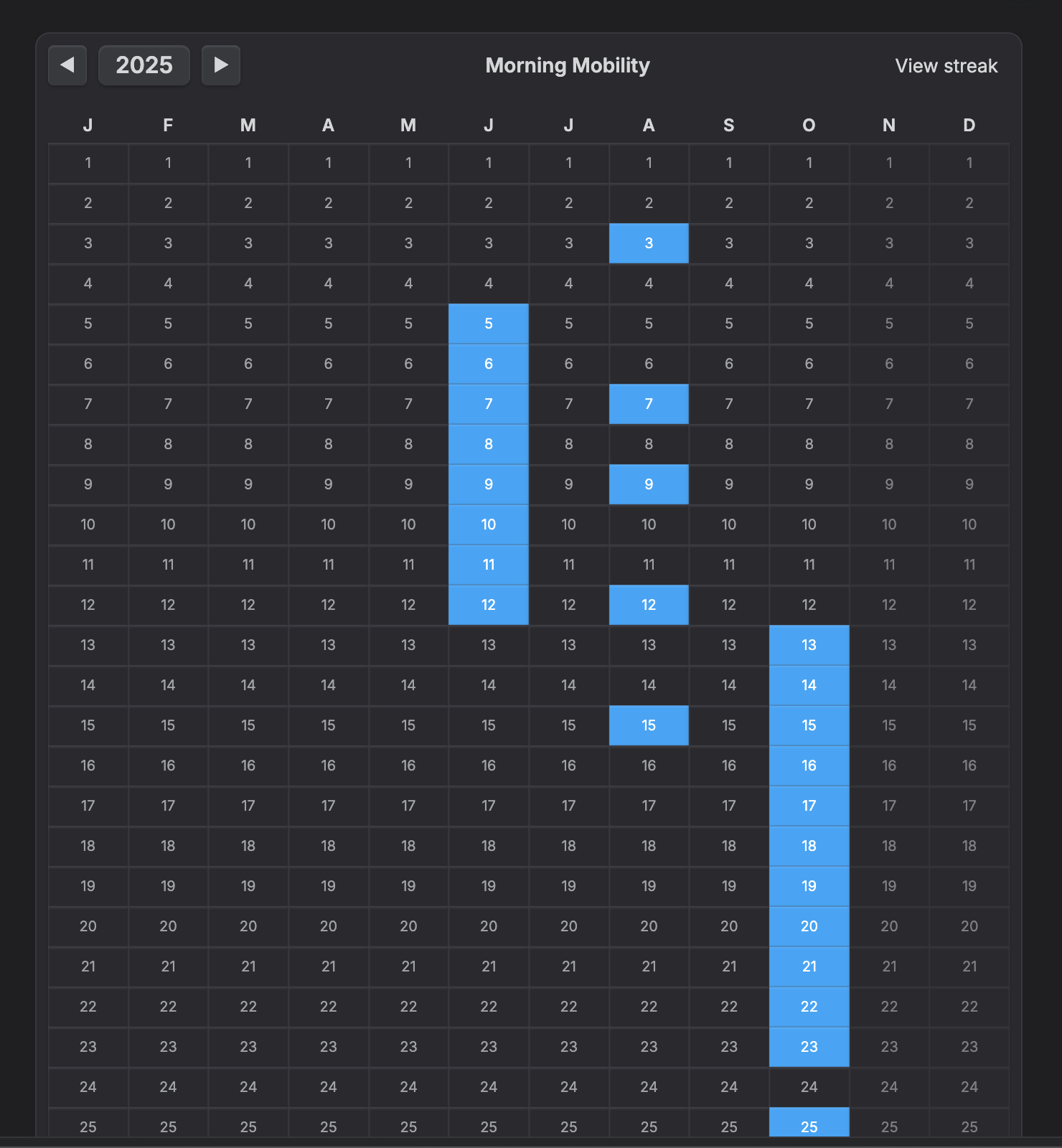 You can add a block as many `habits` blocks you want: 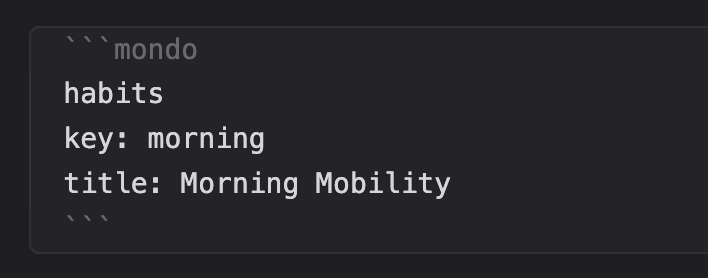 👉 Be careful configuring a unique `key` for each block because the data is stored in the note's _frontmatter_ under that key. 👉 [How to add Habit Trackers into your notes](./howto/TRACKER.md) ## ⏱️ Training Timers Timers let you embed any kind of working timers in your notes. I find it particularly useful for my workouts in combination with the _Habits Tracker_ functionality. Try this snippet to quickly insert a Pomodoro timer: ````markdown ```mondo timer ``` ```` You should get this: 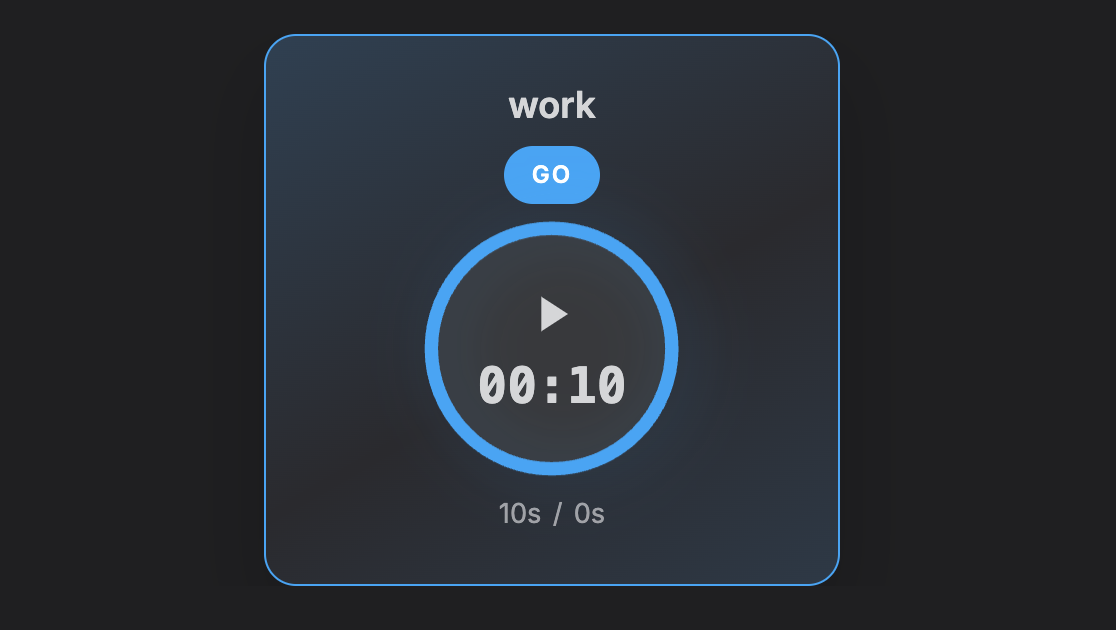 Follow the full tutorial for more information and options: 👉 [How to Add and Configure Timers](./howto/TIMER.md) ## 📆 Daily Notes Daily notes help jotting down quick information. Run the command `Open Daily note` to open the **Daily Note**; or run `Append to Daily note` to open it an generate a time-based section where you can quickly annotate a new thought. Notes in your daily are automatically organized by day/time blocks and default to bullet lists so to facilitate note refactoring later on. Configure the template and shape of the time-based annotations in the `Mondo Settings`. Try also the following commands: - 🎤 `Talk to Daily Note` to automatically start a voice recognition session - 🎤 `Record to Daily Note` to automatically start a recording into the daily note's block Mondo keeps a log of all the notes that were created, modified, and opened each day in the _Daily Note_. That becomes your vault's hystory datatabase and also a damn good way to find out notes when you rememeber when you worked on someting. ## 🖌️ Journaling Dealing with the modern world and its crazy pace can crash your soul. **Journaling** is a simple yet effective way to keep your thoughts, emotions, and hidden convinctions under control. Hit `Shift+Cmd+j` and write anything that is personal. > Let yourself go. > Don't think. > Just write. # Mondo Commands Below is the list of commands that Mondo registers in Obsidian's command palette, grouped by feature. Command names are shown exactly as they appear in the palette. Dashboard - `Open Mondo Dashboard` — open the Mondo dashboard (default hotkey: Mod+Shift+M) Vault & Views - `Open Audio Notes` - `Open Images` - `Open Files` - `Open Markdown Notes` Image editor - `Edit Image` — opens the image editor for the active/selected image Audio & Transcription - `Start Transcription` — transcribe the active audio file - `Start Voiceover` — generate audio (voiceover) for the current note or selection Dictation & Recording - `Start Dictation` — dictation into the active editor (toggle) - `Record to Daily Note` — start a quick native recording and embed it into the daily note Daily notes - `Open Daily Note` — open today's daily note - `Append to Daily Note` — append a new time entry to the daily note (default hotkey: Mod+Shift+L) - `Talk to Daily Note` — append to daily note and start dictation - `Record to Daily Note` — append a recording to the daily note - `Cleanup Daily Notes History` — remove or clean old daily notes according to settings Journaling - `Toggle Journaling` — open/close journaling mode (hotkey: Mod+Shift+J) - `Move to Previous Journal Entry` — navigate to the previous journal entry - `Move to Next Journal Entry` — navigate to the next journal entry Editor utilities - `Add timestamp` — insert a configured timestamp at the cursor - `Copy Note Text` — copy current note body (or selection) to clipboard - `Magic Paste` — clean & paste clipboard text via a modal - `Edit with AI` — open the Edit-with-AI modal for the active note/selection - `Send to ChatGPT` — open ChatGPT with the active note/selection pre-filled 🚧 Geolocation 🚧 - `Add Geolocation to Current Note` — add current geolocation to the active note - `Cancel Geolocation Request` — cancel an in-flight geolocation lookup Misc & Settings - `Open Myself` — open the configured "self" note - `Open Mondo Settings` — open the plugin settings - `Toggle Focus Mode` — toggle Mondo's focus mode IMS Commands - For each configured IMS entity type Mondo also creates two commands: - `List <Entity>` — list entities of that type - `New <Entity>` — create a new entity note of that type Notes - Some commands are context-sensitive and only enabled when relevant (for example `Start Transcription` only when an audio file is active, `Edit Image` only for an image file). A few commands also have toolbar/menu equivalents (for instance audio transcription and voiceover are available from file/editor menus). # 👑 Hidden Gems - Paste a binary stream into a note's property to automatically generate the file and link it in one "paste" action.
