KO
|
EN
gitlite — search
Search
#nodejs
#javascript
#ios
#python
#roguelike
#php
#marketplace
#npm-package
#babel
#haxe
#android
#dcos
AbpMaui
★ 24
Open GitHub ↗
ABP Framework consumed by a .NET MAUI app
Download README (.md)
Explore Similar Repositories
maui-abp
:
MAUI cross-platform application based on ABP framework
AbpDevTools
:
A set of tools to make development with ABP easier.
AbpVue
:
The Vue ui template for ABP application.
Magicodes.WxMiniProgram.Sdk
:
轻量级微信小程序SDK,支持.NET Framework以及.NET Core。目前已提供Abp模块的封装,支持开箱即用。
ABPx
:
VS Code extension with code snippets for the ABP Framework
// repository documentation
Was this content helpful?
★ 0
(0 ratings)
Select Rating:
★
★
★
★
★
Submit Feedback
Recent Feedback
×
Download README
Do you want to download the
README.md
file for
AbpMaui
?
Download (.md)
## ABP Framework consumed by .NET MAUI In this article, I will show you how you can consume an **ABP Framework** application with a **.NET Maui** app. The ABP Framework application has been developed with **Blazor** as UI framework and **SQL Server** as database provider. ## Source Code The source code of the ABP Framework and the .NET Maui application is [available on GitHub](https://github.com/bartvanhoey/AbpMaui). ## Requirements The following tools are needed to run the solution and follow along. You will also need to have Visual Studio 2022 Preview set up for .NET Maui development. - .NET 6.0 SDK - Visual Studio 2022 Preview - Ngrok ## Create ABP Framework application - Install or update the ABP CLI: ```bash dotnet tool install -g Volo.Abp.Cli || dotnet tool update -g Volo.Abp.Cli ``` - Use the following ABP CLI command to create a new Blazor ABP application: ```bash abp new AbpMauiApi -u blazor -o AbpMauiApi ``` ### IdentityServer Settings #### Add AbpMauiApi_Maui section in appsettings.json file of the AbpMauiApi.DbMigrator project ```json // change the <replace-me-with-the-abp-api-port> with the port where the Swagger page is running on "AbpMauiApi_Maui": { "ClientId": "AbpMauiApi_Maui", "ClientSecret": "1q2w3e*", "RootUrl": "https://localhost:<replace-me-with-the-abp-api-port>/" } ``` #### Add Maui client IdentityServer configuration In the **CreateClientAsync** method in class **IdentityServerDataSeedContributor** of the **AbpMauiApi.Domain** project. ```csharp // Maui Client var MauiClientId = configurationSection["AbpMauiApi_Maui:ClientId"]; if (!MauiClientId.IsNullOrWhiteSpace()) { var MauiRootUrl = configurationSection["AbpMauiApi_Maui:RootUrl"].TrimEnd('/'); await CreateClientAsync( name: MauiClientId, scopes: commonScopes, grantTypes: new[] { "authorization_code", "password" }, secret: configurationSection["AbpMauiApi_Maui:ClientSecret"]?.Sha256(), requireClientSecret: false, redirectUri: "mauiclients:/authenticated", postLogoutRedirectUri: "mauiclients:/signout-callback-oidc", corsOrigins: new[] { MauiRootUrl.RemovePostFix("/") } ); } ``` ### Apply Migrations and Run the Application - Run the `AbpMauiApi.DbMigrator` application to apply the migrations and seed the initial data. - Run the `AbpMauiApi.HttpApi.Host` application to start the API. ## Ngrok to the rescue When you are running the ABP Framework API on your local computer, the endpoints are reachable on [https://localhost:\<your-port-number\>/api/\<path\>](https://localhost:<your-port-number>/api/\<path\>). Although you can test out these endpoints on your local machine, it will fail in a .NET Maui application. A .NET Maui app considers localhost as its own localhost address (mobile device or emulator) and not that of your computer. To overcome this problem you can **make use of ngrok**. With ngrok you can **mirror your localhost address to a publicly available url**. ### Download and install ngrok Go to the [ngrok page](https://ngrok.com/), create an account, and download and install Ngrok. ### Run the Ngrok command Open a command prompt and enter the command below to start ngrok ```bash // change the <replace-me-with-the-abp-api-port> with the port where the Swagger page is running on ngrok.exe http -region eu https://localhost:<replace-with-the-abp-api-port-number>/ ``` After running this command, you will receive the following output: The API is now publicly available on [https://f7db-2a02-810d-98c0-576c-647e-cd22-5b-e9a3.eu.ngrok.io](https://f7db-2a02-810d-98c0-576c-647e-cd22-5b-e9a3.eu.ngrok.io) 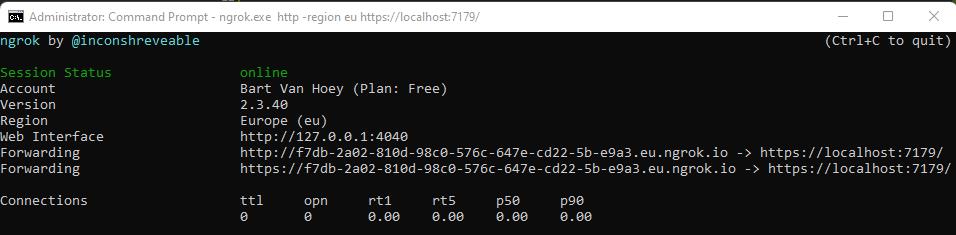 ### Copy the ngrok url Copy the **lower forwarding url** as you will need it for use in the .NET MAUI app. ## Create a .NET Maui app ### Nuget packages Open the **Package Manager Console** window and run the commands below: ```bash dotnet add package Refractored.MvvmHelpers --version 1.6.2 dotnet add package System.IdentityModel.Tokens.Jwt --version 6.15.1 ``` ### MainPage.xaml Replace the content of the MainPage.xaml with the content below: ```html <ContentPage xmlns="http://schemas.microsoft.com/dotnet/2021/maui" xmlns:x="http://schemas.microsoft.com/winfx/2009/xaml" xmlns:local="clr-namespace:AbpMauiApp.ViewModels;assembly=AbpMauiApp" x:Class="AbpMauiApp.MainPage" BackgroundColor="{DynamicResource SecondaryColor}"> <ContentPage.BindingContext> <local:MainViewModel /> </ContentPage.BindingContext> <StackLayout Padding="10"> <Label HorizontalOptions="Center" Margin="5,15,5,15" Text="Hi, ABP Framework! Nice to meet you!" TextColor="#7b5fdf" FontSize="18" FontAttributes="Bold"/> <Image Grid.Row="4" Source="dotnet_bot.png" SemanticProperties.Description="Cute dot net bot waving hi to you!" WidthRequest="250" HeightRequest="310" HorizontalOptions="Center" /> <Entry Text="{Binding LoginUserName}" Placeholder="Enter user name..." /> <Entry Text="{Binding LoginPassword}" IsPassword="true" Placeholder="Enter password..." /> <Button Text="Login" FontAttributes="Bold" Command="{Binding LoginUserCommand}" HorizontalOptions="FillAndExpand" /> <Label Margin="20" HorizontalOptions="Center" Text="{Binding LoginUserMessage}" TextColor="Green" FontSize="18" FontAttributes="Bold"/> </StackLayout> </ContentPage> ``` ### MainViewModel.cs Add a **MainViewModel** class in a **ViewModels** folder. ```csharp using AbpMauiApp.Services; using MvvmHelpers; using MvvmHelpers.Commands; using System.Windows.Input; namespace AbpMauiApp.ViewModels { public class MainViewModel : BaseViewModel { private string _loginUserMessage, _loginUserName, _loginPassword; private AsyncCommand _loginUserCommand; public ICommand LoginUserCommand => _loginUserCommand ??=new AsyncCommand(LoginUserAsync); private async Task LoginUserAsync() => LoginUserMessage= await new IdentityService().LoginAsync(LoginUserName, LoginPassword); public string LoginUserMessage { get => _loginUserMessage; set => SetProperty(ref _loginUserMessage, value); } public string LoginUserName { get => _loginUserName; set => SetProperty(ref _loginUserName, value); } public string LoginPassword { get => _loginPassword; set => SetProperty(ref _loginPassword, value); } } } ``` ### IdentityService.cs Add an **IdentityService** class to a **Services** folder ```csharp using System.Text; using System.Text.Json; namespace AbpMauiApp.Services { public class IdentityService { public async Task<string> LoginAsync(string userName, string password) { string clientId = "AbpMauiApi_Maui"; string clientSecret = "1q2w3e*"; string scope = "email openid profile role phone address AbpMauiApi"; ; string ngrokUrl = "<replace-me-with-the-ngrok-url>"; var data = $"grant_type=password&username={userName}&password={password}&client_id={clientId}&client_secret={clientSecret}&scope={scope}"; var content = new StringContent(data, Encoding.UTF8, "application/x-www-form-urlencoded"); var httpClient = new HttpClient(GetHttpClientHandler()); var response = await httpClient.PostAsync($"{ngrokUrl}/connect/token", content); response.EnsureSuccessStatusCode(); var stringResult = await response.Content.ReadAsStringAsync(); var loginResult = JsonSerializer.Deserialize<IdentityDto>(stringResult, Options); if (string.IsNullOrWhiteSpace(loginResult.access_token)) return "UnAuthorized"; return "AccessToken received!"; } private HttpClientHandler GetHttpClientHandler() { // EXCEPTION: Javax.Net.Ssl.SSLHandshakeException: 'java.security.cert.CertPathValidatorException: // Trust anchor for certification path not found.' // SOLUTION: // ATTENTION: DO NOT USE IN PRODUCTION var httpClientHandler = new HttpClientHandler { ServerCertificateCustomValidationCallback = (message, cert, chain, errors) => { return true; } }; return httpClientHandler; } private JsonSerializerOptions Options => new() { WriteIndented = true, PropertyNameCaseInsensitive = true }; } public class IdentityDto { public string access_token { get; set; } public int expires_in { get; set; } public string token_type { get; set; } public string scope { get; set; } public string error { get; set; } public string error_description { get; set; } } } ``` ## Test the result Run the **HttpApi.Host** project and make sure **Ngrok** is running too. Start the **.NET Maui app**, enter the credentials (user name: **admin** - password: **1q2w3E***) and click the **Login** button. 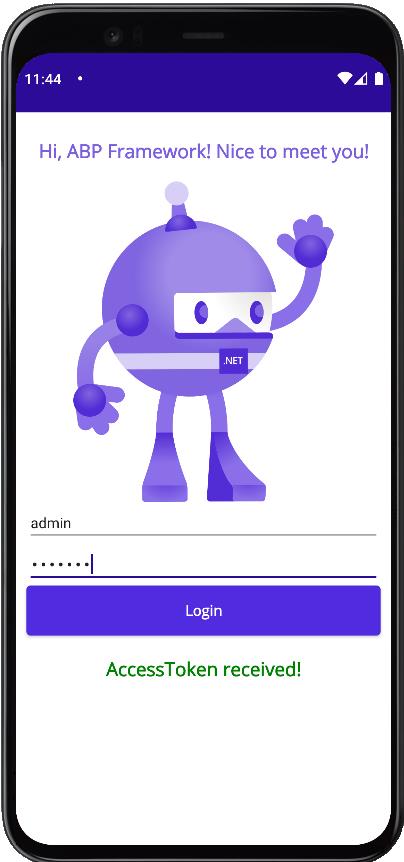 Et voilà! As you can see, you received an access token from the **ABP Framework API**. Now you can start consuming the API! Get the [source code](https://github.com/bartvanhoey/AbpMaui) on GitHub. Enjoy and have fun!
