KO
|
EN
gitlite — search
Search
#python
#java
#python3
#arduino
#golang
#machine-learning
#rust
#html
#flask
#javascript
#seismology
#nodejs
sim7600
★ 10
Open GitHub ↗
Kernel
Download README (.md)
Explore Similar Repositories
el-dialog-helper
:
Promisify dialogs in Vue!
secure-rpc-protocol
:
Secure rpc-protocol over any duplex socket using noise-protocol
markdownlandingpage.com
:
A quick landing page for anyone
gatsby-extensive-starter-typescript
:
Gatsby Starter Blog implemented in TypeScript
Boxel-Rebound-Cheat
:
Cheat for Chrome Extension Boxel Robound
// repository documentation
Was this content helpful?
★ 0
(0 ratings)
Select Rating:
★
★
★
★
★
Submit Feedback
Recent Feedback
×
Download README
Do you want to download the
README.md
file for
sim7600
?
Download (.md)
## Raspbian kernel 4.19.88-v7+ with drivers for SIM7600 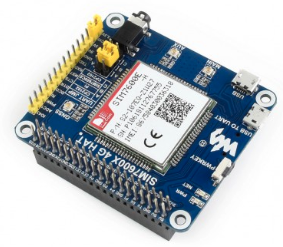 ### Tested with Raspbian Buster How to install * Clone this repository at home directory in a PC with ubuntu ``` cd ~ git clone https://github.com/jordy33/sim7600.git ``` * To install connect the SD card (image from the raspberry) to the pc using an USB adapter. * Copy boot folder (from the clone repository) into boot partition ``` Using Nautilus replace all the contents from the boot directory (that you copy from the repository) into the SD card on the boot partition ``` Enabling the Serial interface to access the raspberry pi via serial port. ``` sudo nano /media/$USER/boot/config.txt ``` At the last line insert: ``` enable_uart=1 ``` * Copy rootfs folder into rootfs partition You can't use Nautilus. The rootfs only can be write by root Do the following commands ``` sudo -i cd /media/$USER/rootfs/lib/modules cp -fr /home/$USER/sim7600/rootfs/lib/modules/* . ``` Insert the SD card in the raspberry pi and boot. ### Connect to the raspberry pi the waveshare module using a USB cable Also set the yellow jumpers as shown in the picture 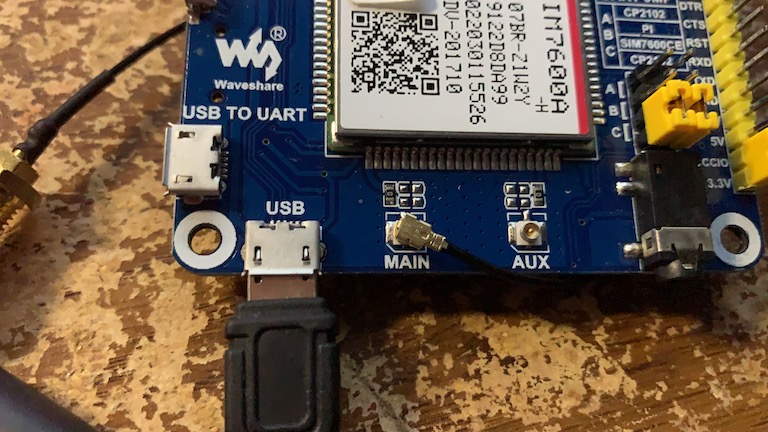 ### Connect the raspberry to the internet with the ethernet cable Login via ssh (change the command below with your ip) ``` ssh pi@192.168.100.1 ``` Password: ``` raspberry ``` * Make sure that the raspberry pi is connected with the ethernet port to the internet * All the following commands are executed in the raspberry pi ### Installing Qualcomm QMI interface Configure Locales ``` Edit /etc/locale.gen and uncomment the line with en_US.UTF-8 ``` Run ``` sudo locale-gen en_US.UTF-8 update-locale en_US.UTF-8 ``` ### Installing qmicli ``` sudo apt-get update -y sudo apt install libgtk-3-dev libgtop2-dev librsvg2-dev -y sudo apt-get install gudev-1.0 wget http://www.freedesktop.org/software/libqmi/libqmi-1.24.2.tar.xz tar -vxf libqmi-1.24.2.tar.xz cd libqmi-1.24.2/ ./configure --prefix=/usr --disable-static make sudo make install ``` ### Press the power button or pull low GPIO pin 4 to turn on the SIM7600 HAT 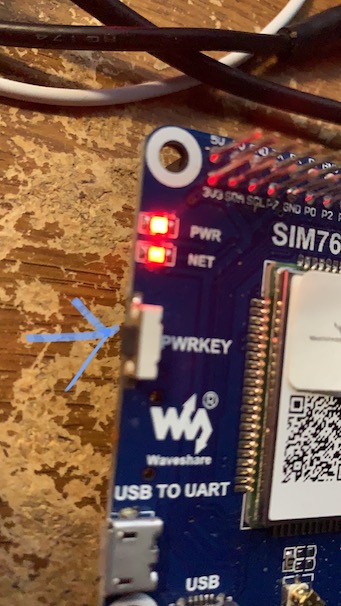 Verify that you have the qmi_wwan driver ``` lsusb -t ``` Can look like this ``` Port 4: Dev 4, If 5, Class=Vendor Specific Class, Driver=qmi_wwan, 480M ``` Test qmicli ``` sudo qmicli --nas-get-signal-strength -d /dev/cdc-wdm0 ``` It will reply ``` BIM QMUX support available [/dev/cdc-wdm0] Successfully got signal strength Current: Network 'lte': '-61 dBm' RSSI: Network 'lte': '-61 dBm' ECIO: Network 'lte': '-2.5 dBm' IO: '-106 dBm' SINR (8): '9.0 dB' RSRQ: Network 'lte': '-16 dB' SNR: Network 'lte': '3.2 dB' RSRP: Network 'lte': '-90 dBm' ``` Request module manufacturer: ``` sudo qmicli --device=/dev/cdc-wdm0 --dms-get-manufacturer ``` Response ``` [/dev/cdc-wdm0] Device manufacturer retrieved: Manufacturer: 'QUALCOMM INCORPORATED' ``` Sim Card Status: ``` sudo qmicli --device=/dev/cdc-wdm0 --uim-get-card-status ``` ### Installing Required Software ``` sudo apt-get update && sudo apt-get install libqmi-utils udhcpc ``` * The installation is over. Logoff from ssh session. Disconnect the raspberry from the internet (ethernet cable) ### In the PC, Connect via USB-UART adapter to the raspberry pi using the GPIO pins 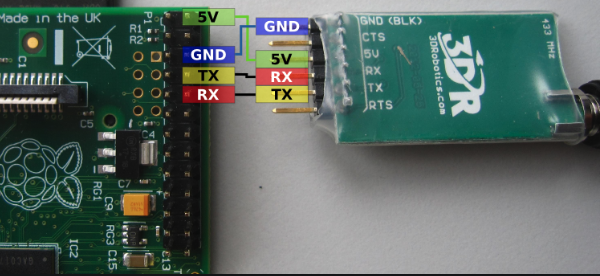 In the PC execute the following commands to connect to the raspberry pi. Replace with your serial port. ``` sudo apt-get install screen sudo screen /dev/cu.usbserial-A506LNW8 115200 ``` Putting online the adapter ``` sudo qmicli -d /dev/cdc-wdm0 --dms-set-operating-mode='online' ``` Note, you can verify if your radio needs to be turned on by using the following commands: ``` qmicli -d /dev/cdc-wdm0 --dms-get-operating-mode qmicli -d /dev/cdc-wdm0 --nas-get-signal-strength qmicli -d /dev/cdc-wdm0 --nas-get-home-network ``` If the first command shows in its output 'Low Power' or anything other than 'online' it means your radio is off and needs to be turned on. The last of those commands should return the LTE network ID if your device successfully connected. ### Reconfigure the network interface for raw-ip protocol The qmi-wwan kernel driver creates the wwan0 network interface for you when it detects the SIM7600 module connected to your Raspberry Pi. By default that interface is set to 802-3 protocol, however it seems the correct protocol should be raw-ip. The qmi-network script tries to set that up for you, but it will most likely fail. To make the change, do the following: ``` sudo qmicli -d /dev/cdc-wdm0 -w sudo ip link set wwan0 down echo 'Y' | sudo tee /sys/class/net/wwan0/qmi/raw_ip sudo ip link set wwan0 up ``` ### Connect to the mobile network. ``` qmicli -p -d /dev/cdc-wdm0 --device-open-net='net-raw-ip|net-no-qos-header' --wds-start-network="apn='internet.itelcel.com',username='webgprs',password='webgprs2002',ip-type=4" --client-no-release-cid ``` ### Finally, configure the IP address and the default route with udhcpc: ``` sudo udhcpc -i wwan0 ``` ### Testing ``` ip r s ping -4 www.google.com ```
