KO
|
EN
gitlite — search
Search
#ai-agent
#python
#mcp-server
#agentic-ai
#automation
#genpark
#llm-tools
#dsh-plugin
#deepseek-harness
#ai-agents
#dsh
#claude-code
dblab
★ 35
Open GitHub ↗
Free AI Database Management Tool.
Download README (.md)
Explore Similar Repositories
terraform-helm-gitops-bridge
:
Terraform module for GitOps bridge
tg-mini-app-template
:
Telegram Mini App template written in Go and React with CI/CD to GCP
octodns-netbox-dns
:
octodns provider for sys4/netbox-plugin-dns
CVE-2023-43770-POC
:
A Proof-Of-Concept for the CVE-2023-43770 vulnerability.
GMCExtended
:
Extensions and utilities for GMCv2 beyond the scope of Grim's actual plugin.
// repository documentation
Was this content helpful?
★ 0
(0 ratings)
Select Rating:
★
★
★
★
★
Submit Feedback
Recent Feedback
×
Download README
Do you want to download the
README.md
file for
dblab
?
Download (.md)
# DBLAB Free AI Database Management Tool. <p align="center"> [<a href="README-ZH.md">中文</a>] </p> Welcome to DBLAB, a versatile, AI-cooperative database management tool, offering a revolutionary database management experience. DBLab is a robust database management tool designed to provide users with an intuitive and efficient database management experience. Through the integration of AI and a user-friendly interface, DBLab simplifies database management tasks, enabling database administrators and developers to effortlessly manage and operate various databases. ## Key Features - **Intelligent AI Assistant**: DBLab integrates an advanced ChatGPT AI assistant, allowing users to execute complex database tasks effortlessly through natural language interaction, boosting work efficiency. - **Multi-Database Support**: DBLab supports various mainstream databases, including but not limited to MySQL, PostgreSQL, MongoDB, and more, depending on the open version support. - **Visual Query Interface**: Execute and optimize SQL queries through an intuitive interface, with support for result set export and visual representation. - **Schema Management**: Create, modify, and delete database tables with support for rich data types and constraints. - **High-Speed Data Import/Export**: Swiftly import and export data. - **Code Generation**: Quickly generate code with customizable programming languages. ## Technical Support For any questions or technical support, please visit the [DBLab official website](https://www.dblab.ai/) for assistance. DBLab Official Website: [dblab.ai](https://www.dblab.ai/) App Download: [Download](https://www.dblab.ai/#download) User Documentation: [Documentation](https://www.dblab.ai/docs/) Issue Tracker: [Issues](https://github.com/dblabai/dblab/issues) # Quick Start ## Connect to Database Server When using database management software, connecting to a database is a crucial step. To create a new connection, click the connect button and select your server type. Then, enter the required information in the connection window. 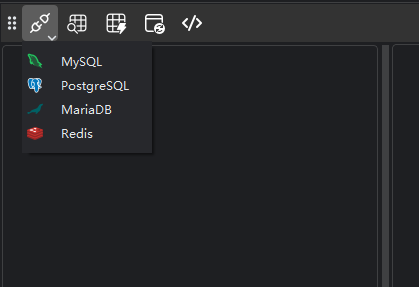 You can edit the connection properties by right-clicking on the connection and selecting "Edit Connection." ## View Databases After a successful connection, you can browse the structure and content of the database. Using the navigation tree structure, you can view tables, fields, primary keys, and other objects within the database. 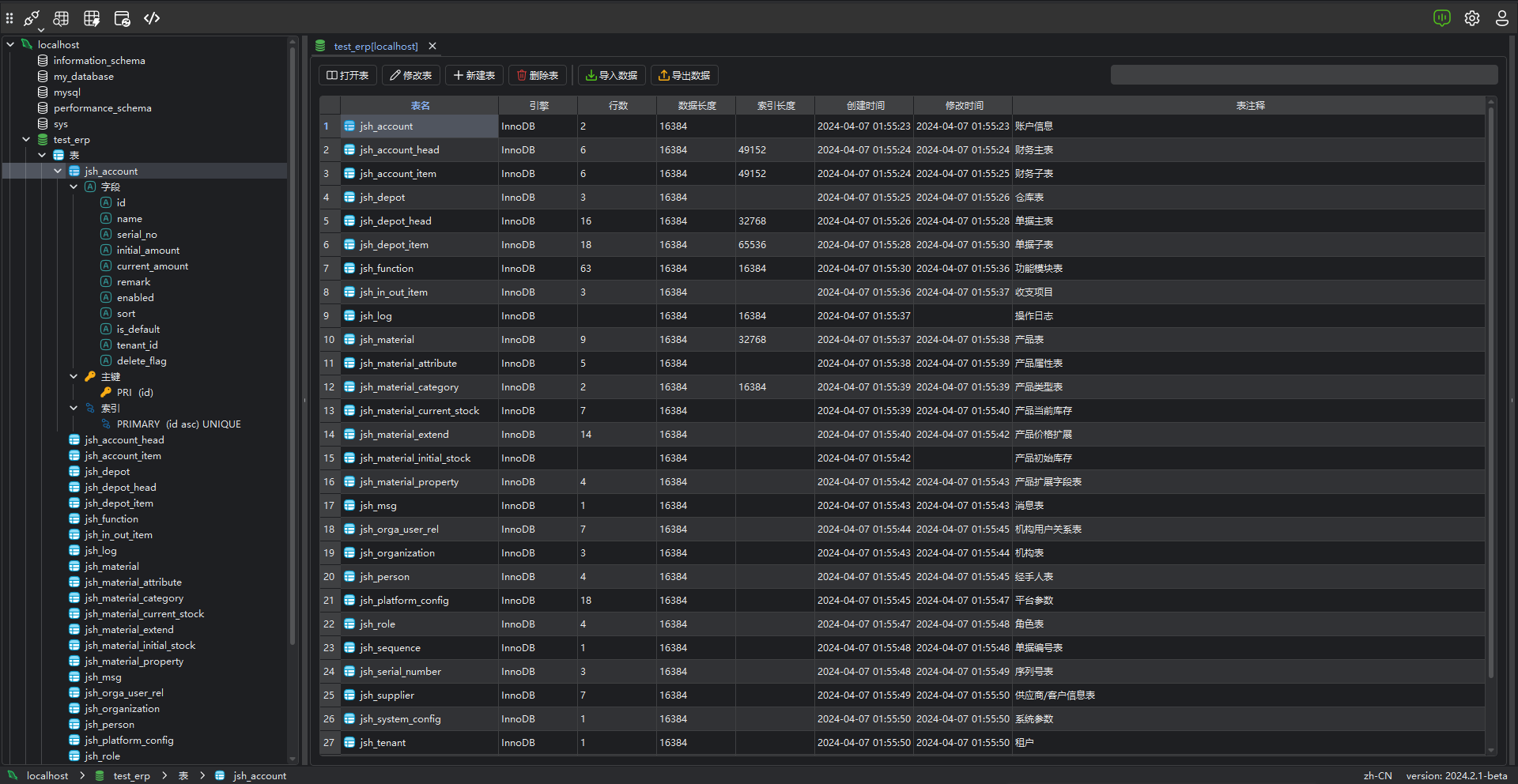 ## Browse Data Once connected to the database, double-click on a data table to easily browse and view the data. ### View Table Details On the table data view page, clicking the **Details** button reveals metadata information, DDL, and table properties. Clicking the **Details** button again will close the display. 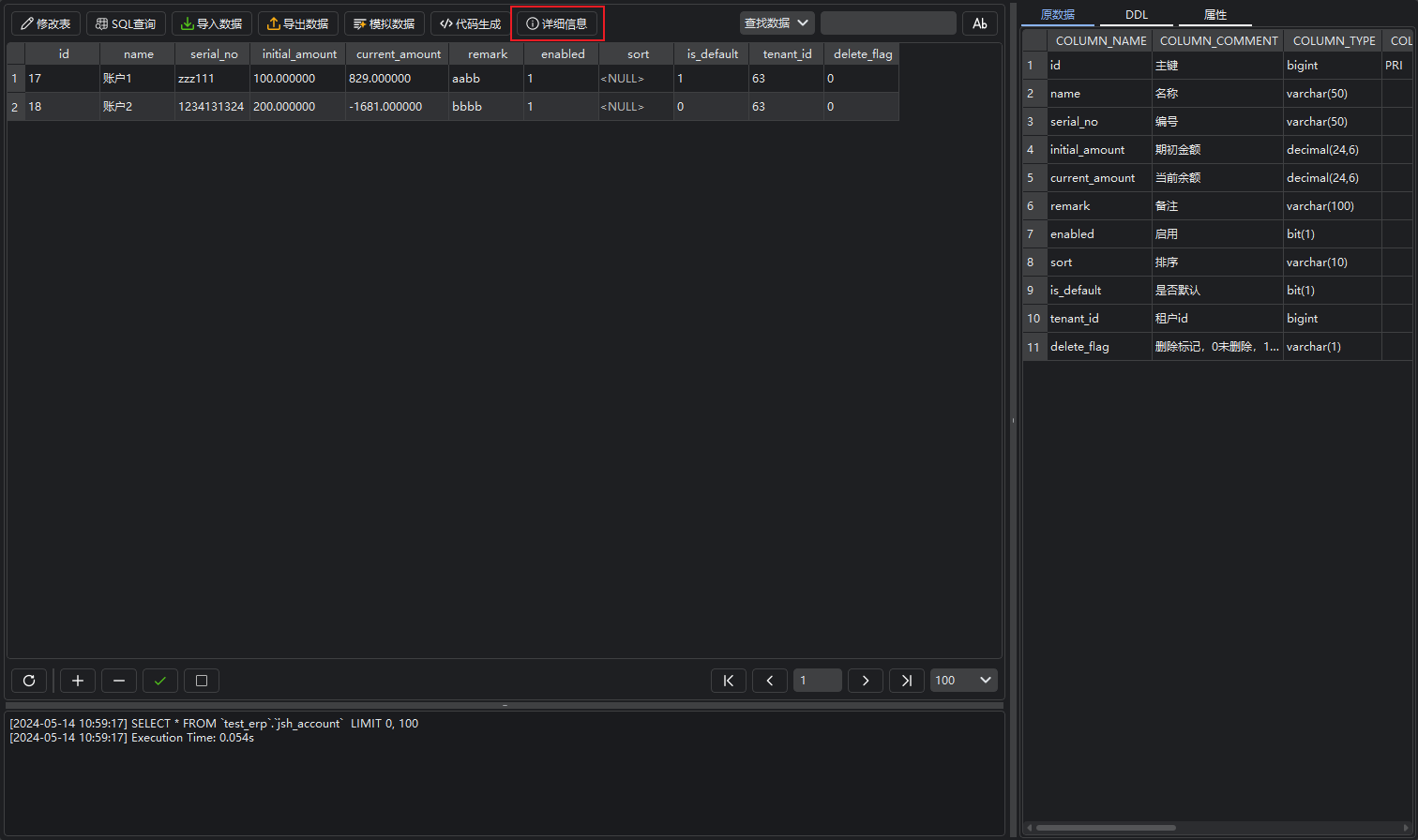 ### Manage Data Using AI Assistant DBLAB incorporates an AI assistant that can intelligently help you manage data quickly. #### Open AI Assistant Click the **AI Assistant** button in the menu bar to open the AI assistant page. You can click the **+** button to create a new dialogue or click the **History** button to view past interactions. 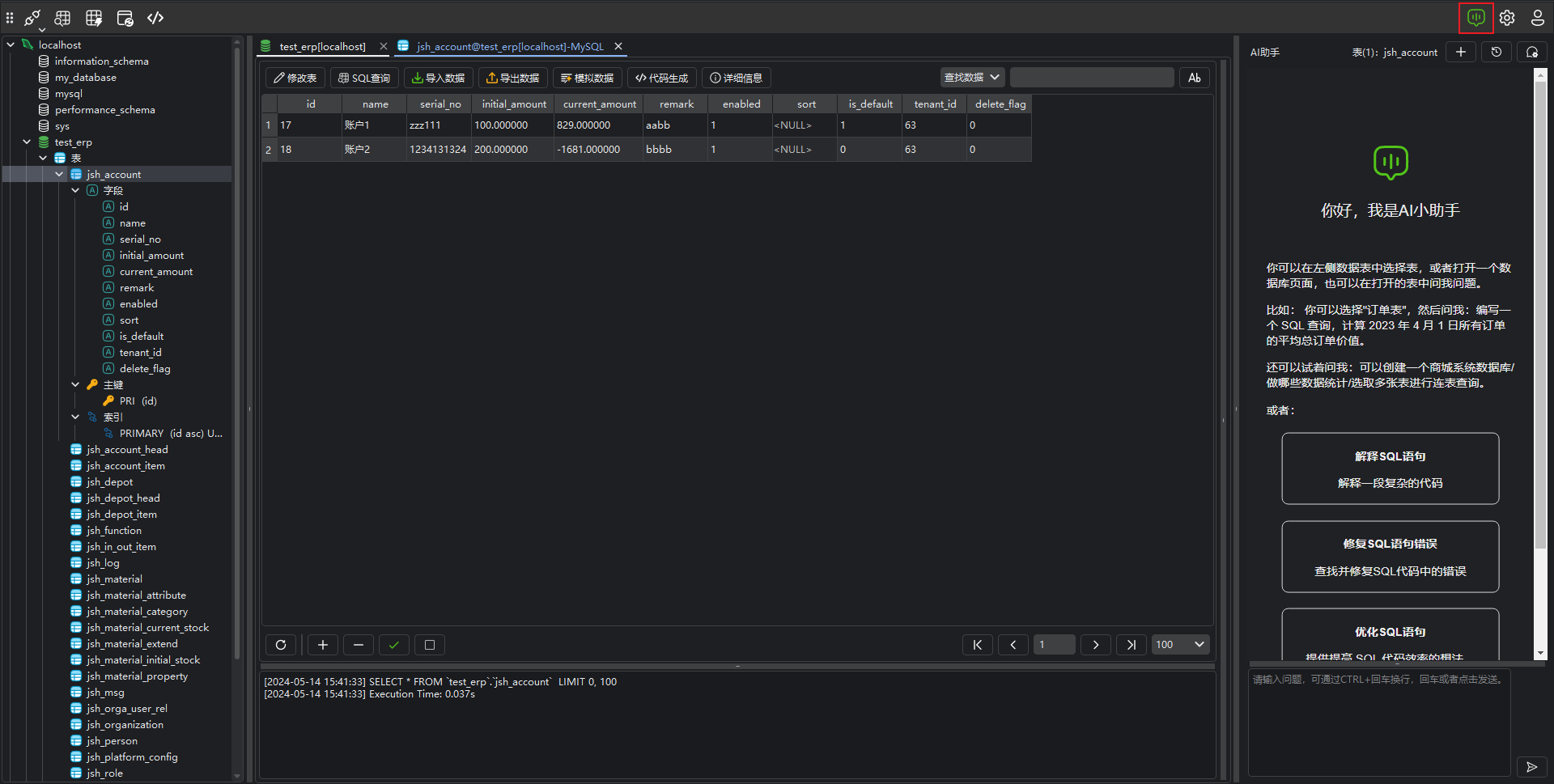 > **Copy Button**: Copy the current content. > > **Console Button**: Open the current SQL statement in the console. > > **Run Button**: Run the current SQL statement directly in the console. ### Search Data In the current table, you can perform a fuzzy search and SQL queries. Click the **Query Data** button to switch to query mode. 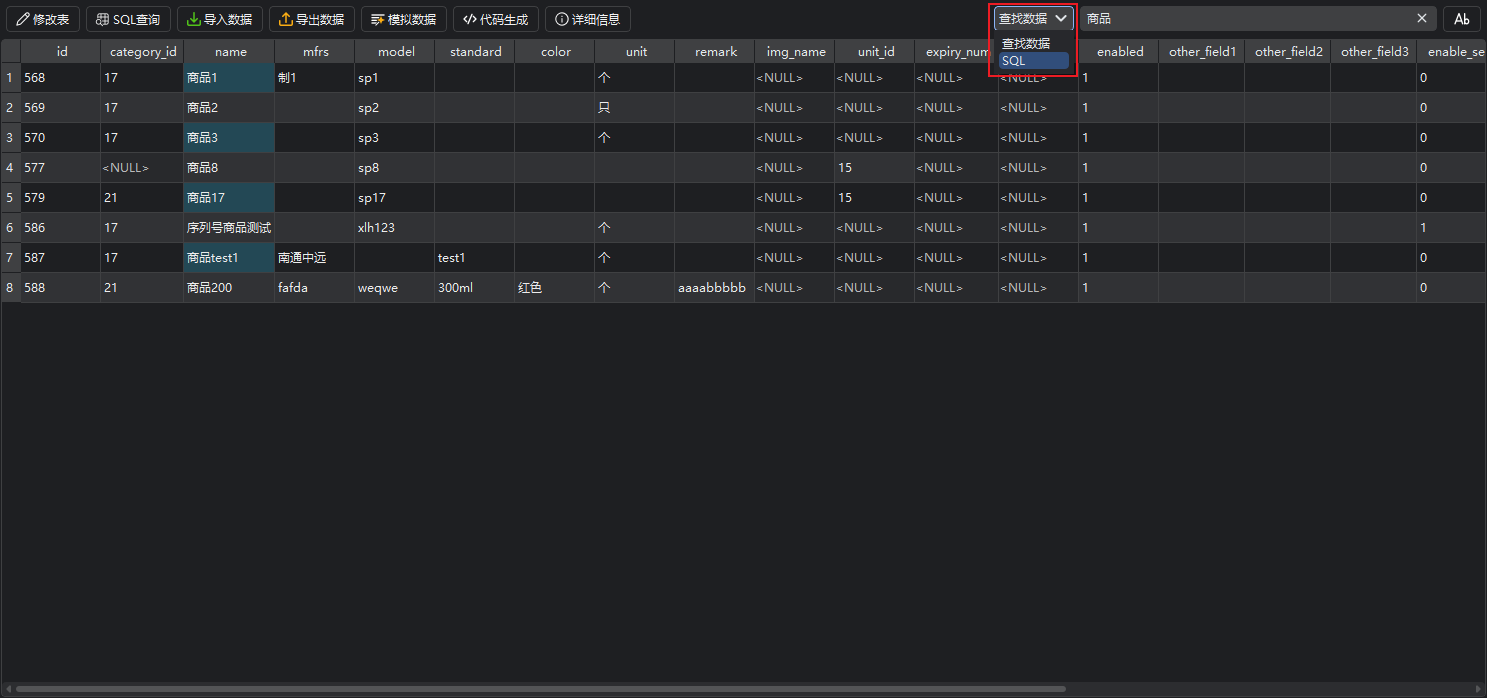 ### Manage Data Various data management features are provided, including adding, editing, and deleting records. By right-clicking on table objects, you can access these functions. 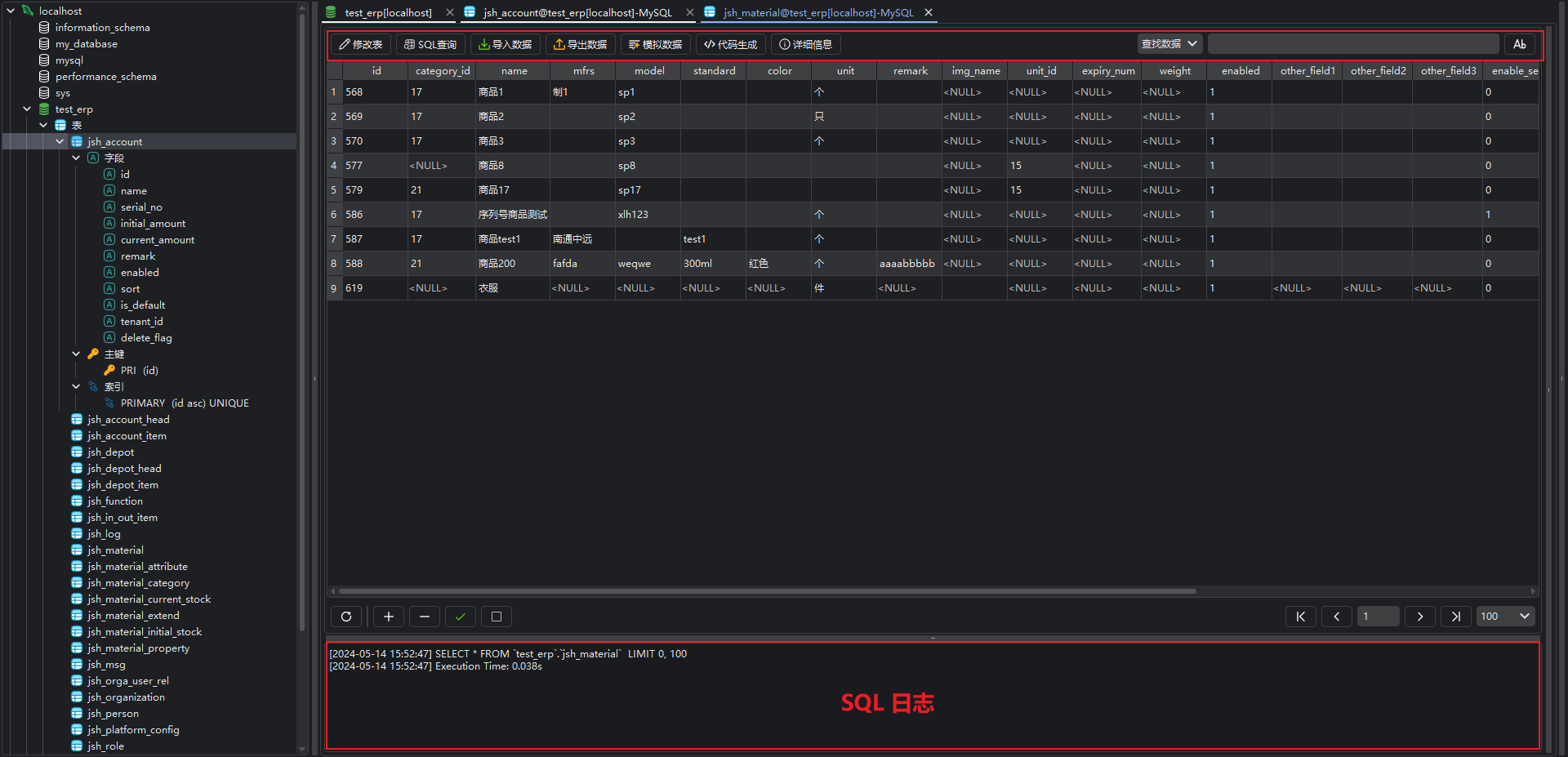 ### Import/Export Data Support for exporting data in different formats (such as CSV, Excel) and importing data from external files makes data migration and backup extremely convenient. 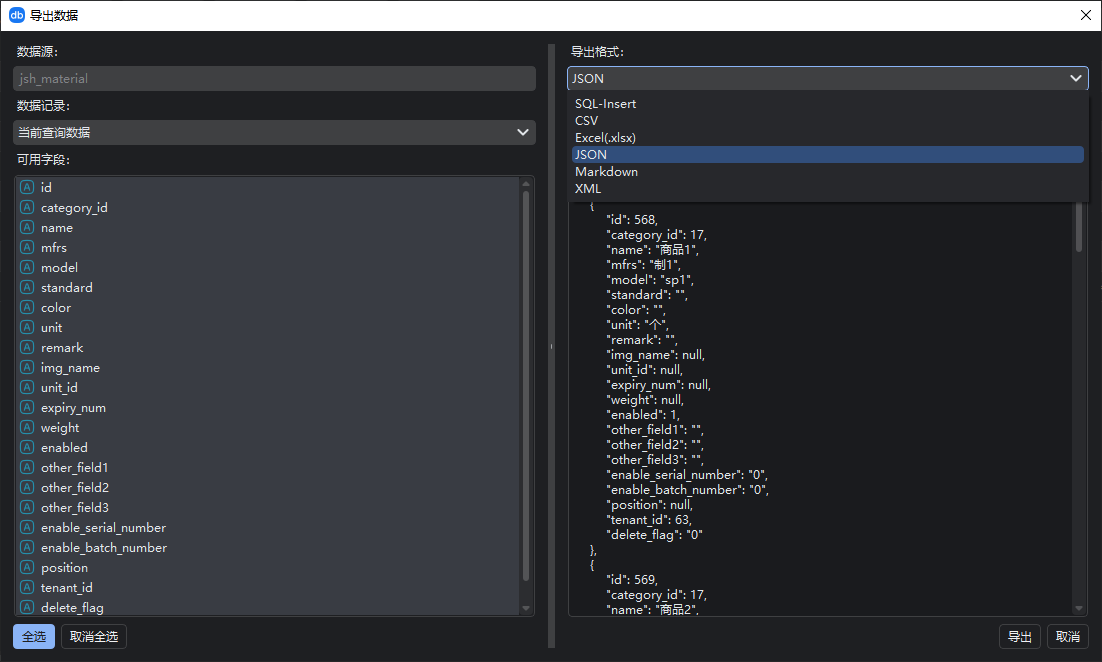 ## Query Data (SQL Console) Use the built-in query tool to easily execute SQL queries. Select a table, click the "Query" button, then enter your SQL query statement and execute. 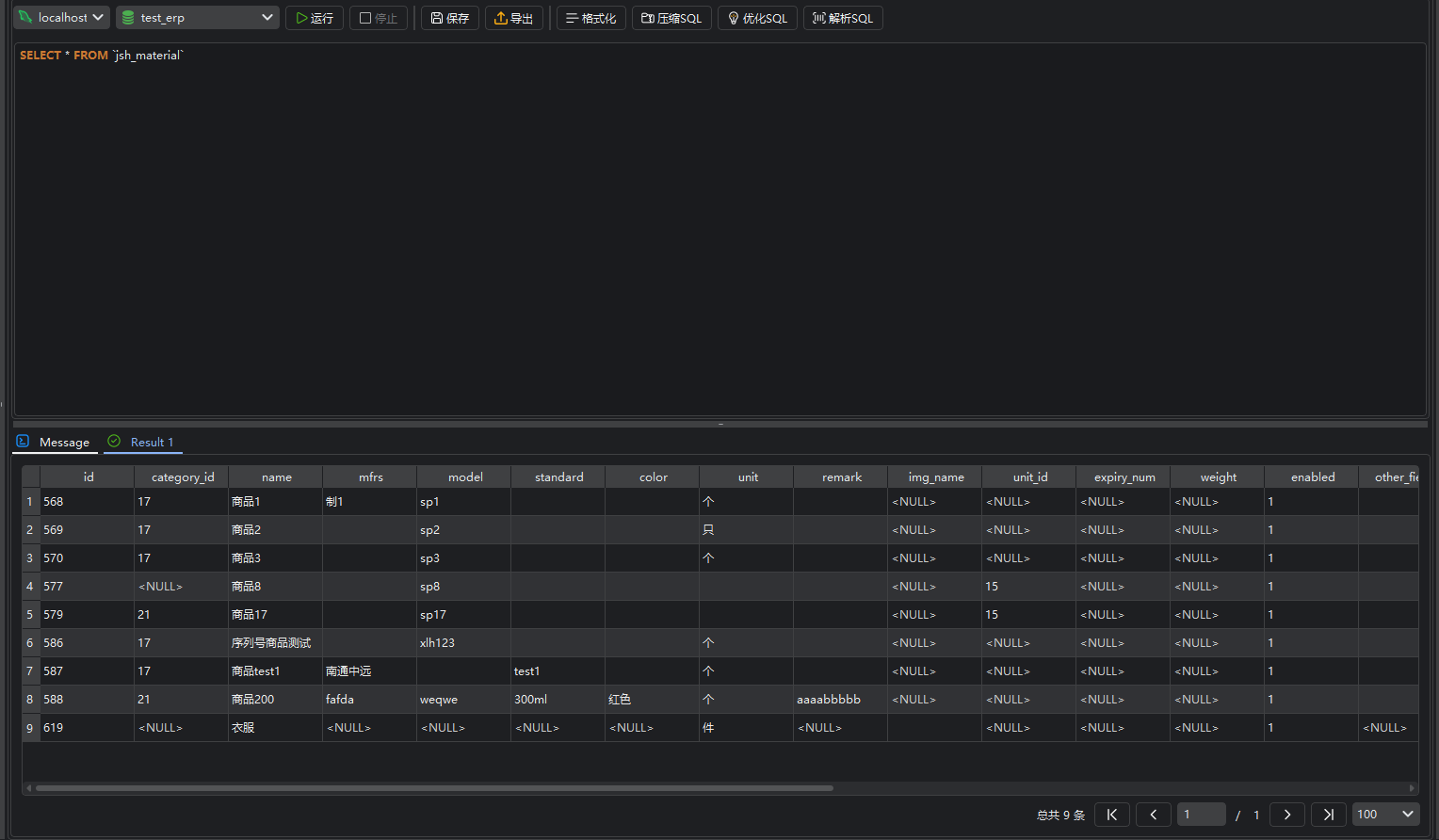 This is just a quick start, and we recommend referring to the detailed user manual for more advanced features and operation information. Enjoy your usage! ### Follow us <img src="docs/public/wxqr.png" alt="查询数据" style="zoom:80%;" />
