KO
|
EN
gitlite — search
Search
#python
#java
#python3
#arduino
#golang
#machine-learning
#rust
#html
#flask
#javascript
#seismology
#nodejs
radio-stream-cli
★ 11
Open GitHub ↗
A personal music streaming solution
Download README (.md)
Explore Similar Repositories
wp-blank
:
Blank WordPress theme for building custom frontend code
jekyll-pre-commit
:
A Jekyll plugin to make sure your post is _really_ ready for publishing
ipro-cli
:
iproto cli tools
westcache
:
Java annotation based cache, with convenience for cache flush
taidou2-open
:
泰斗2框架设计(公开课)
// repository documentation
Was this content helpful?
★ 0
(0 ratings)
Select Rating:
★
★
★
★
★
Submit Feedback
Recent Feedback
×
Download README
Do you want to download the
README.md
file for
radio-stream-cli
?
Download (.md)
Radio Stream ============ **NOTE:** These instructions are intended for the users of Radio Stream - Developers and contributors should use [this repositry](https://github.com/vitalybe/radio-stream). About ----- **Radio Stream** is your personal music service that streams music automatically based on your listening habits. * **Your music** - Use your own music files without restrictions. * **Automatic DJ** - Enjoy music immediately without choosing a specific song or album. The music is selected based on when you last heard it, its rating and more. Read more [here](https://github.com/vitalybe/radio-stream-cli#automatic-dj). * **Dynamic playlists** - Want to hear only some of your music? Create a music playlist, e.g, only with genre Heavy Metal, and have the automatic DJ stream the music from that station. * **Desktop and Mobile clients** - Listen to your music when you're on another computer or on your mobile phone. * **Last.FM support** - Scrobble your music to Last.FM * **Powered by beets** - Use the super-powerful [beets](https://github.com/beetbox/beets) and all its plugins to organize your music. * **Open source** - Modify the applications to your liking. The full source control is available [here](https://github.com/vitalybe/radio-stream). <p align="center"> <img src="images/android.jpg" alt="Radio Stream for Android"/> </p> Automatic DJ ------------ Each time you start listening to your music **Radio Stream** makes a list of songs with the following consideration: * **Rating** - Higher rated songs will appear more. * **Play date** - Songs that were played least recently will appear more. * **Play count** - Songs that were played less (e.g. new songs), will appear more. * **Unrated songs** - Unrated songs are considered new and are played more often. * **Limit artist repitions** - Prevent a single artist to repeat too many time. Each of these rules contribute to a "score" of a song which decides which song will be streamed next. How to use ========== Prerequirements --------------- You need [docker](https://docs.docker.com/engine/installation/) to run the server. So far I've ran it successfully on **Mac** and **Linux**. You might be able to run it on **Windows 10** too, if you use **bash for Windows** (for example like the one that comes with git for Windows). The clients are [available](https://github.com/vitalybe/radio-stream-cli/releases/latest) for **Mac** and **Android**. Getting started --------------- **Important:** All the following commands should be executed in your terminal relative to the root folder. So if you unzipped the application to: `~/radio-stream-cli` then you should open the terminal and run `cd ~/radio-stream-cli`. * Clone this git repository or [download](https://github.com/vitalybe/radio-stream-cli/archive/master.zip) the zip * Open the terminal in the downloaded directory * Run: `bin/server/start` If all goes well, docker will download the Radio Stream and connect to it. You should see: ******************* RadioStream ******************* User: radio Password: radio Available scripts: beet bls pending_delete recently-added recently-played unrated youtube At this point your server is running and listening on port **80**. **NOTE:** To allow incoming connection in your firewall or router to allow external connections. **NOTE:** In the future, it is suggested to run the `start` with a `-p PASSWORD` flag instead of the default password. The `bin/server/start` command has flags for additional configuration: * Password: Use the `-p` flag to change the password, e.g: `bin/server/start -p PASWORD` flag, e.g: `bin/server/start -p 1234` * Music folder: Use the `-m` flag to set the folder where the imported music resides. By default it is in `library/music` folder Connect with a client application --------------------------------- Before you proceed, let's verify that the server is online and working. [Download](https://github.com/vitalybe/radio-stream-cli/releases/latest) one of the client applications. Launch the application and enter the IP address of the server and the default password: `radio` 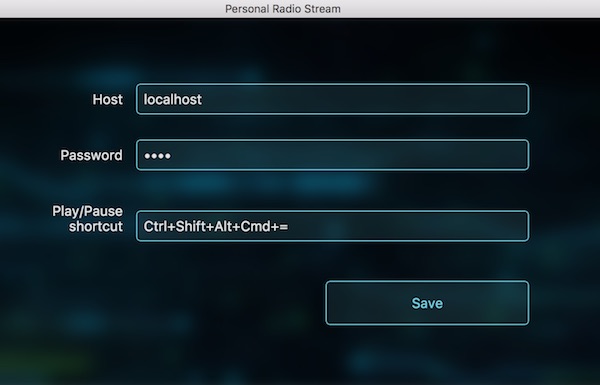 If everything works as expected, you should see this screen: 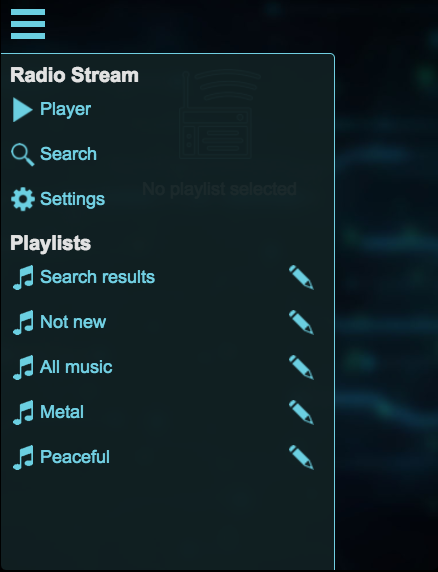 If it doesn't connect, please see [troubleshooting](#troubleshooting) below. At this point we have no music so let's add some. Managing music ============== Adding existing music library ------------------------------ Copy your music files to the folder `library/new-music`. Then run: `bin/app/import`. Once the import is complete your music will be moved to `library/music`. Import process is described in more detail in beet's documentation [here](http://beets.readthedocs.io/en/v1.4.2/reference/cli.html#import) Adding music from YouTube ------------------------- You can easily add music from YouTube by running: `bin/app/youtube YOUTUBE_VIDEO_URL`. This would download the audio and add it to your library. Creating new playlists ---------------------- To create a new playlist, use the "Search" screen. Once the search is complete, choose "Save to playlists". The songs in the playlist will automatically shuffle by the automatic DJ. 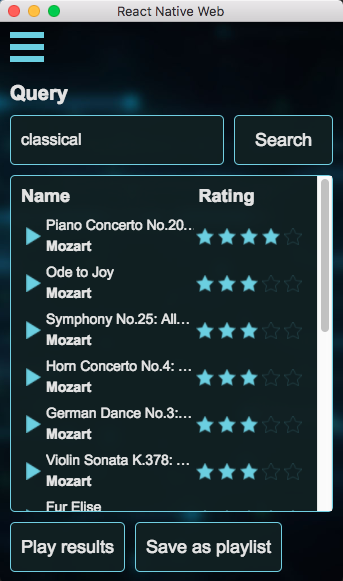 Listing your music ------------------ To list the music you added you can run `bin/app/beet ls` or for a nicely formatted table `bin/app/bls`. This command is using beet's list command and its [query syntax](http://beets.readthedocs.io/en/v1.4.2/reference/query.html). So for example to list only your beatles songs you could run: `bin/app/bls the beatles` I've created several scripts for commonly used queries: * `bin/app/recently_added` - Lists recently added songs, ordered by add date * `bin/app/recently_played` - Lists recently played songs, ordered by play date * `bin/app/unrated` - Lists unrated songs * `bin/app/pending_delete` - Shows songs with 1 star sorted by add date (new songs first) You can create new ones for your needs by copying one of them and changing the query. Config file =========== Make user config file --------------------- The config file is located at: `config/config_source.yaml` in YAML format. To modify its settings, copy it first: `cp config/config_source.yaml config/config_user.yaml` In the following sections modify the copied **config_user.yaml** file. Last.FM ------- To enable scrobbling your plays to Last.FM change the following part in the configuration: last-fm: username: password: Once you finish, run the `bin/server/start` to reload the new configuration. Adding an alias to common scripts ---------------------- echo alias beet=$(pwd)/bin/app/beet echo alias bls=$(pwd)/bin/app/bls Save the output in your .bashrc file. NOTE: Don't create a symlink to these files - That will not work. Upgrading ========= Download the latest version, as described [before](#getting-started). If you've cloned the repository via git, simply run `git pull`. Next upgrade the container `bin/server/upgrade` and then start it again with the `/bin/server/start` command. Troubleshooting =============== In this order: * Run: `bin/app/status`. You should be getting the username and the password. * If you don't get these, the container isn't running, run: `bin/server/logs` to see what went wrong and open an issue. * On the computer running the server, run: `curl -u radio:MY_PASSWORD http://localhost/radio-stream/api/playlists` * You should be getting the current available playlists. If you get error 401 your password is wrong. * Get the ip address of the server and from another computer (e.g where you're trying to listen to music) try running: `curl -u radio:MY_PASSWORD http://MY_IP_ADDRESS/radio-stream/api/playlists` * If that doesn't work make sure port 80 is open in server's firewall/router. Command reference ================= * `bin/server/beet radio-preview` - Shows the songs and their calculated rankings * `-p PLAYLIST` - Only show songs that belong to the given playlist * `-c COUNT` - Limit the number of results * `-h` - List all the flags * `bin/server/start` starts the server. It has the following flags: * `-p` - Set the password of the server - Avoid using default * `-m` - Set the folder where the imported music resides. By default it is in `library/music` folder * `-h` - List all the allowed flags * `bin/server/stop` - Stops the server * `bin/server/upgrade` - Upgrade the server to latest version * `bin/server/connect` - Connect to a running docker container instance bash instance Why I made Radio Stream ======================= I have a relatively large music library which is too large to store on a device. Initially I've relied on various partial syncing solutions for the iPhone, but my solutions were flawed, especially so once I've started using an Android phone. I wanted to have easy access to my library from any device I use. Additionally, I don't like all my music library the same, so playing it on shuffle was a disappointing experience - I want to listen more to songs I like more. And I definitely don't want to listen to a song I just listened a day ago because it got shuffled again. I wanted a more intelligent way to choose the music for me. I've looked into several online service, but they were other limited in some way or lacked the features I wanted. Eventually I decided I will just do it myself.
