KO
|
EN
gitlite — search
Search
#typescript
#ai-agents
#ai
#dsh-plugin
#deepseek-harness
#open-source
#cli
#claude-code
#codex
#developer-tools
#react
#windows
EnsoAI
★ 996
Open GitHub ↗
Multiple Agents, Parallel Flow
Download README (.md)
Explore Similar Repositories
hasor
:
Hasor是一套基于 Java 语言的开发框架,区别于其它框架的是 Hasor 有着自己一套完整的体系,同时还可以和先有技术体系做到完美融合。它包含:IoC/Aop容器框架、Web框架、Jdbc框架、RSF分布式RPC框架、DataQL引擎,等几块。
tweetinvi
:
Tweetinvi, an intuitive Twitter C# library for the REST and Stream API. It supports .NET, .NETCore, UAP (Xamarin)...
BFKit-Swift
:
BFKit-Swift is a collection of useful classes, structs and extensions to develop Apps faster.
RaftLib
:
The RaftLib C++ library, streaming/dataflow concurrency via C++ iostream-like operators
rattles
:
🪇 Minimal terminal spinners/throbbers for Rust
// repository documentation
Was this content helpful?
★ 0
(0 ratings)
Select Rating:
★
★
★
★
★
Submit Feedback
Recent Feedback
×
Download README
Do you want to download the
README.md
file for
EnsoAI
?
Download (.md)
<p align="center"> <img src="docs/assets/logo.png" alt="EnsoAI Logo" width="120" /> </p> <h1 align="center">EnsoAI</h1> <p align="center"> <strong>Multiple Agents, Parallel Flow</strong> </p> <p align="center"> Unleash parallel intelligence within a single project.<br/> Let Claude, Gemini, and Codex weave through different worktrees simultaneously without context switching. </p> <p align="center"> <a href="README.zh.md">中文</a> | <a href="README.md">English</a> </p> <p align="center"> <a href="https://github.com/J3n5en/EnsoAI/releases/latest"><img src="https://img.shields.io/github/v/release/J3n5en/EnsoAI?style=flat&color=blue" alt="Release" /></a> <img src="https://img.shields.io/badge/Electron-39+-47848F?logo=electron&logoColor=white" alt="Electron" /> <img src="https://img.shields.io/badge/React-19-61DAFB?logo=react&logoColor=white" alt="React" /> <img src="https://img.shields.io/badge/TypeScript-5.9-3178C6?logo=typescript&logoColor=white" alt="TypeScript" /> <img src="https://img.shields.io/badge/License-MIT-green" alt="License" /> </p> <p align="center"> <a href="https://t.me/EnsoAI_news"><img src="https://img.shields.io/badge/Updates-Telegram-26A5E4?logo=telegram&logoColor=white" alt="Telegram Channel" /></a> <a href="https://t.me/EnsoAi_Offical"><img src="https://img.shields.io/badge/Community-Telegram-26A5E4?logo=telegram&logoColor=white" alt="Telegram Group" /></a> </p> <p align="center"> <a href="https://www.producthunt.com/products/ensoai?utm_source=badge-featured&utm_medium=badge&utm_campaign=badge-ensoai" target="_blank"><img src="https://api.producthunt.com/widgets/embed-image/v1/featured.svg?post_id=1057621&theme=light" alt="EnsoAI - Multiple AI Agents, Parallel Workflow in Git Worktrees | Product Hunt" width="250" height="54" /></a> </p> --- ## Workflow, Reimagined. Stop stashing and popping. EnsoAI treats every branch as a first-class workspace with its own dedicated AI context. 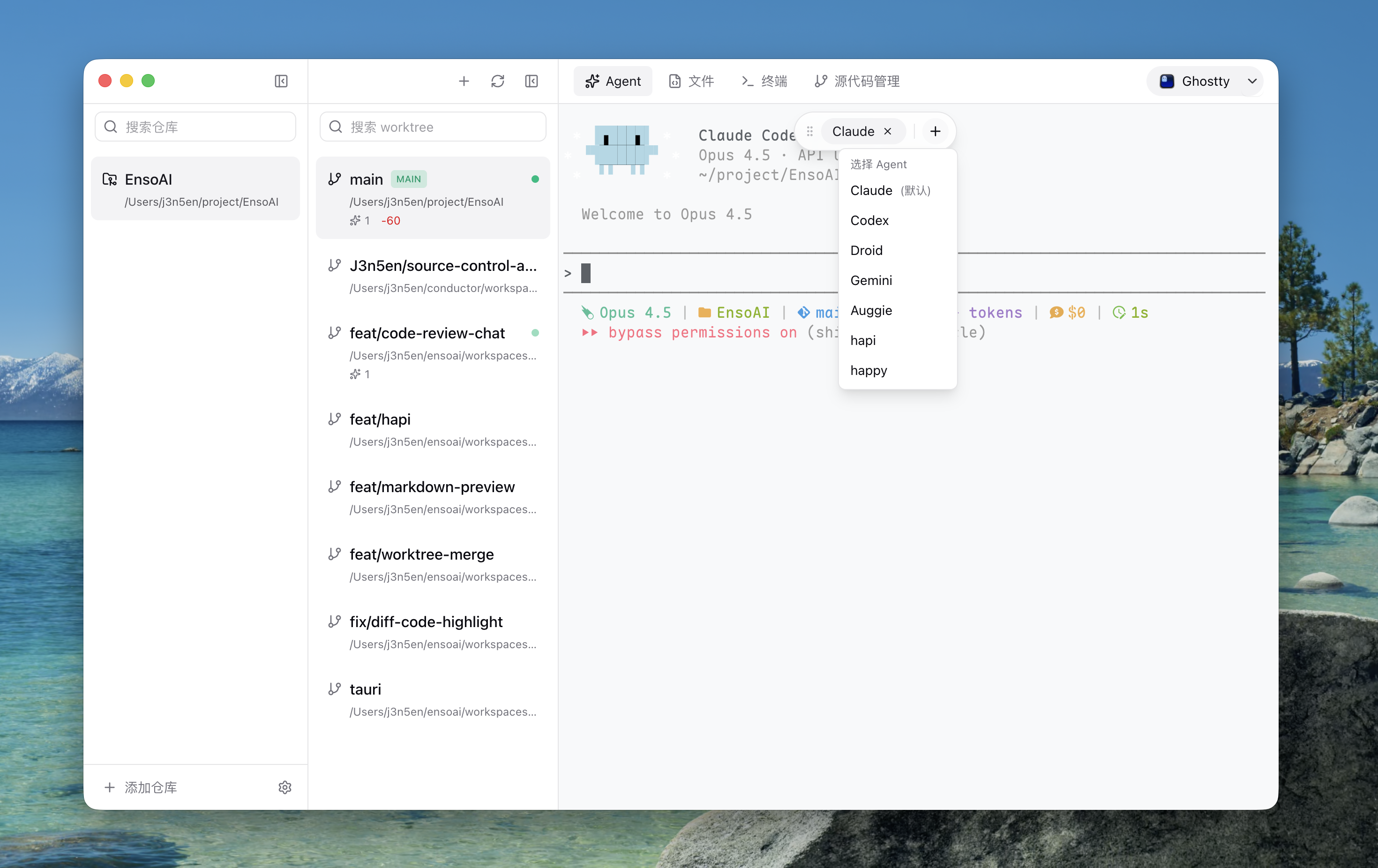 --- ## Installation ### Package Managers (Recommended) **macOS (Homebrew)** ```bash brew tap j3n5en/ensoai brew install --cask ensoai ``` **Windows (Scoop)** ```powershell scoop bucket add ensoai https://github.com/J3n5en/scoop-ensoai scoop install ensoai ``` **Windows (Winget)** ```powershell winget install J3n5en.EnsoAI ``` ### Manual Download Download the installer for your platform from [GitHub Releases](https://github.com/J3n5en/EnsoAI/releases/latest): | Platform | File | |----------|------| | macOS (Apple Silicon) | `EnsoAI-x.x.x-arm64.dmg` | | macOS (Intel) | `EnsoAI-x.x.x.dmg` | | Windows (Installer) | `EnsoAI-Setup-x.x.x.exe` | | Windows (Portable) | `EnsoAI-x.x.x-portable.exe` | | Linux (AppImage) | `EnsoAI-x.x.x.AppImage` | | Linux (deb) | `ensoai_x.x.x_amd64.deb` | ### Build from Source ```bash # Clone the repository git clone https://github.com/J3n5en/EnsoAI.git cd EnsoAI # Install dependencies (requires Node.js 20+, pnpm 10+) pnpm install # Run in development mode pnpm dev # Build for production pnpm build:mac # macOS pnpm build:win # Windows pnpm build:linux # Linux ``` --- ## Features ### Multi-Agent Matrix Seamlessly switch between Claude, Codex, Gemini, and local LLMs. Each worktree gets its own persistent AI session.  Built-in support: - **Claude** - Anthropic's AI assistant with session persistence - **Codex** - OpenAI's coding assistant - **Gemini** - Google's AI assistant - **Cursor** - Cursor's AI agent (`cursor-agent`) - **Droid** - Factory CLI for AI-powered CI/CD - **Auggie** - Augment Code's AI assistant You can also add custom agents by specifying the CLI command. --- ### Visual Source Control Review diffs, stage changes, and manage commits with a beautiful, keyboard-centric Git interface. 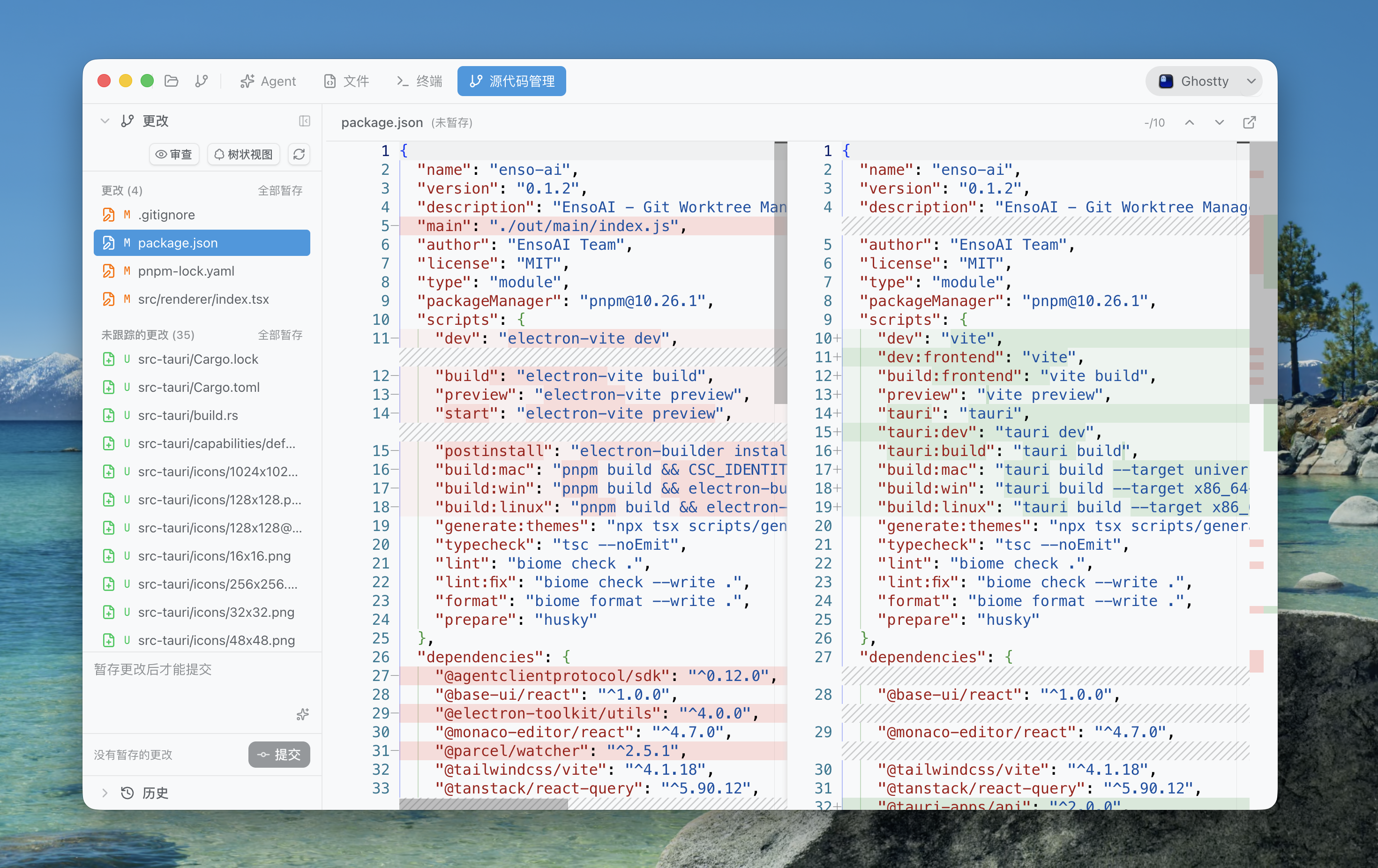 - Change list showing all modified files - Stage/unstage operations - Commit history browser - Code diff view --- ### Integrated File Editor Built-in Monaco editor for quick edits. Syntax highlighting for 50+ languages with drag-and-drop multi-tab support. 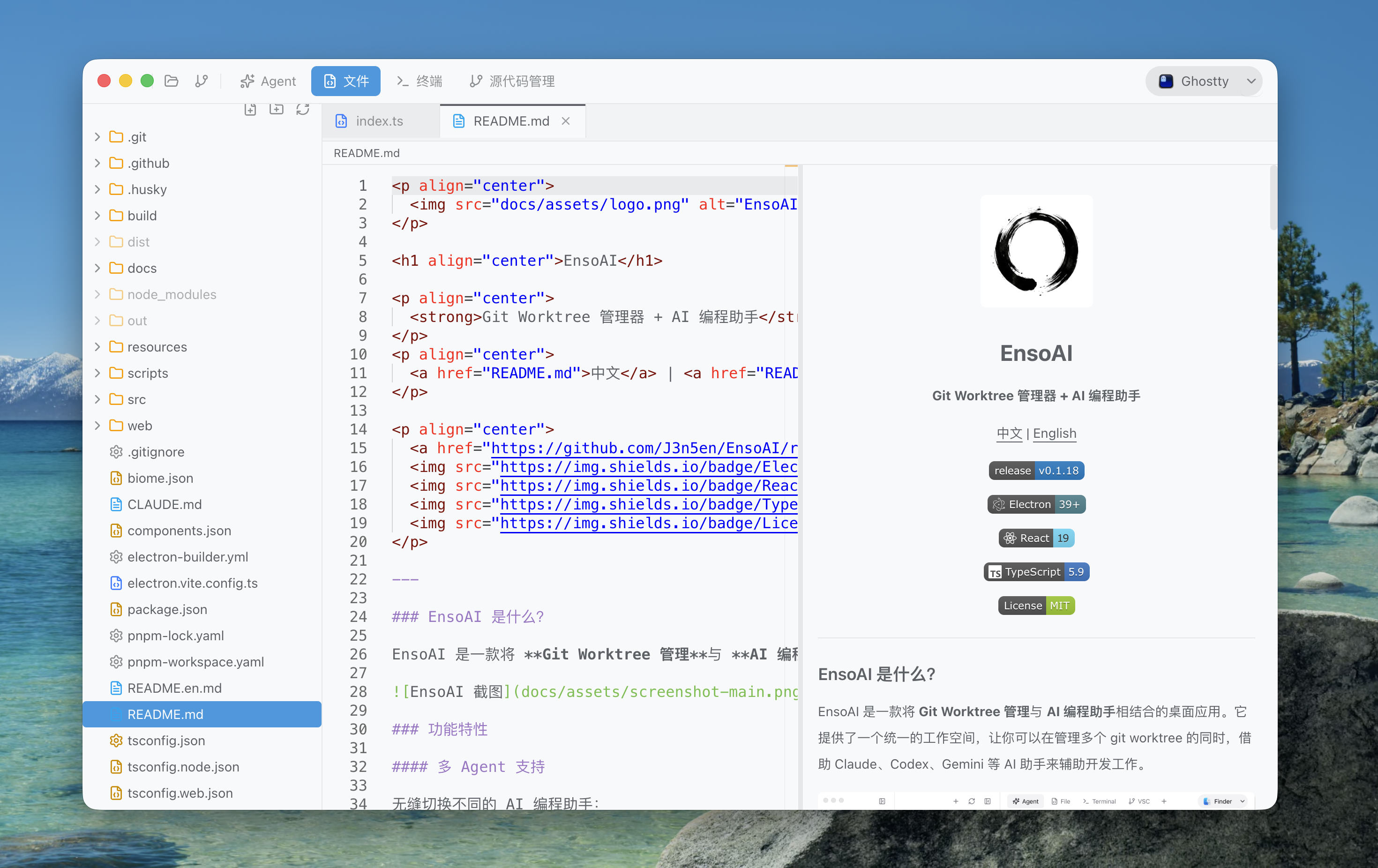 - Multi-tab editing with drag-and-drop reorder - File tree with create/rename/delete operations - Automatic language detection - Editor state persistence across sessions --- ### AI Code Review Auto-generate high-quality commit messages and perform deep code reviews using your favorite AI agents. 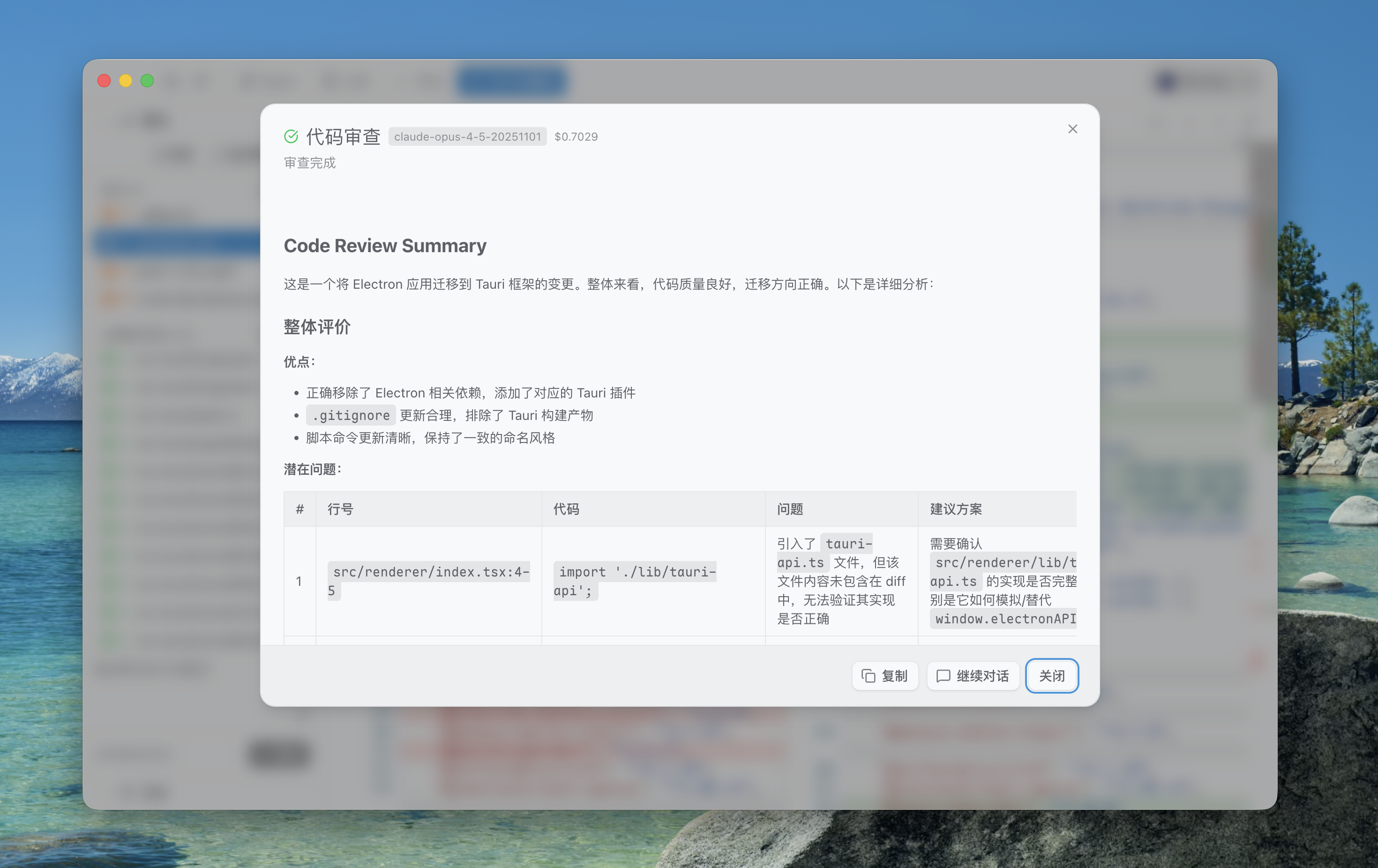 --- ### 3-Way Merge Tool Built-in professional 3-way merge editor. Clearly visualize conflict sources and resolve them with a single click and real-time result preview. 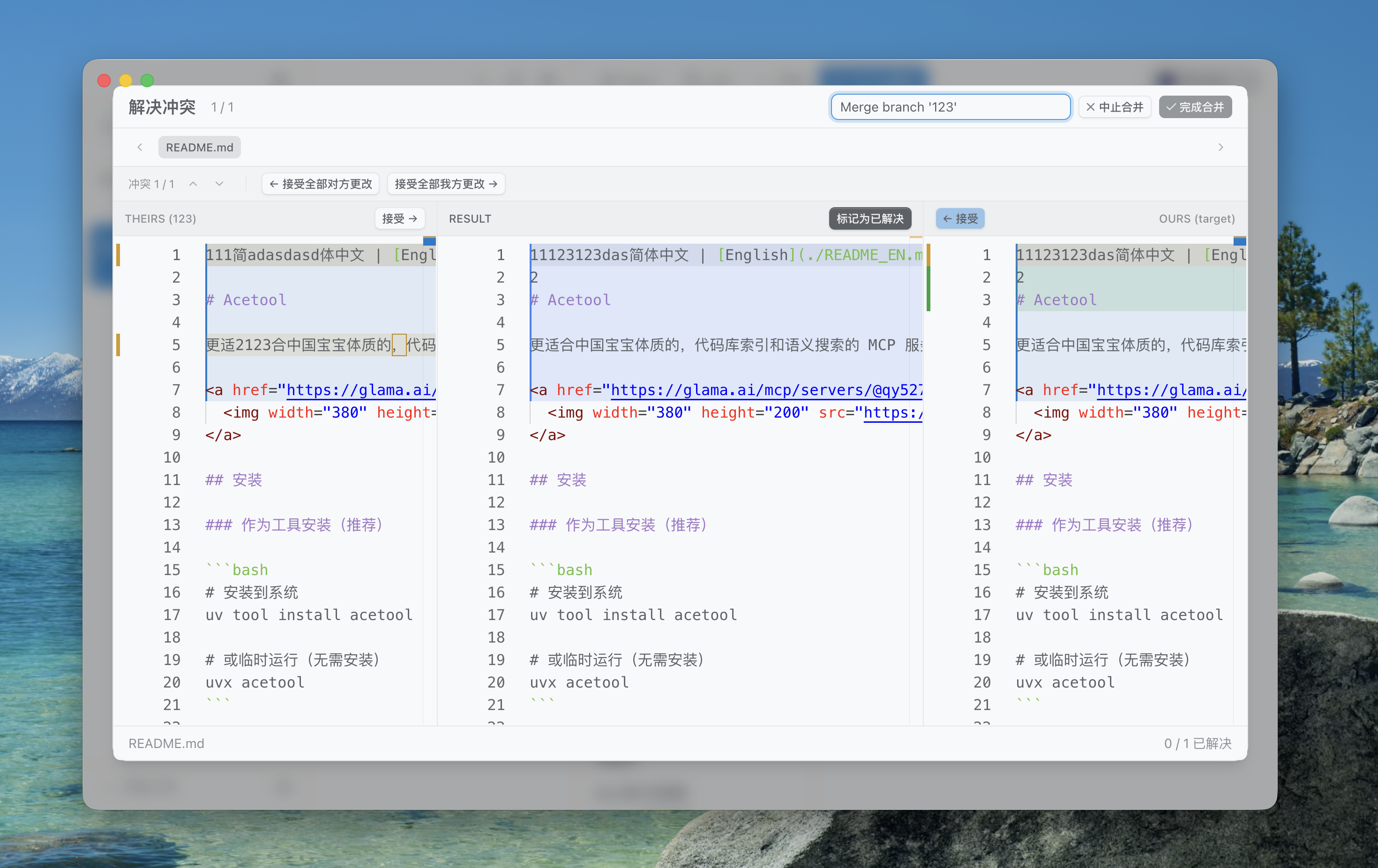 --- ### Git Worktree Management Create, switch, and manage Git worktrees instantly. No more context switching costs between branches. - Create worktrees from existing or new branches - Switch between worktrees instantly - Delete worktrees with optional branch cleanup - Visual worktree list with branch status --- ### IDE Bridge Use EnsoAI for orchestration, then jump into VS Code or Cursor for deep diving with a single click. Quick access to all actions via `Cmd+Shift+P`: - **Panel Control** - Toggle Workspace/Worktree sidebar visibility - **Settings** - Open settings dialog (Cmd+,) - **Open In** - Open current project in Cursor, Ghostty, VS Code, etc. --- ### Additional Features - **Multi-Window Support** - Open multiple workspaces simultaneously - **Theme Sync** - Sync app theme with terminal theme (400+ Ghostty themes) - **Keyboard Shortcuts** - Efficient navigation (Cmd+1-9 to switch tabs) - **Settings Persistence** - All settings saved to JSON for easy recovery --- ## Tech Stack - **Framework**: Electron + React 19 + TypeScript - **Styling**: Tailwind CSS 4 - **Editor**: Monaco Editor - **Terminal**: xterm.js + node-pty - **Git**: simple-git - **Database**: sqlite3 --- ## FAQ ### Basic Usage <details> <summary><strong>How is EnsoAI different from a regular IDE?</strong></summary> EnsoAI focuses on **Git Worktree + AI Agent** collaboration. It's not meant to replace VS Code or Cursor, but rather serves as a lightweight workspace manager that allows you to: - Quickly switch between multiple worktrees, each running an independent AI Agent - Develop multiple feature branches simultaneously without interference - Jump to your preferred IDE anytime via "Open In" for deeper development </details> <details> <summary><strong>Which AI Agents are supported?</strong></summary> Built-in support for Claude, Codex, Gemini, Cursor Agent, Droid, and Auggie. You can also add any CLI-based agent in settings by specifying the launch command. </details> <details> <summary><strong>Are Agent sessions preserved?</strong></summary> Yes. Each worktree's Agent session is saved independently. When you switch back to a worktree, the previous conversation context is still there. </details> --- ### Use Cases <details> <summary><strong>When should I use EnsoAI?</strong></summary> | Scenario | Description | |----------|-------------| | **Parallel Development** | Work on feature-A and bugfix-B simultaneously, each branch has independent AI sessions and terminals | | **AI-Assisted Code Review** | Let AI review code in a new worktree without affecting main branch development | | **Experimental Development** | Create a temporary worktree for AI to experiment freely, delete if unsatisfied | | **Comparison Debugging** | Open multiple worktrees side by side to compare different implementations | </details> <details> <summary><strong>Why use official CLIs instead of ACP?</strong></summary> While ACP can unify core capabilities across different Agents, it's limited to just those core features and lacks many functionalities. Switching between different Agents isn't a common scenario, and the core features of different Agent CLIs are quite similar. We believe that for experienced developers, the native CLIs are more productive. </details> <details> <summary><strong>What project size is EnsoAI suitable for?</strong></summary> Best suited for small to medium projects. For large monorepos, we recommend using it alongside VS Code or similar full-featured IDEs — EnsoAI handles worktree management and AI interaction, while the IDE handles deep development. </details> --- ### Development Workflow <details> <summary><strong>What's a typical development workflow with EnsoAI?</strong></summary> ``` 1. Open Workspace └── Select or add a Git repository 2. Create/Switch Worktree └── Create a worktree for new feature (auto-creates branch) 3. Start AI Agent └── Chat with Claude/Codex in the Agent panel └── AI works directly in the current worktree directory 4. Edit & Test └── Quick edits with built-in editor └── Run tests/builds in terminal 5. Commit & Merge └── Git commit/push in terminal └── Or use "Open In" to jump to IDE for final review ``` </details> <details> <summary><strong>How to efficiently manage multiple parallel tasks?</strong></summary> 1. Create a separate worktree for each task (`Cmd+N` or click + button) 2. Use `Cmd+1-9` to quickly switch between worktrees 3. Each worktree has independent Agent sessions, terminal tabs, and editor state 4. Delete worktree when done, optionally delete the branch too </details> <details> <summary><strong>How to review AI-generated code?</strong></summary> Recommended workflow: 1. Let AI generate code in a separate worktree 2. Review using built-in editor or "Open In Cursor/VS Code" 3. Commit in terminal if satisfied; continue the conversation or delete the worktree if not </details> --- ### Keyboard Shortcuts <details> <summary><strong>What are the common keyboard shortcuts?</strong></summary> | Shortcut | Function | |----------|----------| | `Cmd+Shift+P` | Open command palette | | `Cmd+,` | Open settings | | `Cmd+1-9` | Switch to corresponding tab | | `Cmd+T` | New terminal/Agent session | | `Cmd+W` | Close current terminal/session | | `Cmd+S` | Save file | | `Shift+Enter` | Insert newline in terminal | </details> --- ### Troubleshooting <details> <summary><strong>Agent won't start?</strong></summary> 1. Verify the CLI tool is installed (e.g., `claude`, `codex`) 2. Manually run the command in terminal to verify 3. Check Agent path configuration in settings </details> <details> <summary><strong>Terminal display issues/artifacts?</strong></summary> Go to Settings → Terminal → Switch renderer from WebGL to DOM. </details> --- ## License MIT License - see [LICENSE](LICENSE) for details.
