KO
|
EN
gitlite — search
Search
#hacktoberfest
#python
#java
#ruby
#php
#javascript
#dotfiles
#windows
#docker
#game
#puppet
#deprecated
QuickDemo
★ 136
Open GitHub ↗
Android QuickDemo
Download README (.md)
Explore Similar Repositories
ngx-validators
:
Validator library for Angular 2+
AutoMapper.Data
:
For ADO.NET extensions to AutoMapper, IDataReader support etc
aframe-mouse-cursor-component
:
Mouse Cursor Component for A-Frame VR.
angular-i18next
:
angular integration with i18next
CrashlyticsDemo
:
Setup Fabric Crashlytics CI friendly
// repository documentation
Was this content helpful?
★ 0
(0 ratings)
Select Rating:
★
★
★
★
★
Submit Feedback
Recent Feedback
×
Download README
Do you want to download the
README.md
file for
QuickDemo
?
Download (.md)
# QuickDemo _QuickDemo_ is a Nougat 7.0 [quick settings tile](https://developer.android.com/about/versions/nougat/android-7.0.html#tile_api) for fast access to the Marshmallow 6.0 [System UI demo mode](https://android.googlesource.com/platform/frameworks/base/+/android-6.0.0_r1/packages/SystemUI/docs/demo_mode.md). The app also provides a configuration activity for customizing available demo mode settings. Release blog post: https://pspdfkit.com/blog/2016/clean-statusbar-with-systemui-and-quickdemo/ 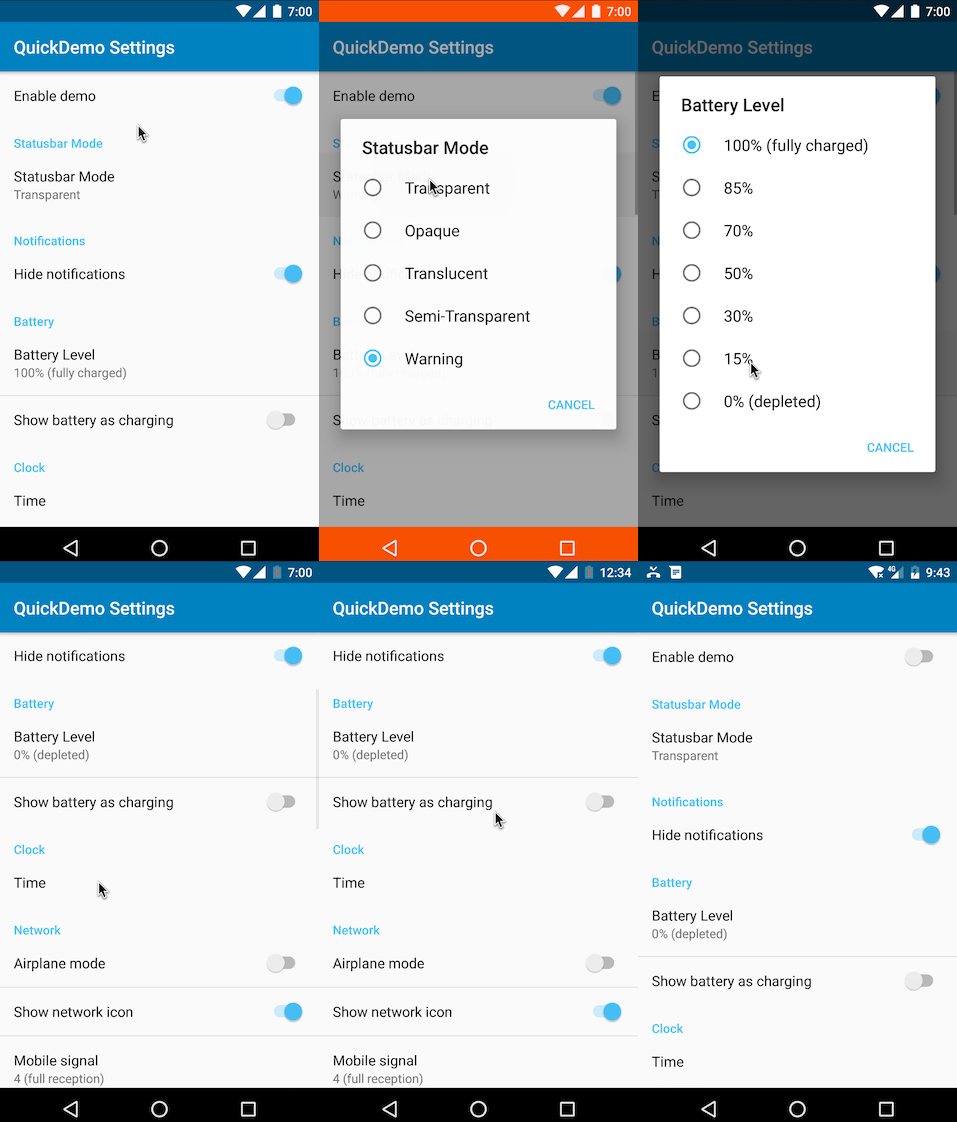 ## Requirements * Android SDK (API 25) * Android Studio 2.2+ * `adb` (for installing the app and granting the required permissions) * Android emulator or devices running Marshmallow (API 23+) ## Building To build and run the app, you can open the project with Android Studio and press `Run`. Alternatively you can install the app from the command line. ```bash git clone git@github.com:PSPDFKit-labs/QuickDemo.git cd QuickDemo/ ./gradlew installDebug ``` You can also run the [`setup.sh`](https://github.com/PSPDFKit-labs/QuickDemo/blob/master/setup.sh) script, wich will check for ANDROID_HOME, clone the project, and use Gradle to install and setup the tool. The script will also remove files of the project after installation. ## Setup ### With Gradle If you cloned the project, you can run `setupDemoMode` gradle task to do the setup. This can be done either by finding and selecting `setupDemoMode` in `Gradle` window in Android Studio, or by running the following: ```bash ./gradlew setupDemoMode ``` ### Manually via adb 1. When launching the app for the first time you need to grant the `android.permission.DUMP` permission, which is required to control the System UI demo mode. You need to do this using `adb`. ```bash adb shell pm grant com.pspdfkit.labs.quickdemo android.permission.DUMP ``` 2. Since the System UI tuner (and its demo mode) is an experimental Android feature, you need to activate it globally. ```bash adb shell settings put global sysui_demo_allowed 1 ``` ## Usage 1. The app comes with a quick settings tile which you can use to quickly toggle the demo mode. 1. Completely open the status bar drawer, expanding all quick setting tiles. 2. Press the edit button on top of the drawer, to show the quick setting tiles picker. 3. Drag the QuickDemo tile to your desired position. 4. Exit edit mode, and tap the tile. 2. You can launch QuickDemo activity to configure all displayed icons of the demo mode. 1. You can find the activity in your app launcher. ## Feedback and contribution Since this project is open source, feel free to use it, give feedback, or contribute in any way you find suitable. ## About <a href="https://pspdfkit.com/"> <img src="https://avatars2.githubusercontent.com/u/1527679?v=3&s=200" height="80" /> </a> This project is maintained and funded by [PSPDFKit](https://pspdfkit.com/). See [our other open source projects](https://github.com/PSPDFKit-labs), read [our blog](https://pspdfkit.com/blog/) or say hello on Twitter ([@PSPDFKit](https://twitter.com/pspdfkit)).
