KO
|
EN
gitlite — search
Search
#python
#go
#golang
#android
#javascript
#csharp
#java
#react
#kotlin
#ruby
#bot
#hacktoberfest
Manim-Examples
★ 32
Open GitHub ↗
Examples on how to use Manim
Download README (.md)
Explore Similar Repositories
BilibiliHD
:
非官方哔哩哔哩客户端
unraid-plugin-docker.folder
:
Create folders for docker containers to help with organization
qjs-ffi
:
FFI for QuickJS
interaction_actions_for_navigation
:
No description available.
multichannel-unet-bss
:
Introducing multi-channel U-Net for Music Source Separation trained using weighted multi-task loss.
// repository documentation
Was this content helpful?
★ 0
(0 ratings)
Select Rating:
★
★
★
★
★
Submit Feedback
Recent Feedback
×
Download README
Do you want to download the
README.md
file for
Manim-Examples
?
Download (.md)
# Manim Examples [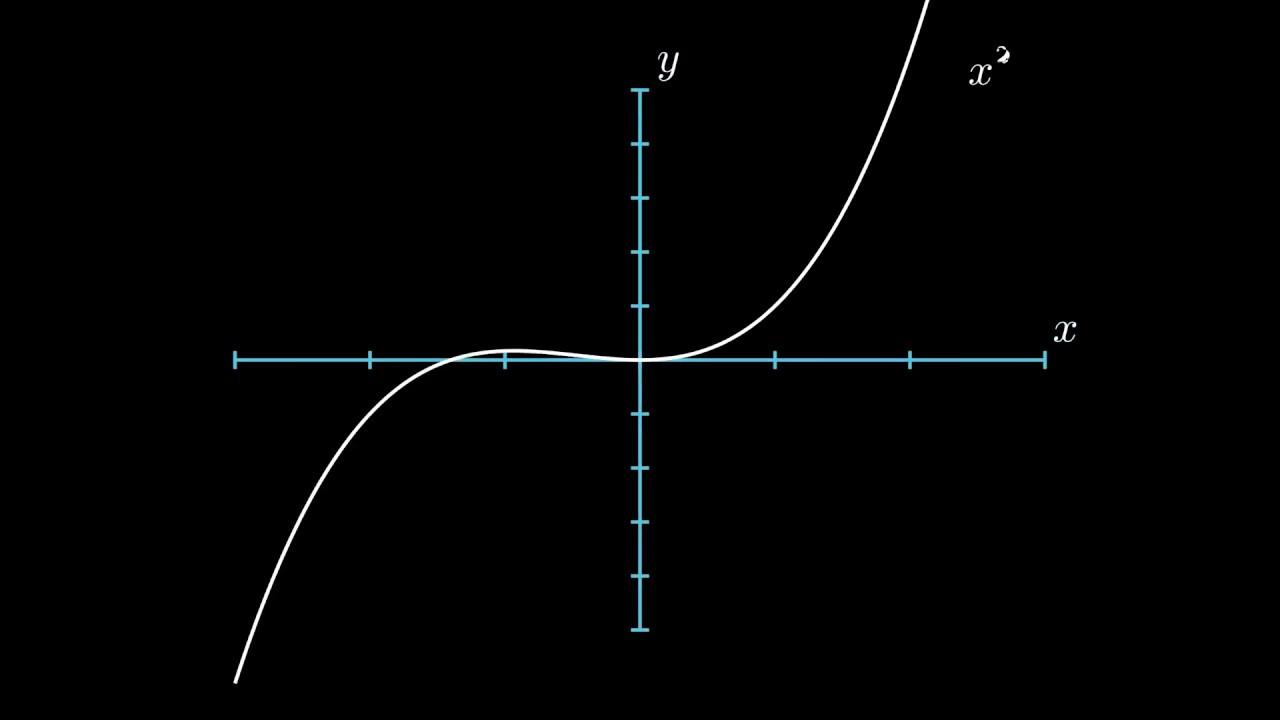](https://youtu.be/I0MwXnKSIAM) ## Table of Contents * [Installation](#Installation) * [Linux Installation](#linux-installation) * [Windows Installation](#windows-installation) * [Creating your first Scene](#creating-your-first-scene) * [Displaying text](#displaying-text) * [Math equations](#math-equations) * [Creating graphs](#creating-graphs) ## Installation For installing Manim on your system I recommend following the [Installation guide](https://docs.manim.community/en/stable/installation.html) from the [Manim documentation](https://docs.manim.community/en/stable/index.html). ## Creating your first Scene Now that you have installed everything correctly you're ready to write your first application. ```python from manim import * class SquareToCircle(Scene): def construct(self): # Creating shapes circle = Circle() square = Square() #Showing shapes self.play(Create(square)) self.play(Transform(square, circle)) self.play(FadeOut(square)) ``` ```bash manim square_to_circle.py SquareToCircle -p -ql ``` [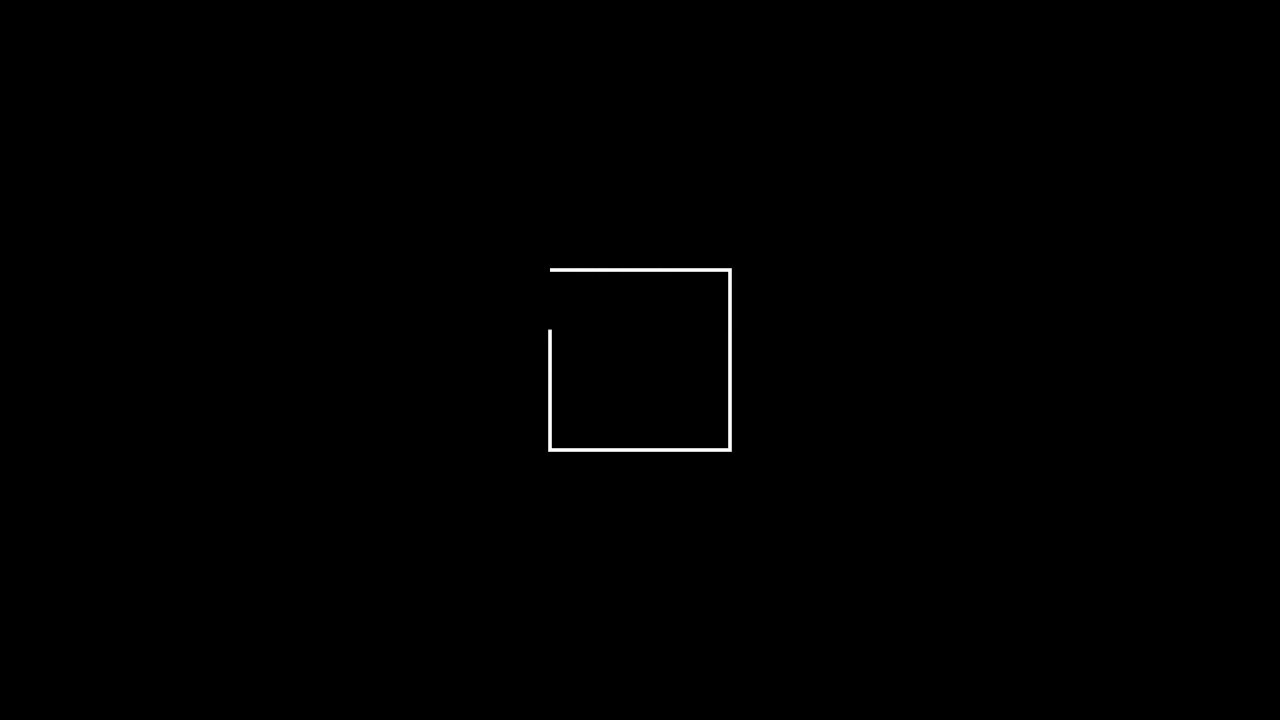](https://youtu.be/f6cvI-gxWP8) Lets break this down step-by-step: * The import statement on top imports everything needed to use Manim. * For running animations, you have to create a class that inherits from Manims Scene class. * Inside the class you need to create the construct method. The construct method is essentially the main method for the class. In it you can write all the code for the animation. * Inside the construct method I first created two MObjects (Manim Objects) – a circle and a square. Lastly I displayed the shapes using the play method. We can also modify the appearance of the objects by adding a few lines of code: ```python from manim import * class SquareToCircleWithModifications(Scene): def construct(self): circle = Circle() square = Square() square.flip(RIGHT) square.rotate(-3 * TAU / 8) circle.set_fill(PINK, opacity=0.5) self.play(Create(square)) self.play(Transform(square, circle)) self.play(FadeOut(square)) ``` [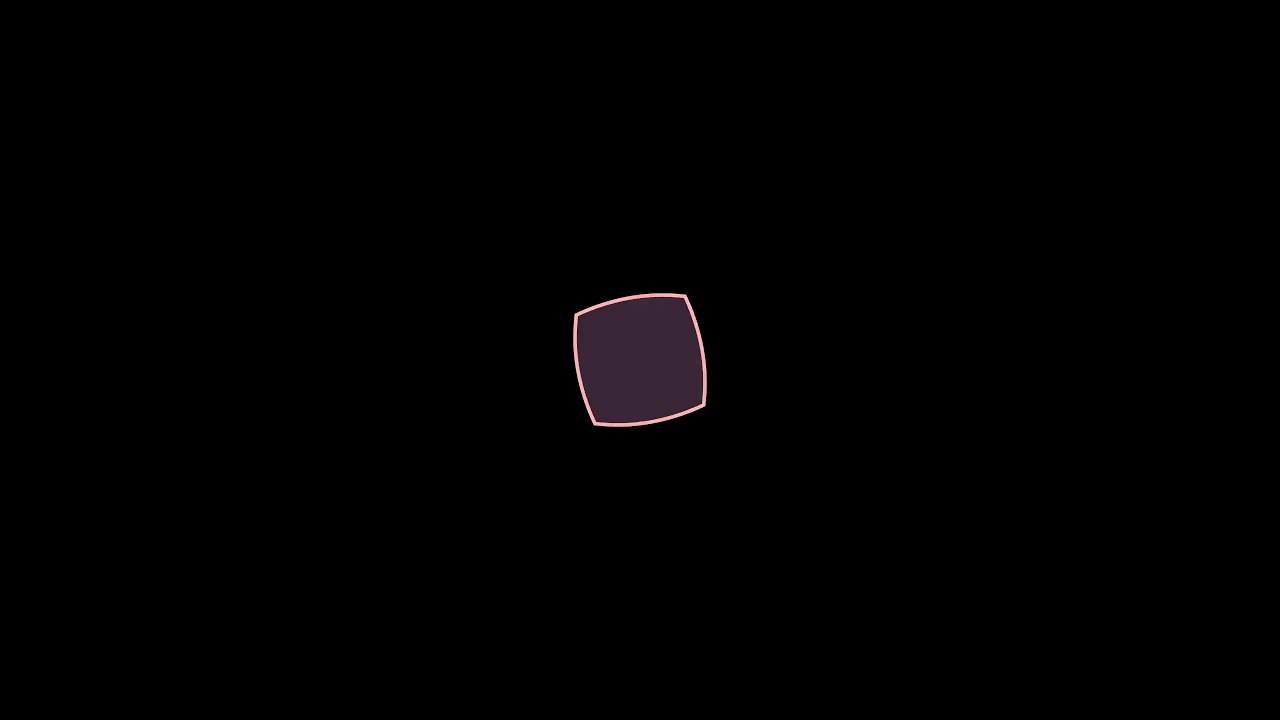](https://youtu.be/9R65QDHDGHU) ## Displaying text Displaying text is also pretty straight forward. ```python from manim import * class displayText(Scene): def construct(self): # Create Text objects first_line = Text('Create cool animations') second_line = Text('using Manim') third_line = Text('Try it out yourself.', color=RED) # Position second line underneath first line second_line.next_to(first_line, DOWN) # Displaying text self.wait(1) self.play(Write(first_line), Write(second_line)) self.wait(1) self.play(ReplacementTransform(first_line, third_line), FadeOut(second_line)) self.wait(2) ``` In order to display text you need to create a `Text` object and pass it the text you want to write to the screen. After that you can display the text using the play method and some animation. [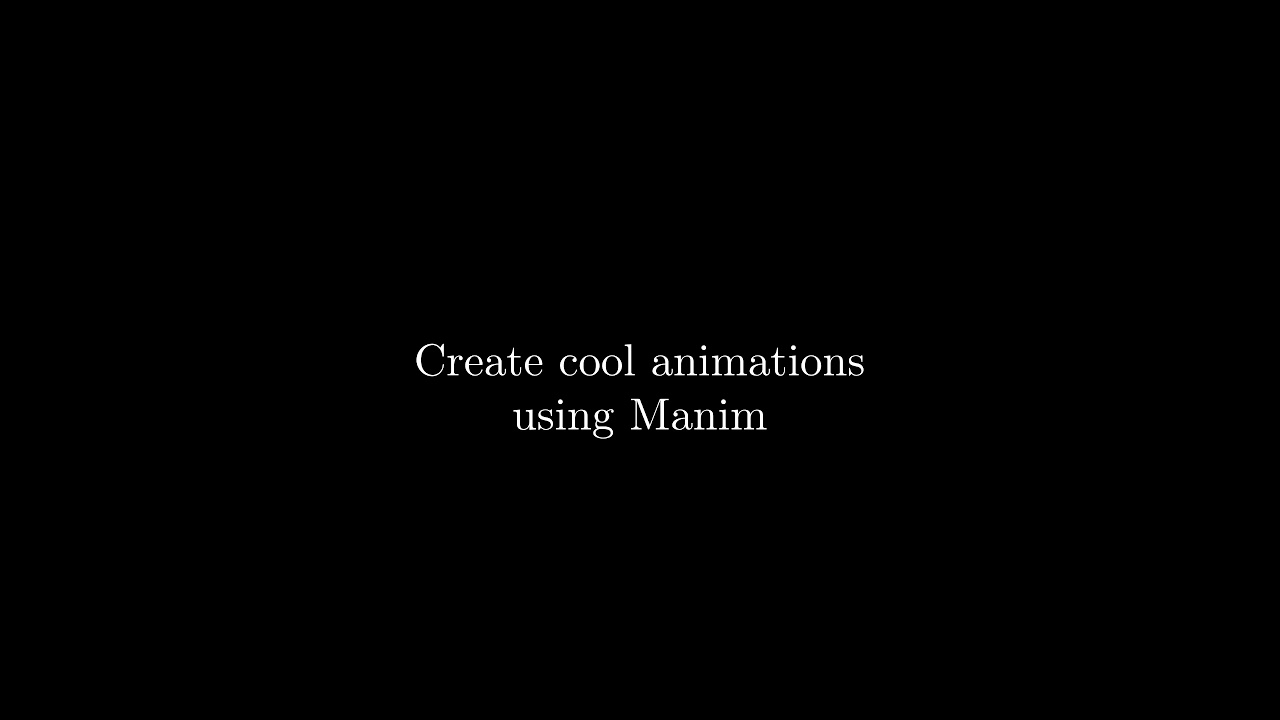](https://youtu.be/J5-1t2ZxTrA) ## Math equations Math equations can be written in Manim using [LaTeX](https://www.latex-project.org/) – a typesetting system widely used in academia. On of LaTeX big advantages is that it allows you to create good looking math equation with an intuitive system. I won't go over LaTeX in this article but if you are curious there are lots of great tutorials out there. For equations instead of using a `Text` object you need to use a `Tex` object. When making an equation you need to put a $ at the start and end of the text. ```python text = Text('some text') equation = Tex('$some equation$') ``` You can add symbols like the summation or integral symbols with two backslashes. ```python alpha = Tex('$\\alpha$') ``` Displaying some text and an equation could look like the following: ```python from manim import * class displayEquations(Scene): def construct(self): # Create Tex objects first_line = Text('Manim also allows you') second_line = Text('to show beautiful math equations') equation = Tex('$d\\left(p, q\\right)=d\\left(q, p\\right)=\\sqrt{(q_1-p_1)^2+(q_2-p_2)^2+...+(q_n-p_n)^2}=\\sqrt{\\sum_{i=1}^n\\left(q_i-p_i\\right)^2}$') # Position second line underneath first line second_line.next_to(first_line, DOWN) # Displaying text and equation self.play(Write(first_line), Write(second_line)) self.wait(1) self.play(ReplacementTransform(first_line, equation), FadeOut(second_line)) self.wait(3) ``` [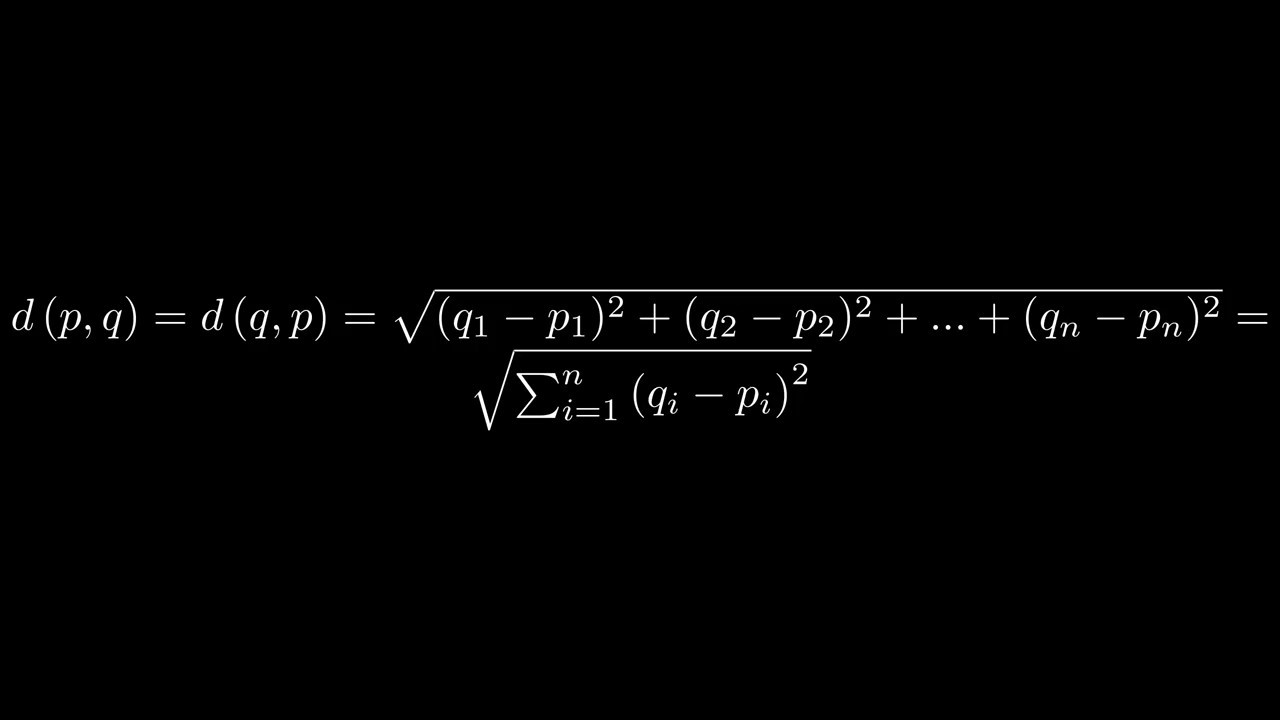](https://youtu.be/E52oMYpL7A8) ## Creating graphs Manim also allows us to create and display graphs. ```python from manim import * class CreateGraph(Scene): def construct(self): axes = Axes( x_range=[-3, 3], y_range=[-5, 5], axis_config={"color": BLUE}, ) # Create Graph graph = axes.get_graph(lambda x: x**2, color=WHITE) graph_label = axes.get_graph_label(graph, label='x^{2}') graph2 = axes.get_graph(lambda x: x**3, color=WHITE) graph_label2 = axes.get_graph_label(graph2, label='x^{3}') # Display graph self.play(Create(axes), Create(graph), Write(graph_label)) self.wait(1) self.play(Transform(graph, graph2), Transform(graph_label, graph_label2)) self.wait(1) ``` [](https://youtu.be/I0MwXnKSIAM) As you can see to create a graph you need to create a method that returns a y value for every x value it gets. In the code above I used lambda functions to specify them but you can also use any other method. After you have created the method you need to pass it to `axes.get_graph`, which creates a mobject out of the method. > Note that the method only specifies how the graph should look like and doesn't actually calculate any values yet. ## Author **Gilbert Tanner**
