KO
|
EN
gitlite — search
Search
#python
#java
#python3
#arduino
#golang
#machine-learning
#rust
#html
#flask
#javascript
#seismology
#nodejs
Backup-Team
★ 22
Open GitHub ↗
Backup and Recreate Microsoft Teams
Download README (.md)
Explore Similar Repositories
ply_tools
:
Addon that adds new operators to the Blender 2.8x context menu, for instance the Origin to Selection operator.
modeltools
:
GO语言连接Mysql生成对应的model,包括对应字段类型、注释等。生成基础的结构体,不局限于某一个ORM。
unlzexe
:
Utility to decompress EXE files that are compressed with LZEXE Ver. 0.90/0.91
Flutter-Bloc-Example
:
How to architect Flutter Code according to BLoC Pattern.
pas2dart
:
Object Pascal (Free Pascal 3, Delphi 2007) to Dart (2.5) transpiler
// repository documentation
Was this content helpful?
★ 0
(0 ratings)
Select Rating:
★
★
★
★
★
Submit Feedback
Recent Feedback
×
Download README
Do you want to download the
README.md
file for
Backup-Team
?
Download (.md)
# Backup-Team # > **Disclaimer:** This tool is provided ‘as-is’ without any warranty or support. Use of this tool is at your own risk and I accept no responsibility for any damage caused. 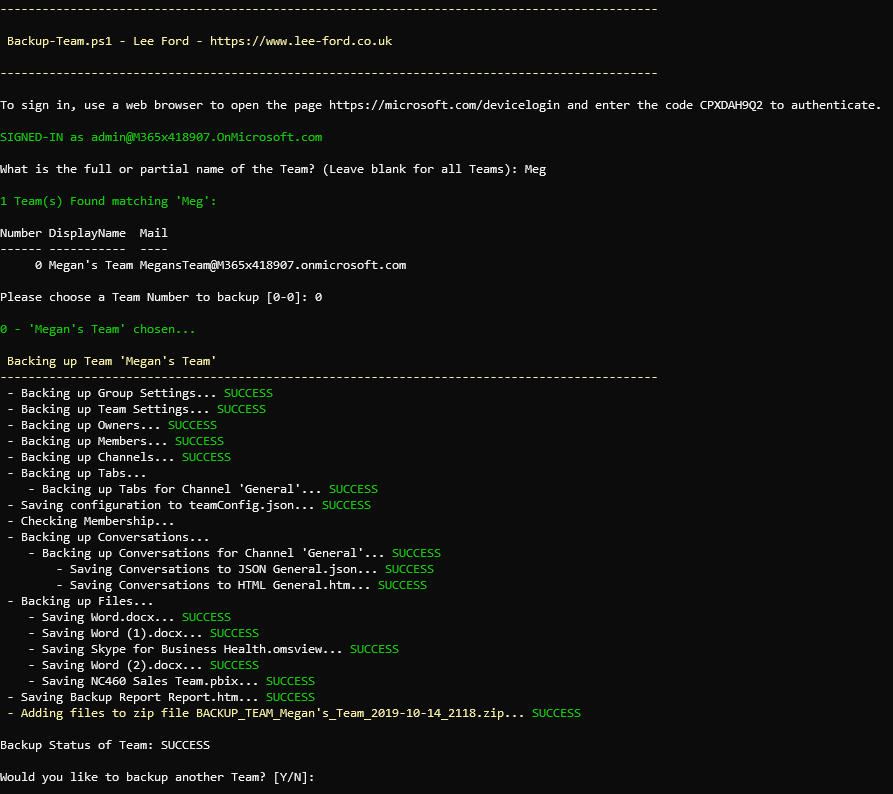 Backup-Team is a tool used to backup and recreate Teams from Microsoft Teams. A backup from the tool can include items such as settings, channels, tabs, owners, members, conversations and files. Teams can be recreated, including on a different tenant for a pseudo migration scenario. Written in PowerShell Core and using Graph API (no modules required), it can be used on Windows, Mac and Linux. ## What can it be used for? ## Using this tool allows backup and recreation of various parts of a Team. The table below outlines what is currently supported: | Item | Backup | Recreate (Beta) | | -------------------- | :-----: | :-------------: | | Team Settings | ☑ | ☑ | | Channels | ☑ | ☑ | | Tabs | ☑ | | | Owners | ☑ | ☑ | | Members | ☑ | ☑ | | Guests | ☑ | ☑ | | Conversations (Beta) | ☑ | | | Files | ☑ | ☑ | <br /> > Items marked as *Beta* rely on Graph API Beta endpoints, and as such are marked as Beta within the tool and may not work as intended. ## Pre-requisites ## You need to ensure you have PowerShell _Core_ (6+) installed. **This tool will not work with Windows PowerShell**. In addition, to connect to Graph API, you will need to use an Azure AD v2.0 Application. The application requires that it is granted the following (delegated) Graph API permissions: * **Group.ReadWrite.All** - Allows read and write access of Groups/Teams * **User.ReadBasic.All** - Allows read-only access users to basic user information of owners/members of a Team The tool is pre-configured with a Azure AD application that has these permissions configured. If you would prefer to use your own, you can create an application that supports device login and populate the _$script:clientId_ and _$script:tenantId_ with the client and tenant ID of your application. For instructions on how to create an device-code application, see https://www.lee-ford.co.uk/graph-api-device-code/ ## First time usage ## 1. Download latest release at https://github.com/leeford/Backup-Team/releases 2. Run the .ps1 file from a PowerShell _Core_ prompt ```Backup-Team.ps1 -Action Backup -Path <directory to save backup>``` 3. Copy the code from the console and enter it at https://microsoft.com/devicelogin and sign in to your Office 365 tenant. You may be asked to grant consent to the application  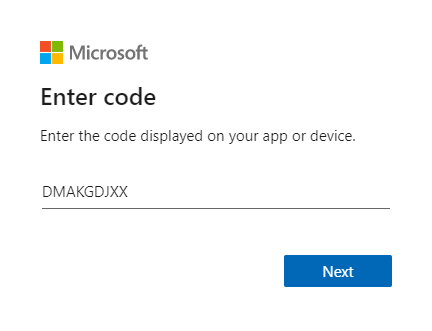 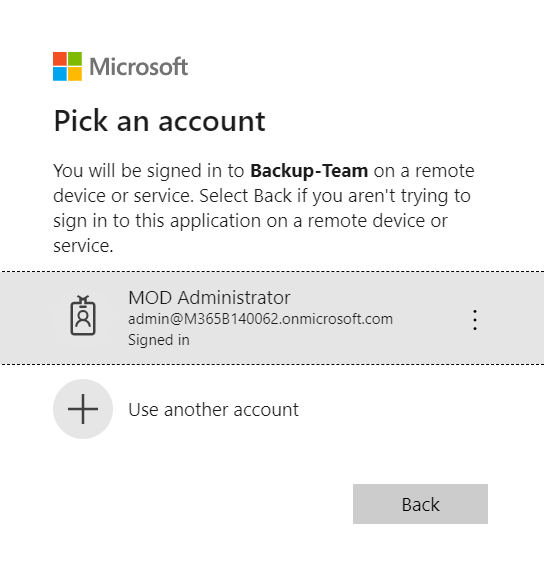 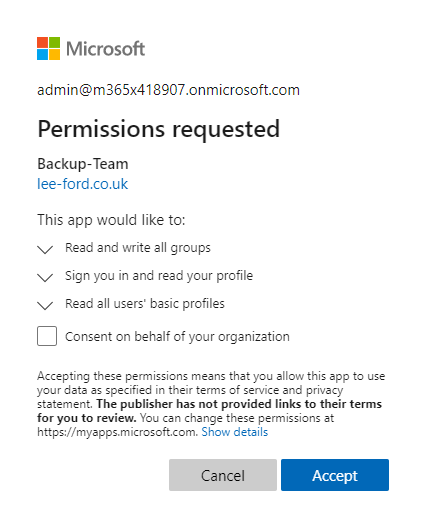 4. Once signed in, search for a Team and select it for a backup  > If you are **NOT** a member or owner of the Team you are backing up, you will prompted to become one (temporarily) to backup files and conversations. Only accept if you have the companies permission to read contents of the Team you are backing up. 5. Backup should be complete and zipped up ## Usage ## To backup a Team: ```Backup-Team.ps1 -Action Backup -Path <folder to store backup>``` To backup all Teams: ```Backup-Team.ps1 -Action Backup -Path <folder to store backups> -All``` To recreate a Team: ```Backup-Team.ps1 -Action Recreate -Path <path to backup file>``` To recreate all Teams from backups in a folder: ```Backup-Team.ps1 -Action Recreate -Path <path to backups> -All``` To backup a Team and accept (yes) to all actions: ```Backup-Team.ps1 -Action Backup -Path <folder to store backup> -YesToAll``` > This includes becoming a member of the Team (if not already), so ensure you have permission to do this To backup a Team and exclude files as part of backup: ```Backup-Team.ps1 -Action Backup -Path <folder to store backup> -ExcludeFiles``` To recreate a Team and change the UPN suffix (e.g. recreating a different tenant with different UPN suffix): ```Backup-Team.ps1 -Action Recreate -Path <path to backup file> -ChangeUPNSuffix <e.g. domain.com>``` ## What is in a backup file? ## >It is recommended you extract the .zip file to a folder rather than open files within the .zip file 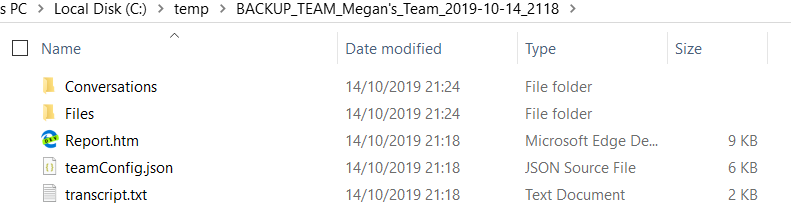 Within a .zip file you will find the following: #### Report.htm #### Simple HTML report detailing backup of Team 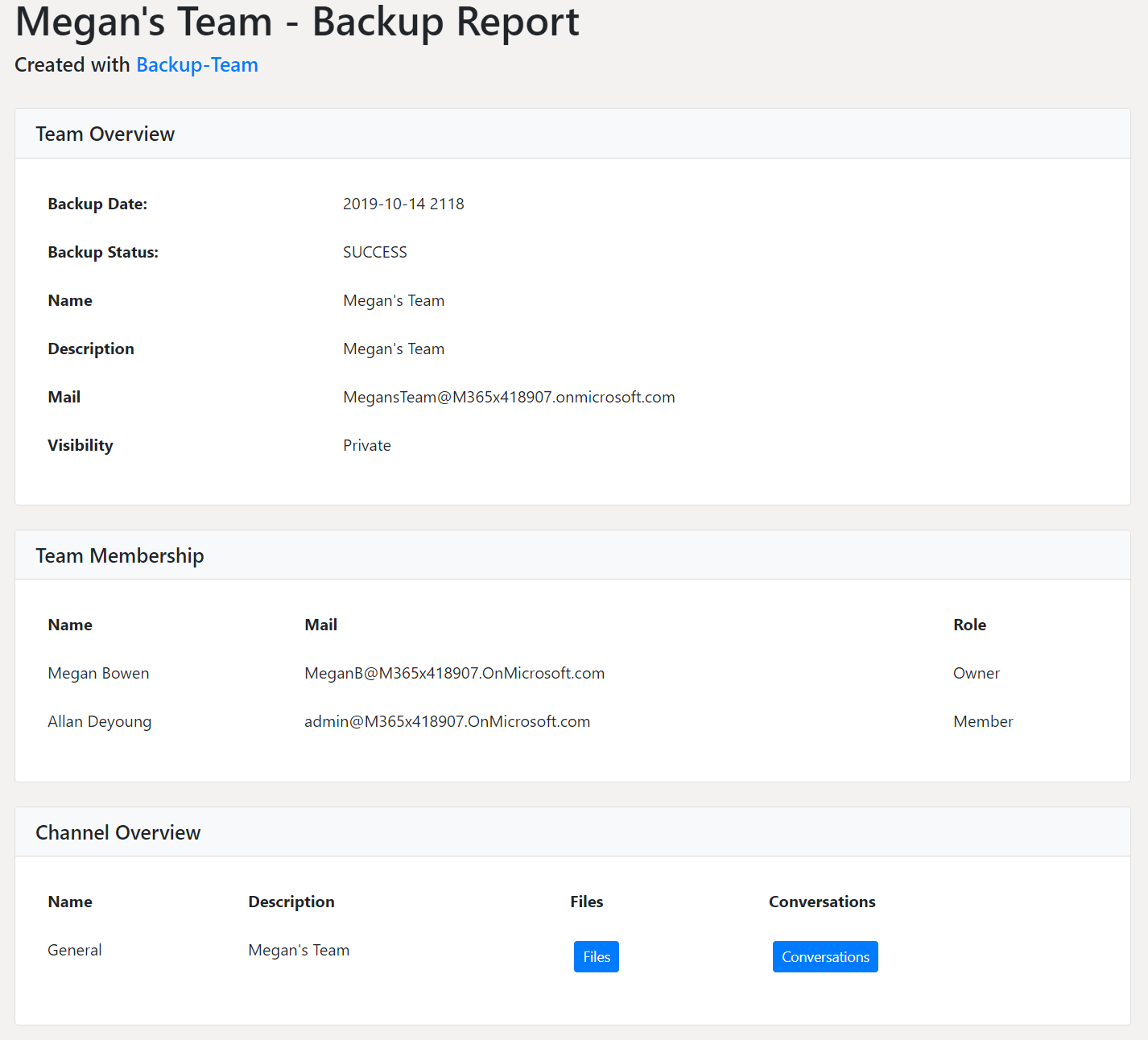 #### teamsConfig.json #### JSON file containing all Group/Team configuration #### transcript.txt #### PowerShell transcript file detailing backup process #### Conversations #### Folder containing conversations for each channel within the Team. Each channel is provided in JSON format and a simple HTML page replicating the chat (with working attachment links) 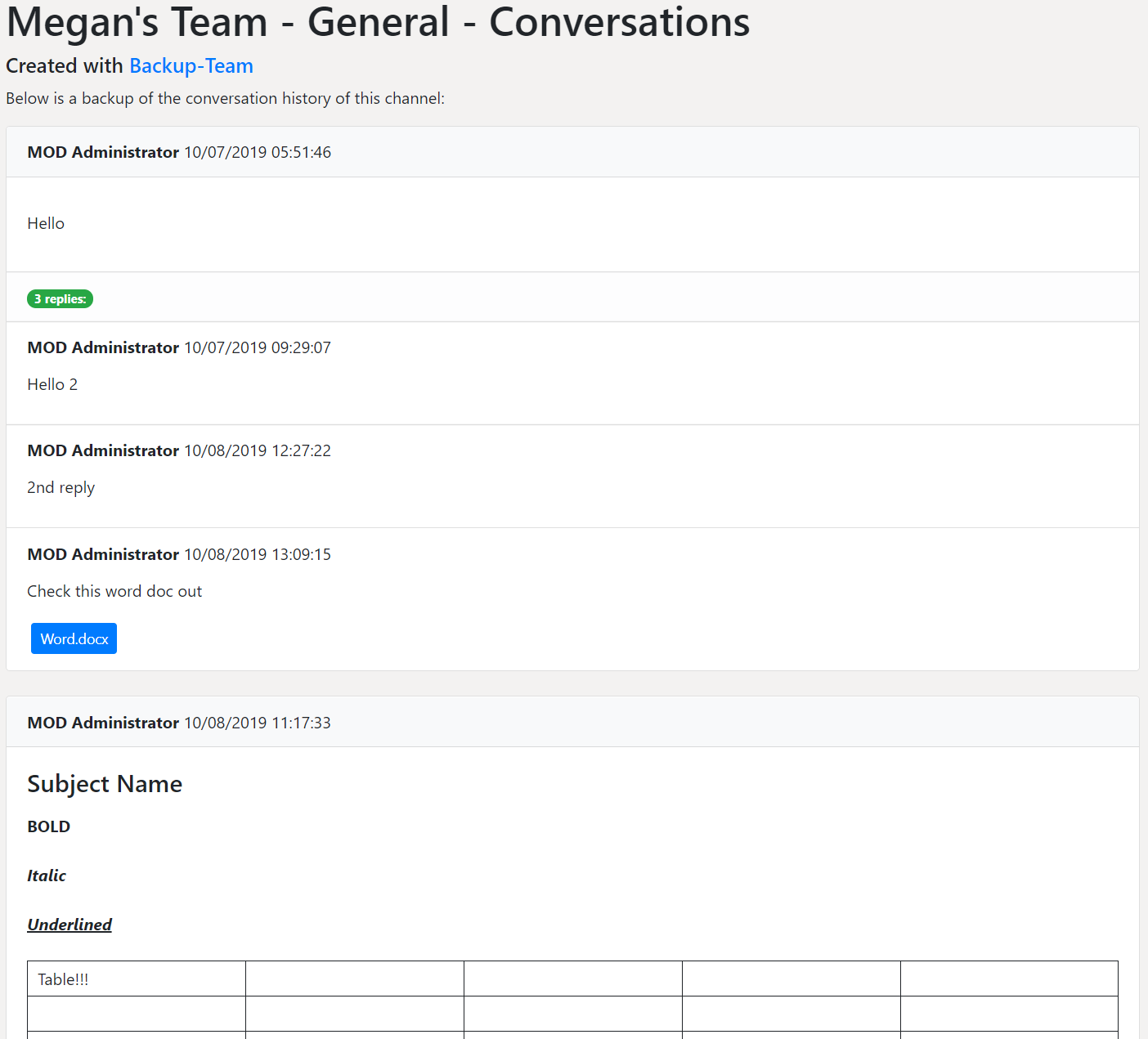 #### Files #### Folder containing all files from Team. File structure is maintained from Team 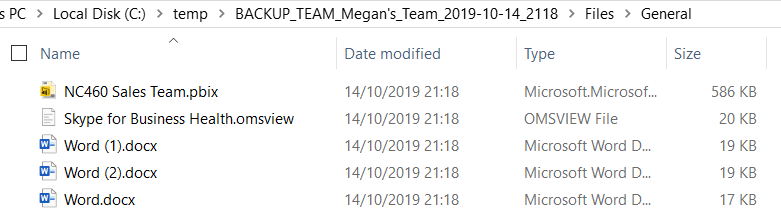 ### Credits ### * Thanks to everyone who helped me test tool prior to release * Bootstrap CSS used to style HTML
