KO
|
EN
gitlite — search
Search
#typescript
#ai-agents
#ai
#dsh-plugin
#deepseek-harness
#open-source
#cli
#claude-code
#codex
#developer-tools
#react
#windows
NavfertyExcelAddIn
★ 51
Open GitHub ↗
Common tools for MS Excel
Download README (.md)
Explore Similar Repositories
XLToolbox
:
Daniel's XL Toolbox is an open-source add-in for Excel(R) that assists with scientific and technical data analysis and visualization.
LLMExcel
:
LLMExcel is a free, open-source Excel add-in that allows you to use GPT and Anthropic AI models directly within Excel spreadsheets.
integrated-business-planning-excel-add-in-templates
:
Collection of best practices planning view templates for the SAP Integrated Business Planning (IBP) Add-In for Microsoft Excel.
OData-Excel-Integration-Add-In-Sample
:
Sample Office Add-In app for Excel.
AddMaterials
:
Revit add-in to add materials from a list of properties defined in Excel.
// repository documentation
Was this content helpful?
★ 0
(0 ratings)
Select Rating:
★
★
★
★
★
Submit Feedback
Recent Feedback
×
Download README
Do you want to download the
README.md
file for
NavfertyExcelAddIn
?
Download (.md)
 [Russian](README_RU.md) |  **English** # Navferty's Excel Add-In A free Excel add-in that enhances productivity with tools for data manipulation, formatting, and validation.  ## Features - [Parse Numerics](#parse-numerics) - [Replace (Transliteration or Analogues)](#replace) - [Stringify Numerics](#stringify-numerics) - [Toggle Case](#toggle-case) - [Trim Spaces](#trim-spaces) - [Unprotect Workbook](#unprotect-workbook) - [Worksheets Protection](#worksheets-protection) - [Highlight Duplications](#highlight-duplications) - [Unmerge Cells](#unmerge-cells) - [Find All Cells Containing Errors](#find-all-cells-containing-errors) - [Copy as Markdown](#copy-as-markdown) - [Validate Values](#validate-values) - [Export to SQLite](#export-to-sqlite) - [Create Sample XML based on XSD](#create-sample-xml-based-on-xsd) - [Validate XML with XSD](#validate-xml-with-xsd) - [Undo Last Action](#undo-last-action) ## Installation Download, unpack and run [the installation file](https://deploy.navferty.ru/setup.zip) to install the add-in for Excel. After installation, restart Excel if it was open. You should see the new **Navferty's Tools** tab in the ribbon. **Note:** If you encounter a security warning about the certificate, see [detailed installation instructions](#how-to-install-the-add-in) below. --- ## Parse Numerics Convert numbers stored as text to proper numeric format, making them usable in calculations. <details> <summary>View screenshots</summary> 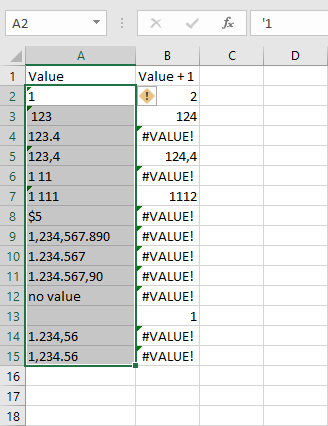 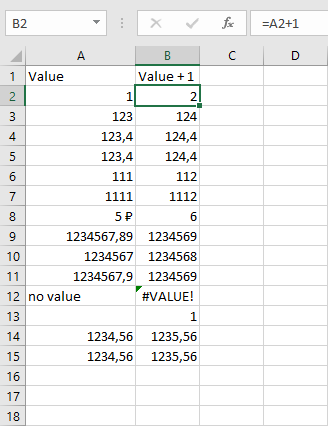 </details> ## Replace Replace Russian characters using different transformation methods. ### With Transliteration Complete transliteration of Russian alphabet to English. For example: "Ж" → "Zh", "Щ" → "Shch". Based on ICAO Doc [9303](https://www.icao.int/sites/default/files/publications/DocSeries/9303_p3_cons_en.pdf). <details> <summary>View screenshots</summary> 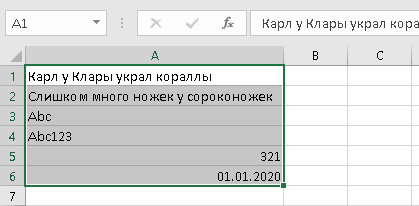 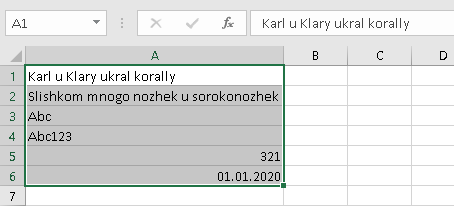 </details> ### Replace Chars Replace only visually similar letters: А↔A, В↔B, Е↔E, К↔K, М↔M, Н↔H, О↔O, Р↔P, С↔C, Т↔T, У↔Y, Х↔X. <details> <summary>View screenshots</summary> 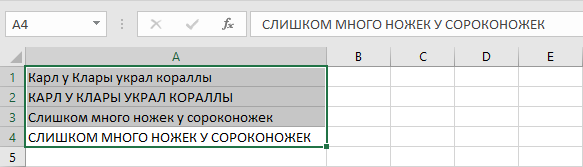 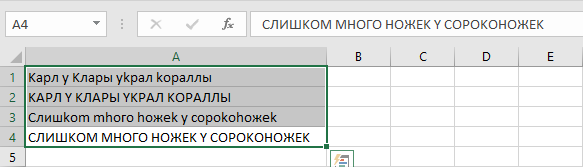 </details> ## Stringify Numerics Convert numbers to their word representation in multiple languages: - Russian - English - French <details> <summary>View screenshots</summary> 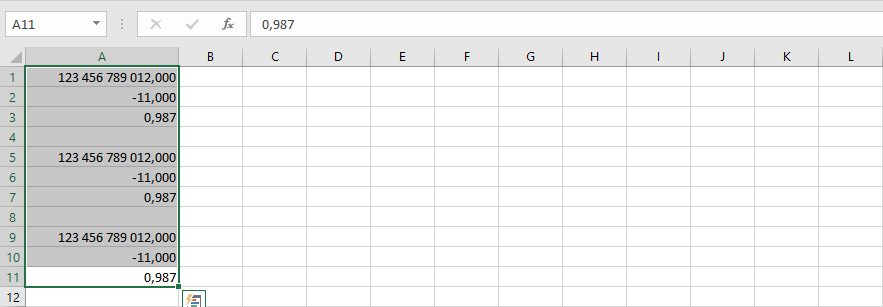 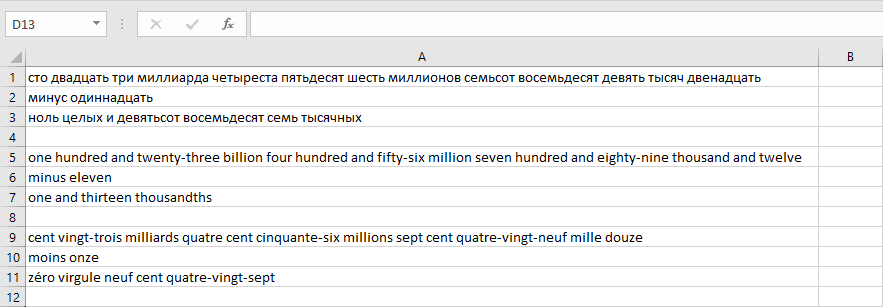 </details> [Up](#navfertys-excel-add-in) --- ## Toggle Case Cycle through text case transformations: `Abcde` → `abcde` → `ABCDE` <details> <summary>View screenshots</summary> 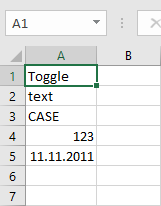 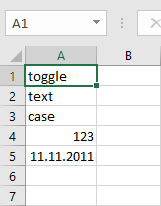 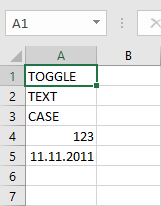 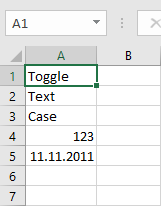 </details> ## Trim Spaces Remove extra spaces, line breaks, and leading/trailing whitespace from text cells. <details> <summary>View screenshots</summary> 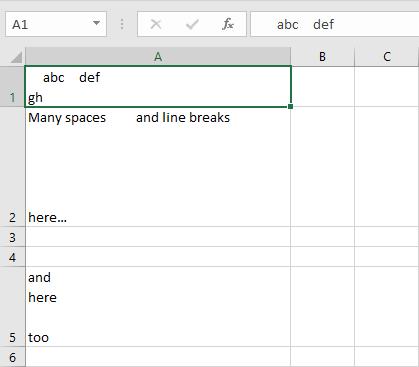 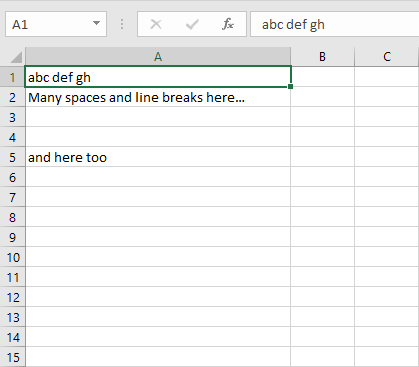 </details> [Up](#navfertys-excel-add-in) --- ## Unprotect Workbook Remove protection from all worksheets, workbook structure, and VBA projects without needing passwords. *Note: Does not work with encrypted workbooks.* ## Worksheets Protection Set or remove protection on multiple worksheets at once. ## Highlight Duplications Automatically color-code duplicate values in the selected range. Different colors indicate different duplicate groups. <details> <summary>View screenshot</summary> 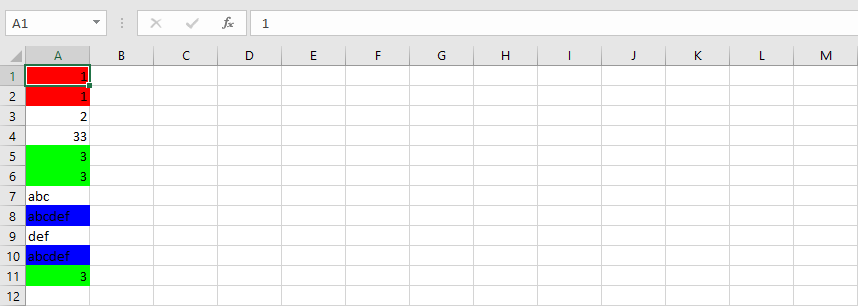 </details> ## Unmerge Cells Unmerge cells while filling each cell with the original merged value. <details> <summary>View screenshots</summary> 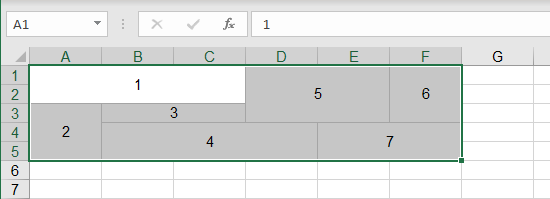 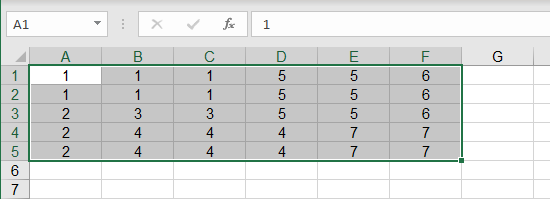 </details> ## Find All Cells Containing Errors Locate all formula errors in the selected range: `#N/A`, `#NAME?`, `#DIV/0!`, `#REF!`, `#VALUE!`, `#NUM!`, `#NULL!` <details> <summary>View screenshot</summary> 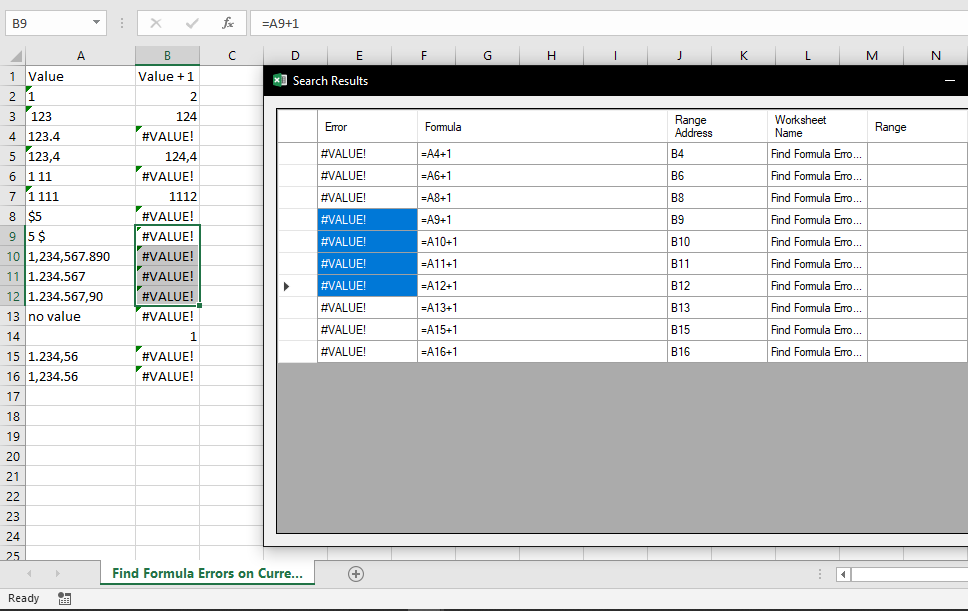 </details> ## Copy as Markdown Copy selected cells to clipboard as a markdown-formatted table. <details> <summary>View screenshot</summary> 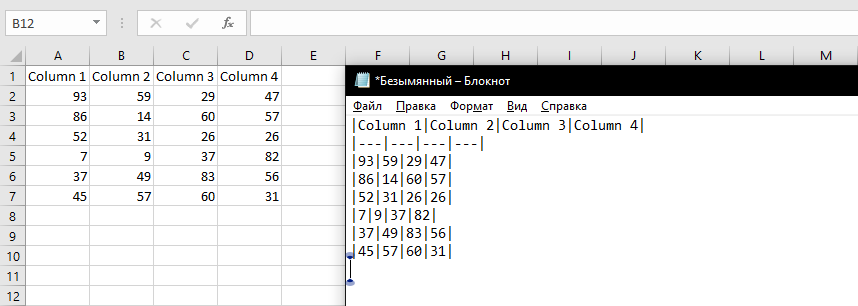 </details> ## Validate Values Check cell values against specific formats: - Number - Date - TIN of an individual (12 digits with verification) - TIN of a legal entity (10 digits with verification) - Text for XML (no invalid characters) *Note: Valid TIN format doesn't guarantee the organization or individual exists.* <details> <summary>View screenshot</summary> 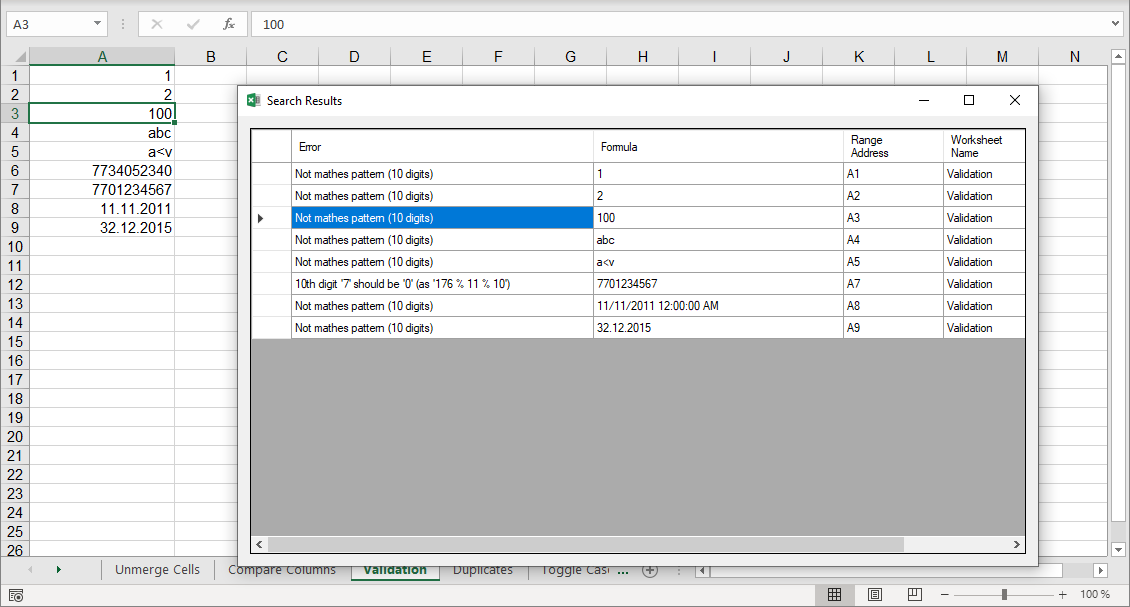 </details> [Up](#navfertys-excel-add-in) --- ## Export to SQLite Export the entire workbook to a SQLite database file. Each worksheet becomes a separate table with automatic column type detection. <details> <summary>View screenshots</summary> 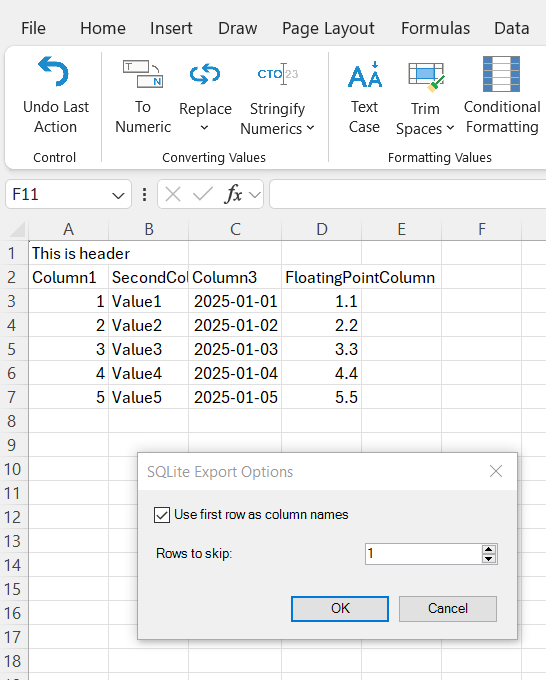 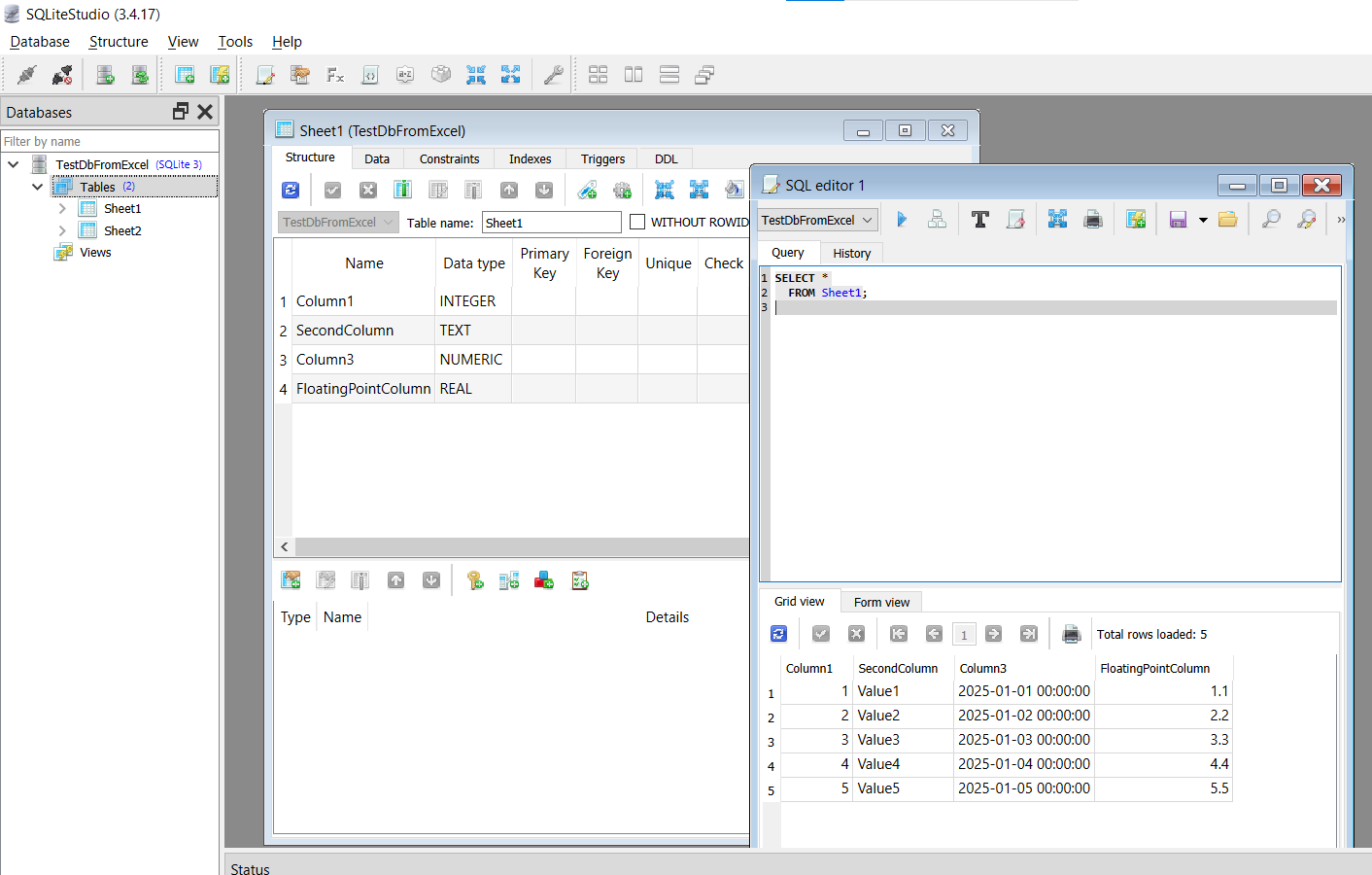 </details> [Up](#navfertys-excel-add-in) --- ## Create Sample XML based on XSD Generate a sample XML file from an XSD schema to visualize the structure. <details> <summary>View example</summary> **Input XSD Schema:** ```XML <xsd:schema xmlns:xsd="http://www.w3.org/2001/XMLSchema" xmlns:tns="http://tempuri.org/PurchaseOrderSchema.xsd" targetNamespace="http://tempuri.org/PurchaseOrderSchema.xsd" elementFormDefault="qualified"> <xsd:element name="PurchaseOrder" type="tns:PurchaseOrderType"/> <xsd:complexType name="PurchaseOrderType"> <xsd:sequence> <xsd:element name="ShipTo" type="tns:USAddress" maxOccurs="2"/> <xsd:element name="BillTo" type="tns:USAddress"/> </xsd:sequence> <xsd:attribute name="OrderDate" type="xsd:date"/> </xsd:complexType> <xsd:complexType name="USAddress"> <xsd:sequence> <xsd:element name="name" type="xsd:string"/> <xsd:element name="street" type="xsd:string"/> <xsd:element name="city" type="xsd:string"/> <xsd:element name="state" type="xsd:string"/> <xsd:element name="zip" type="xsd:integer"/> </xsd:sequence> <xsd:attribute name="country" type="xsd:NMTOKEN" fixed="US"/> </xsd:complexType> </xsd:schema> ``` **Generated XML Output:** ```XML <PurchaseOrder xmlns:xsi="http://www.w3.org/2001/XMLSchema-instance" OrderDate="1900-01-01" xmlns="http://tempuri.org/PurchaseOrderSchema.xsd"> <ShipTo country="US"> <name>name1</name> <street>street1</street> <city>city1</city> <state>state1</state> <zip>1</zip> </ShipTo> <ShipTo country="US"> <name>name2</name> <street>street2</street> <city>city2</city> <state>state2</state> <zip>-79228162514264337593543950335</zip> </ShipTo> <BillTo country="US"> <name>name1</name> <street>street1</street> <city>city1</city> <state>state1</state> <zip>1</zip> </BillTo> </PurchaseOrder> ``` </details> ## Validate XML with XSD Validate an XML file against an XSD schema. A detailed error report will be created in a new workbook. <details> <summary>View sample error report</summary> Sample error report: |Severity|Element|Message| |---|---|---| |Error|city|The element 'shipto' has invalid child element 'city'. List of possible elements expected: 'address'.| |Error|quantity|The 'quantity' element is invalid - The value '-5' is invalid according to its datatype 'http://www.w3.org/2001/XMLSchema:positiveInteger' - Value '-5' was either too large or too small for PositiveInteger.| |Error|price|The 'price' element is invalid - The value 'asdasd' is invalid according to its datatype 'http://www.w3.org/2001/XMLSchema:decimal' - The string 'не число' is not a valid Decimal value.| </details> [Up](#navfertys-excel-add-in) --- ## Undo Last Action Undo the last action performed with this add-in. Available for some functions in the 'Converting values' and 'Formatting values' sections, only if cells haven't been edited since. [Up](#navfertys-excel-add-in) --- ## How to Install the Add-In ### Quick Install (Recommended) 1. Download and unpack [setup.exe](https://deploy.navferty.ru/setup.zip) 2. Run the installer and follow the wizard 3. Restart Excel if it was open during installation 4. You'll see the new **Navferty's Tools** tab in the ribbon ### Certificate Installation (if needed) If you encounter a security warning about the certificate: 1. Right-click on `setup.exe` and select **Properties** 2. Go to the **Digital Signatures** tab 3. Select the signature and click **Details** 4. Click **View Certificate** → **Install Certificate** 5. Choose **Local Machine** and place it in **Trusted Root Certification Authorities** *Note: You can remove the certificate after installation, but it will be required for future updates.* ### Advanced: Offline Install The solution is built in Azure. You can download the full archive with installation files: 1. Visit https://navferty.visualstudio.com/NavfertyExcelAddIn/_build?definitionId=3 2. Select the latest build of 'NavfertyExcelAddIn - Publish' pipeline 3. Download published installation files 4. Extract files to a folder and run the '.vsto' file > **Important:** Using the desktop folder is recommended - updates are only permitted from the same folder where the add-in was first installed. After installation, restart Excel and you'll see the new **Navferty's Tools** tab. [Up](#navfertys-excel-add-in)
