KO
|
EN
gitlite — search
Search
#python
#cpp
#php
#hacktoberfest
#game
#javascript
#rust
#react
#lua
#android
#pytorch
#windows
BT_ros2
★ 55
Open GitHub ↗
Behavior Tree that runs on ROS2
Download README (.md)
Explore Similar Repositories
utomata
:
A javascript/webGL framework for cellular automata experiments
cognito-user-profiles-export-reference-architecture
:
This solution has been replaced by Guidance for User Profiles Export with Amazon Cognito
deeplabV3-PyTorch
:
Implementation of the DeepLabV3+ model in PyTorch for semantic segmentation, trained on DeepFashion2 dataset
PocketBookDic
:
Script to convert dictionaries to pocketbook dictionary dic-format and Koreader optimized dictionaries.
webgpu-deferred-renderer
:
No description available.
// repository documentation
Was this content helpful?
★ 0
(0 ratings)
Select Rating:
★
★
★
★
★
Submit Feedback
Recent Feedback
×
Download README
Do you want to download the
README.md
file for
BT_ros2
?
Download (.md)
# BT on ROS 2 BT_ros2 is a demo of how to use Behavior Tree to control AMR. All the examples are tested on our NeuronBot simulation. If you are interested in NeuronBot simulation, please go to see the tutorials: https://github.com/Adlink-ROS/neuronbot2#bring-up-in-simulation # Build 1. git clone the repo. ```bash mkdir -p ~/bt_ros2_ws/src cd ~/bt_ros2_ws/src git clone https://github.com/Adlink-ROS/BT_ros2.git ``` 2. Install dependencies ```bash source /opt/ros/<ROS2_DISTRO>/setup.bash cd ~/bt_ros2_ws rosdep install --from-paths src --ignore-src -r -y ``` 3. Build ```bash colcon build --symlink-install # If you want to build with OpenVINO support, add the define # Remember to source OpenVINO before build colcon build --symlink-install --cmake-args -DBUILD_OPENVINO=ON ``` # Usage We will run Gazebo with NeuronBot2 and show simple BT examples. ## Basic Example This example makes NeuronBot2 continuously moving between the pre-defined three goals in ```bt_nav_mememan.xml```. * Open 1st terminal and run mememan world. ```bash source /opt/ros/<ROS2_DISTRO>/local_setup.bash source ~/neuronbot2_ros2_ws/install/local_setup.bash ros2 launch neuronbot2_gazebo neuronbot2_world.launch.py world_model:=mememan_world.model ``` * Open 2nd terminal and run navigation. ```bash source /opt/ros/<ROS2_DISTRO>/local_setup.bash source ~/neuronbot2_ros2_ws/install/local_setup.bash ros2 launch neuronbot2_nav bringup_launch.py map:=$HOME/neuronbot2_ros2_ws/src/neuronbot2/neuronbot2_nav/map/mememan.yaml open_rviz:=true use_sim_time:=true ``` * Open 3rd termainal and run BT. ```bash source /opt/ros/<ROS2_DISTRO>/local_setup.bash source ~/bt_ros2_ws/install/local_setup.bash ros2 launch bt_ros2 bt_ros2.launch.py ``` ## Advanced Example - Interrupt In this example (refer to ```bt_nav_mememan_interrupt.xml```), when BT receives /interrupt_event, which is gohome, then NeuronBot2 will move to Goal_c. * Open 1st terminal and run mememan world. ```bash source /opt/ros/<ROS2_DISTRO>/local_setup.bash source ~/neuronbot2_ros2_ws/install/local_setup.bash ros2 launch neuronbot2_gazebo neuronbot2_world.launch.py world_model:=mememan_world.model ``` * Open 2nd terminal and run navigation. ```bash source /opt/ros/<ROS2_DISTRO>/local_setup.bash source ~/neuronbot2_ros2_ws/install/local_setup.bash ros2 launch neuronbot2_nav bringup_launch.py map:=$HOME/neuronbot2_ros2_ws/src/neuronbot2/neuronbot2_nav/map/mememan.yaml open_rviz:=true use_sim_time:=true ``` * Open 3rd termainal and run BT. ```bash source /opt/ros/<ROS2_DISTRO>/local_setup.bash source ~/bt_ros2_ws/install/local_setup.bash ros2 run bt_ros2 bt_ros2 --ros-args -p bt_xml:=$HOME/bt_ros2_ws/src/BT_ros2/bt_xml/bt_nav_mememan_interrupt.xml ``` * Open 4th terminal and pub interrupt event. ```bash source /opt/ros/<ROS2_DISTRO>/local_setup.bash ros2 topic pub -1 /interrupt_event std_msgs/msg/String data:\ \'gohome\' ``` ## Advanced Example - Take a snapshot The demo is to show how to take snapshots with BT example. You need to install OpenVINO and its ROS 2 wrapper before using the example. * Open 1st terminal and run OpenVINO object detection ```bash # Source ROS 2 environment # Setup OpenVINO environment and source wrapper ros2 launch dynamic_vino_sample pipeline_object.launch.py ``` * Open 2nd terminal and run image_saver - If you don't have image_view, please run `sudo apt install ros-${ROS_DISTRO}-image-view` ```bash # Source ROS 2 environment ros2 run image_view image_saver image:=ros2_openvino_toolkit/image_rviz ``` * Open 3rd terminal and run BT ```bash # Source ROS 2 environment source ~/bt_ros2_ws/install/local_setup.bash ros2 run bt_ros2 bt_ros2 --ros-args -p bt_xml:=$HOME/bt_ros2_ws/src/BT_ros2/bt_xml/bt_snapshot.xml ``` ## Advanced Example - OpenVINO object detection This demo shows an integrated application with object detection and robot navigation. With different signal triggered by OpenVINO, the robot will navigate to certain position. The objects in the BT file are animals, which are cat, dog, cow. * Open 1st terminal and run mememan world. ```bash # Source ROS 2 environment source ~/neuronbot2_ros2_ws/install/local_setup.bash ros2 launch neuronbot2_gazebo neuronbot2_world.launch.py world_model:=mememan_world.model ``` * Open 2nd terminal and run OpenVINO object detection ```bash # Source ROS 2 environment # Setup OpenVINO environment and source wrapper ros2 launch dynamic_vino_sample pipeline_object.launch.py ``` * Open 3rd terminal and run navigation. ```bash # Source ROS 2 environment source ~/neuronbot2_ros2_ws/install/local_setup.bash ros2 launch neuronbot2_nav bringup_launch.py map:=$HOME/neuronbot2_ros2_ws/src/neuronbot2/neuronbot2_nav/map/mememan.yaml open_rviz:=true use_sim_time:=true ``` * Open 4th terminal and run BT ```bash # Source ROS 2 environment # Setup OpenVINO environment and source wrapper source ~/bt_ros2_ws/install/local_setup.bash ros2 run bt_ros2 bt_ros2 --ros-args -p bt_xml:=$HOME/bt_ros2_ws/src/BT_ros2/bt_xml/bt_openvino.xml # An additional bt_xml file is prepared, which switch the action after trigger from navigation to teleop command. #ros2 run bt_ros2 bt_ros2 --ros-args -p bt_xml:=$HOME/bt_ros2_ws/src/BT_ros2/bt_xml/bt_openvino_teleop.xml ``` # Note If you want to get the coordinate for navigation, you can run navigation2 and listen to the topic /goal_pose or open rviz2 to monitor tf. The position and orientation should be put into BT file and the orientation value we use here is Quaternion. Record X, Y in positoin and Z, W in orientation. 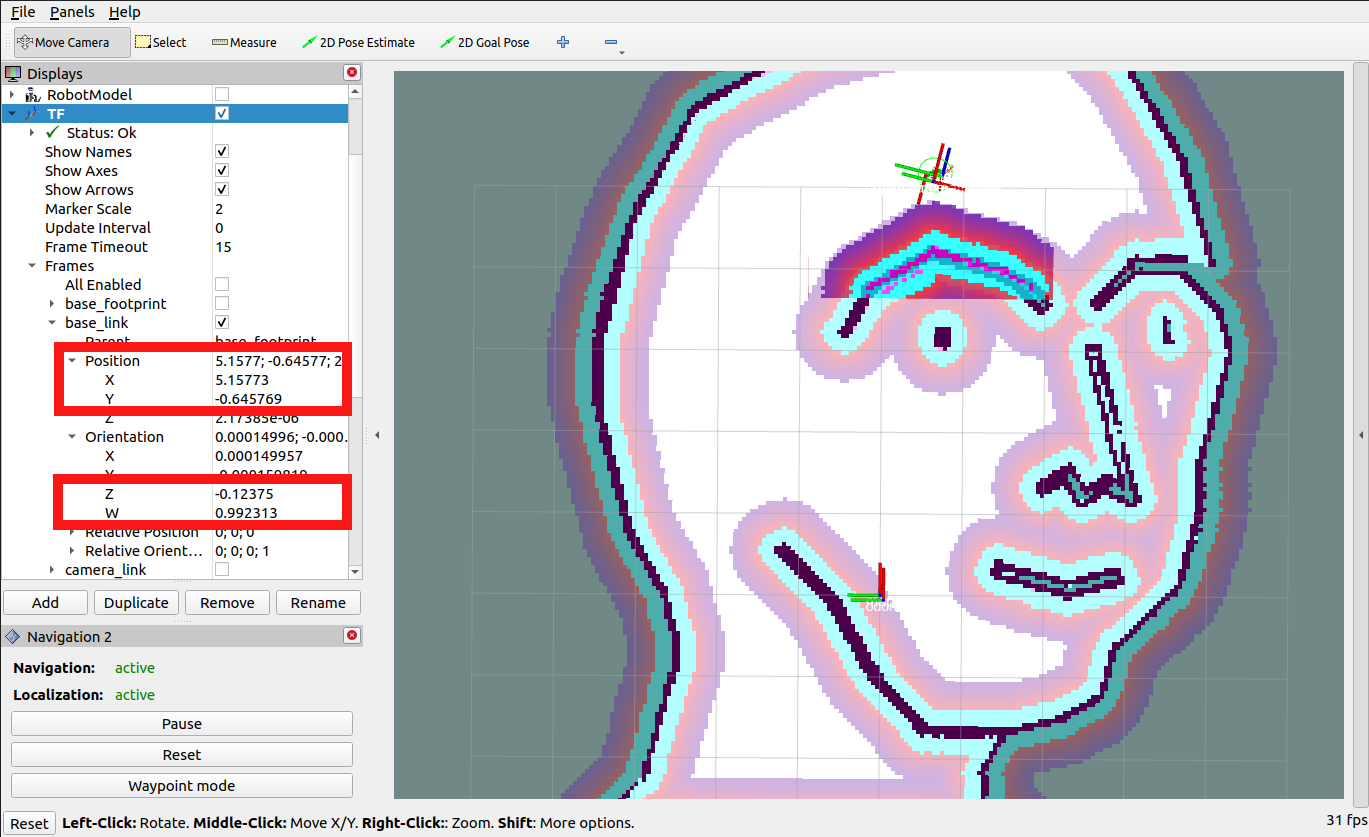 Open xml file in bt_xml and modify robot checkpoint with " X ; Y ; Z ; W " format in SetBlackboard. 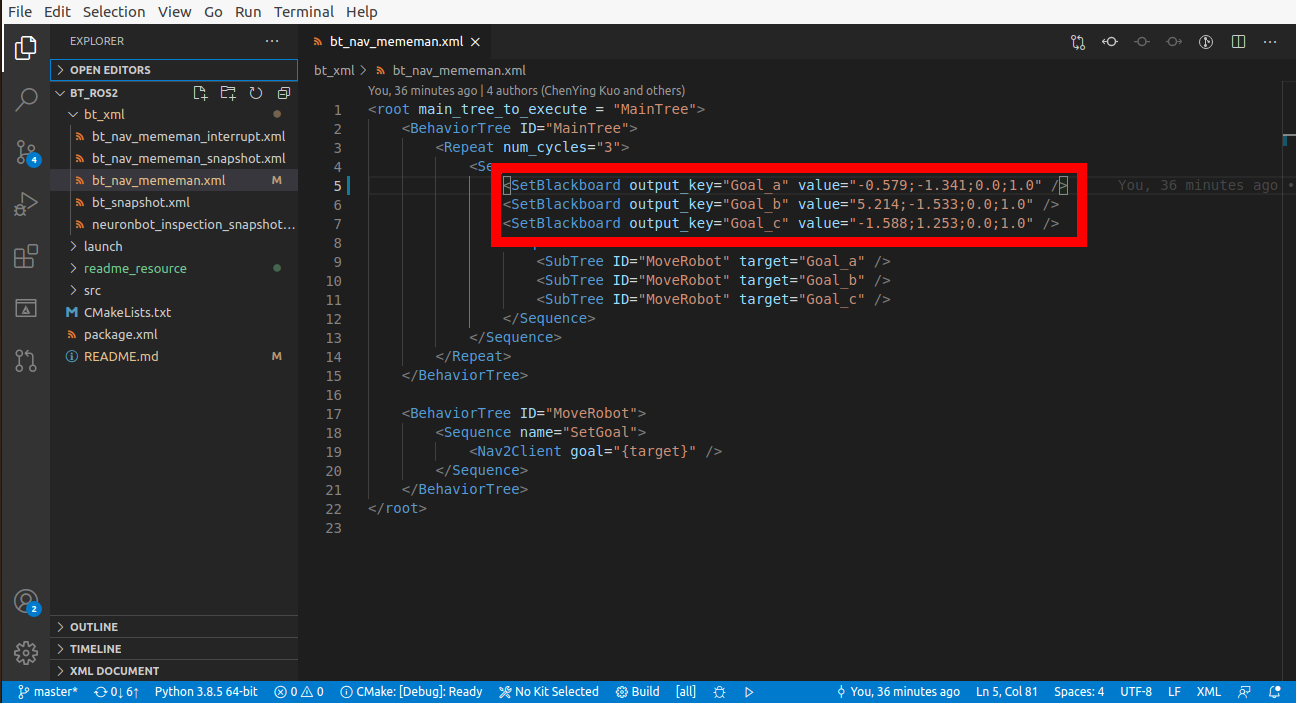 If you only have Euler Angle and want to transfer to Quaternion, please refer to online tools, such as https://quaternions.online/
