KO
|
EN
gitlite — search
Search
#javascript
#python
#ai
#typescript
#chatbot
#tailwindcss
#nextjs
#golang
#gpt
#mysql
#grafana
#nodeexporter
cubic
★ 22
Open GitHub ↗
Godot 4 Rubik Cube Simulator
Download README (.md)
Explore Similar Repositories
rubiks
:
3D-Rubik's cube simulator written in Haskell using Gloss
CubeSimRS
:
Rust based Rubik's Cube simulation and solving library.
rubiks
:
A interactive and web-based 3D Rubik's cube simulator
RubiksCube-Simulation
:
Rubik's Cube Simulation with VPython
cubedesu
:
Rubik's Cube simulator in Rust.
// repository documentation
Was this content helpful?
★ 0
(0 ratings)
Select Rating:
★
★
★
★
★
Submit Feedback
Recent Feedback
×
Download README
Do you want to download the
README.md
file for
cubic
?
Download (.md)
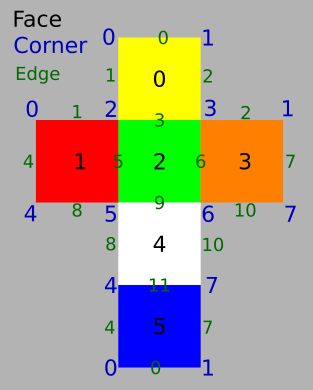
# Cubic Godot 4 Rubik Cube Simulator 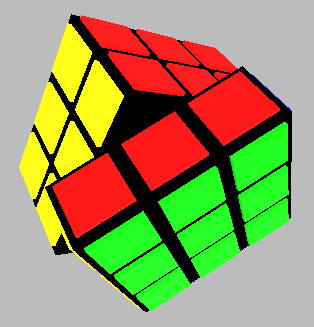 Downloads: [Cubic - Rubik Cube Simulator on Itch.io](https://andrew-wilkes.itch.io/cubic) 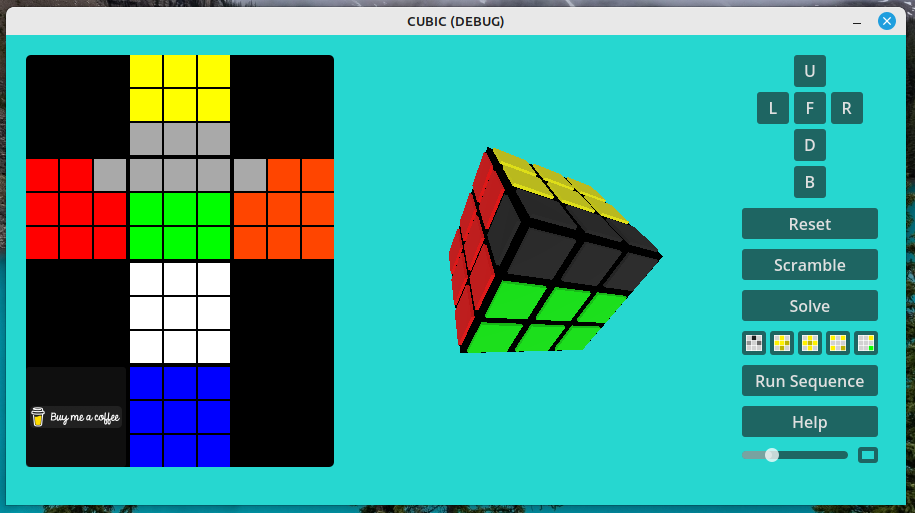 ## Camera Control Move around the cube by holding the left mouse button and moving the mouse. The camera is rotated around its x-axis followed by its y-axis. Hold down the CTRL key and left mouse button to zoom when moving the mouse. ## UI Control Panel 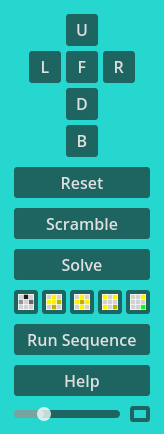 The various faces of the cube are related as per the forward view on the screen. So the side to the left is the left side of the cube whatever the rotation of the camera view. So the L button rotates the left side of the cube. Left-click a button to rotate the related face of the cube by 90 degrees in the clockwise direction. Shift-left-click to rotate the face in the counter-clockwise direction. Or right-click the button. Ctrl-click on a face button to make the camera look at that face. The *Reset* button restores the faces of the cube to the *solved* positions. The *Scramble* button causes the cube faces to be rotated randomly to scramble the puzzle. The *Solve* button initiates a solving animation that may be stepped through, played, paused or stopped to learn how to solve a cube puzzle. Various buttons are provided to play the moves associated with the *beginner* solving method by layers. The *Run Sequence* button opens a panel that lists some sequences of moves that may be played. The slider adjusts the playback speed of animations, and next to that is a button to open a background color selector panel. ## Color Map This will be used to edit and track the state of the faces of the cube. For example: to copy the state of a physical Rubik Cube in order to run the solver on it. Or to copy the image for reference. 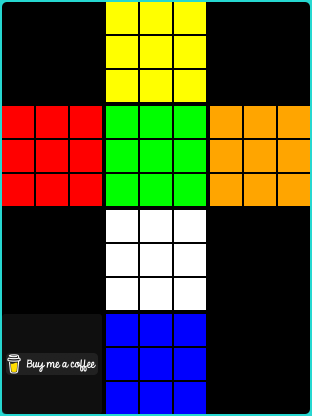 Click on a cell (it is shaded darker), then click on another cell to try to move the first cell to the new position. If the move is valid, other cells will also be updated to reflect the changed positions of the puzzle pieces. Note that it's possible to set up impossible cube configurations in a similar manner to manually repositioning a corner in place. To toggle greying out a piece, shift-click on a face tile. ## Coordinate System This is used to assign index values to the various faces, edges, and corners for use when programming the code.