KO
|
EN
gitlite — search
Search
#javascript
#python
#hacktoberfest
#react
#ai
#typescript
#llm
#go
#golang
#android
#machine-learning
#rust
#deep-learning
#linux
ros2_color_detection
★ 9
Open GitHub ↗
ros2_color_detection
Download README (.md)
Explore Similar Repositories
TalkingFace_Spatio-Temporal
:
Talking Face Generation; Time–Spatial Consistency
wind-flower-animation-css
:
Wind Flower Animation in CSS | Crimson
Dream-Date
:
No description available.
qtearth
:
Qt simplistic virtual globe with great capabilities.
full-template
:
A more complete example component with scripting, events, SDK calls, and multiple files.
// repository documentation
Was this content helpful?
★ 0
(0 ratings)
Select Rating:
★
★
★
★
★
Submit Feedback
Recent Feedback
×
Download README
Do you want to download the
README.md
file for
ros2_color_detection
?
Download (.md)
# ros2_color_detection ros2 color detection application for a robot using ROS2, OpenCV and webcam. # Prerequisites * [Ubuntu 22.04 Focal Fossa](https://releases.ubuntu.com/22.04/) * [ROS 2 humble hawksbill ](https://docs.ros.org/en/humble/Installation/Ubuntu-Install-Debians.html) # Installation This package depends on usb_cam package. Install usb-cam package ``` sudo apt-get install ros-$ROS_DISTRO-usb-cam ``` # To build the code To build this package, you either need a ROS 2 workspace or create a new one. Here is the instructions to create a new ROS 2 workspace, build the package. ``` mkdir -p ~/ros2_ws/src cd ~/ros2_ws/src git clone https://github.com/aleenalentin/ros2_color_detection.git cd ~/ros2_ws rosdep install -i --from-path src --rosdistro humble -y colcon build --packages-select ros2_color_detection . install/setup.bash ``` # To run the code Open 2 new terminals. Execute following commands in the corresponding terminal Terminal 1: ``` cd ~/ros2_ws . install/setup.bash ros2 run ros2_color_detection color_detection ``` Terminal 2: ``` ros2 launch usb_cam demo_launch.py ``` **Note**: You can load different color threshold using *rqt->Plugins->Configuration->Dynamic Reconfigure* plugin. Click on *image_converter* and you can see the parameters of this node. Open the YAML files from the config folder as shown in the following video. You can adjust and save the threshold by using the same plugin. # Demo Click on the following image to see the demo video [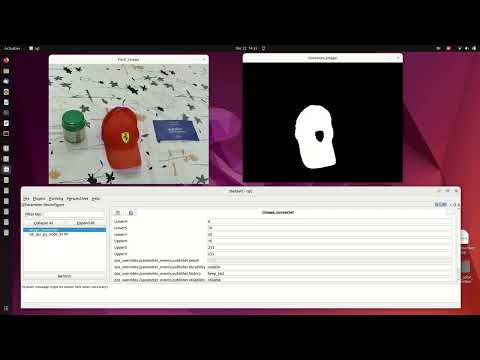](https://youtu.be/ref2wBkOIQE)
